


Overview
This is a simple Indoor Environment Monitoring Project with ESP32 & LCD screens. We will utilize the Indoor Environment Expansion board made using DHT11 Humidity & Temperature Sensor and SPG30 Air Quality Sensor. The expansion board is used for measuring CO2, TVOC, Temperature and Humidity. Earlier we used BME680 Sensor the Indoor Air Quality.
The LCD Screen used here is having an ILI9488 driver with a screen size of 3.5″ & a screen resolution of 320×480. It is basically a TFT touch screen but we will not be using the touch function but rather use it as a colorful display.
As a first project, we will display the Temperature, Humidity & CO2 value in a beautiful gauge. The three gauges will show the increase or decrease in circular widgets pattern. Similarly, as a second project, we will display the CO2 & TVOC value in a graphical format. The graphs will rise and fall on the basis of an increase or decrease in CO2 & TVOC value. The ESP32 & TFT LCD Display can be used in Indoor Environment Monitoring.
Bill of Materials
Following is the list of components that you need for making this project. You can purchase all these components online.
| S.N. | Components | Description | Quantity | Purchase Links |
|---|---|---|---|---|
| 1 | ESP32+TFT Touch Display | ESP32 3.5" TFT Touch(Capacitive) with Camera | 1 | Makerfabs Link |
| 2 | Indoor Environment Expansion board | SPG30 + DHT11 Sensor + Buzzer | 1 | Makerfabs Link |
| 3 | USB Cable | Type-C USB Cable for Programming | 1 | Amazon | AliExpress |
| 3 | Connecting Wires | Male to Female Jumper Wires | 3 | Amazon | AliExpress |
ESP32 3.5″ TFT Touch(Capacitive) with Camera
This is a beautiful 3.5” touchscreen display, based on ESP32-WROVER chip, with a built-in 2M pixel OV2640 camera. The combination of all these gives a perfect platform for multiple ESP32 Applications & Projects.

The TFT LCD driver is basically ILI9488 & has a dimension of 3.5″ with 320×480 screen resolution. The ILI9488 LCD uses SPI for communication with the ESP32 chip. The SPI main clock could be up to 60M~80M, make the display smooth enough for videos.
While the camera is not used, you can freely use all these pins with the breakout connectors. You can then connect the ESP32 display with sensors or modules & use it for any IoT applications. The ESP32 chip support Arduino or MicroPython programming
The board is having a micro SD-Card slot for attaching an external SD-Card. The SD Card can be used for storing files and images. There is a type C USB Port, basically a USB to UART converter for ESP32 programming. You can connect a Type-C data cable to the board & directly upload the code to the Board.

Specification
1. 3.5 inch display, 320×480
2. Capacitive/Resistive Touch
3. ESP32-WROVER Controller
4. WIFI/ BLE Connection.
5. Onboard USB2UART convertor for ESP32 programming
6. 2M pixel OV2640 Camera
7. OV2640 supports output images up to 2 million pixels
8. LCD 3.5-inch Amorphous-TFT-LCD for mobile-phone or handy electrical equipment
9. LCD Driver: ILI9488
10. LCD Resolution: 320*480
11. Micro SD card slot on the board
12. NS2009: A 4-wire resistive touch screen control circuit
13. FT6236: single-chip capacitive touch panel controller Integrated Circuit
14. Power supply: 5V, Type-C USB
Check some of our previous projects using this TFT Touch Screen Display:
1. ESP32 TFT Touch Display Video Games
2. ESP32 TFT Touch & Camera Projects
3. Ultrasonic Range Finder
4.Wind Speed Display
5. Temperature Humidity Monitoring
ESP32 Touch Indoor Environment Expansion
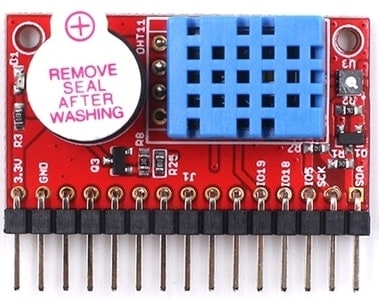
This is an Indoor environment expansion board for the ESP32 3.5 Touch Screen. The ESP32 3.5 TFT touch can also be used as a hardware expansion, with the expansion connector.

The Indoor environment expansion integrates the temperature & humidity sensor DHT11 and SGP30 Air Quality Sensor, to detect the CO2 and TVOC, so you can create an indoor environment detector easily. There is also an onboard buzzer that can be used for the alarm.
Installing Necessary Libraries to Arduino IDE
1. TFT_eSPI Library
This is a TFT graphics library for Arduino processors with performance optimization for STM32, ESP8266 & ESP32. The library is targeted at 32-bit processors. It supports “Four wire” SPI and 8 bit parallel interfaces. The library supports some TFT displays with drivers for ILI9163, ILI9225, ILI9341, ILI9488, ST7735 etc.
You can download the library from the Github directory. But the library requires some modification for our project. So here is an edited version of the library. You can download and add it to the library folder.
Download: TFT_eSPI Library
2. DHT11 Library
To read the temperature and humidity we need any temperature humidity sensor. For that DHT11 is the best and cheap sensor. We need to install DHT11 Library for that. Download the library from below and add to the Arduino IDE.
Download: DHT11 Library
3. Adafruit SPG30 Library
To read the environmental CO2 & TVOC Data, we need SPG30 Sensor. The Adafruit SGP30 Gas/Air Quality I2C sensor library measure equivalent carbondioxide as well as Total Volatile Organic Compound.
Download: Adafruit SPG30 Library
Indoor Environment Monitoring on Gauge
Let us use the ESP32 & LCD Screen for Indoor Environment Monitoring. The LCD Screen will display the value of temperature, humidity, and CO2 level in Gauge format.
The below code uses two files one as a .ino file and the other as a .h file.
Main Code
Copy the following code and paste it on your Arduino IDE and save it as .ino format.
|
1 2 3 4 5 6 7 8 9 10 11 12 13 14 15 16 17 18 19 20 21 22 23 24 25 26 27 28 29 30 31 32 33 34 35 36 37 38 39 40 41 42 43 44 45 46 47 48 49 50 51 52 53 54 55 56 57 58 59 60 61 62 63 64 65 66 67 68 69 70 71 72 73 74 75 76 77 78 79 80 81 82 83 84 85 86 87 88 89 90 91 92 93 94 95 96 97 98 99 100 101 102 103 104 105 106 107 108 109 110 111 112 113 114 115 116 117 118 119 120 121 122 123 124 125 126 127 128 129 130 131 132 133 134 135 136 137 138 139 140 141 142 143 144 145 146 147 148 149 150 151 152 153 154 155 156 157 158 159 160 161 162 163 164 165 166 167 168 169 170 171 172 173 174 175 176 177 178 179 180 181 182 183 184 185 186 187 188 189 190 191 192 193 194 195 196 197 198 199 200 201 202 203 204 205 206 207 208 209 210 211 212 213 214 215 216 217 218 219 220 221 222 223 224 225 226 227 228 229 230 231 232 233 234 235 236 237 238 239 240 241 242 243 244 245 246 247 248 249 250 251 252 253 254 255 256 257 258 259 260 261 262 263 264 265 266 267 268 269 270 271 272 273 274 275 276 277 278 279 280 281 282 283 284 285 286 287 288 289 290 291 292 293 294 295 296 297 298 299 300 301 302 303 304 305 306 307 308 309 310 311 312 313 314 315 316 317 318 319 320 321 322 323 324 325 326 327 328 329 330 331 332 333 334 335 336 337 338 339 340 341 342 343 344 345 346 347 348 349 350 351 352 353 354 355 356 357 358 359 360 361 362 363 364 365 366 367 368 369 370 371 372 373 374 375 376 377 378 379 380 381 382 383 384 385 386 387 388 389 390 391 392 393 394 395 396 397 398 399 400 401 402 403 404 405 406 407 408 409 410 411 412 413 414 415 416 417 418 419 420 421 422 423 424 425 426 427 428 429 430 431 432 433 434 435 436 437 438 |
// Meter colour schemes #define RED2RED 0 #define GREEN2GREEN 1 #define BLUE2BLUE 2 #define BLUE2RED 3 #define GREEN2RED 4 #define RED2GREEN 5 #define TFT_GREY 0x2104 // Dark grey 16 bit colour #include "alert.h" // Out of range alert icon #include <TFT_eSPI.h> // Hardware-specific library #include <SPI.h> #include <Wire.h> #include "Adafruit_SGP30.h" #include "DHT.h" #define BUZZPIN 5 #define LDO_PWR_EN_PIN 19 //AP2112K enable pin #define BUZZER_ON digitalWrite(BUZZPIN, HIGH) #define BUZZER_OFF digitalWrite(BUZZPIN, LOW) #define LDO_1V8_ON digitalWrite(LDO_PWR_EN_PIN, HIGH) #define LDO_1V8_OFF digitalWrite(LDO_PWR_EN_PIN, LOW) #define DHTPIN 18 // Digital pin connected to the DHT sensor #define DHTTYPE DHT11 // DHT11 DHT dht(DHTPIN, DHTTYPE); Adafruit_SGP30 sgp; #define I2C_SDA 26 #define I2C_SCL 27 TFT_eSPI tft = TFT_eSPI(); // Invoke custom library with default width and height uint32_t runTime = -99999; // time for next update int d = 0; // Variable used for the sinewave test waveform boolean range_error = 0; unsigned long lastDebounceTime = 0; // the last time the output pin was toggled unsigned long debounceDelay = 1000; // the debounce time; increase if the output flickers int CO2_level = 0; int Count = 0; int counter = 0; float humidity = 0; float temperature = 0; uint32_t getAbsoluteHumidity(float temperature, float humidity) { // approximation formula from Sensirion SGP30 Driver Integration chapter 3.15 const float absoluteHumidity = 216.7f * ((humidity / 100.0f) * 6.112f * exp((17.62f * temperature) / (243.12f + temperature)) / (273.15f + temperature)); // [g/m^3] const uint32_t absoluteHumidityScaled = static_cast<uint32_t>(1000.0f * absoluteHumidity); // [mg/m^3] return absoluteHumidityScaled; } void setup(void) { Serial.begin(115200); dht.begin(); pinMode(BUZZPIN, OUTPUT); pinMode(LDO_PWR_EN_PIN, OUTPUT); BUZZER_ON; LDO_1V8_ON; delay(1000); BUZZER_OFF; Wire.begin(I2C_SDA, I2C_SCL); Serial.println("SGP30 test"); if (! sgp.begin()){ Serial.println("Sensor not found :("); while (1); } tft.begin(); tft.setRotation(3); tft.fillScreen(TFT_BLACK); tft.setTextColor(TFT_WHITE, TFT_BLACK); tft.drawString("Makerfabs", 10, 10, 2); //tft.drawString("CO2 level", 215, 305, 2); //tft.drawString("Tem", 100, 95, 2); //tft.drawString("Hum", 360, 95, 2); } void loop() { co2_level_measure(); if (millis() - runTime >= 0L) { // Execute every TBD ms runTime = millis(); // Test with a slowly changing value from a Sine function //d += 4; if (d >= 360) d = 0; // Set the the position, gap between meters, and inner radius of the meters int xpos = 0, ypos = 5, gap = 4, radius = 52; // Draw meter and get back x position of next meter // Test with Sine wave function, normally reading will be from a sensor //reading = 250 + 250 * sineWave(d+0); //xpos = gap + ringMeter(reading, 0, 500, xpos, ypos, radius, "mA", GREEN2RED); // Draw analogue meter //reading = 20 + 30 * sineWave(d+60); //xpos = gap + ringMeter(reading, -10, 50, xpos, ypos, radius, "degC", BLUE2RED); // Draw analogue meter //reading = 50 + 50 * sineWave(d + 120); //ringMeter(reading, 0, 100, xpos, ypos, radius, "%RH", BLUE2BLUE); // Draw analogue meter // Draw two more larger meters //xpos = 20, ypos = 115, gap = 24, radius = 64; //reading = 1000 + 150 * sineWave(d + 90); //xpos = gap + ringMeter(reading, 850, 1150, xpos, ypos, radius, "mb", BLUE2RED); // Draw analogue meter //reading = 15 + 15 * sineWave(d + 150); //xpos = gap + ringMeter(reading, 0, 30, xpos, ypos, radius, "Volts", GREEN2GREEN); // Draw analogue meter // Draw a large meter xpos = 40, ypos = 30, gap = 15, radius = 70; // Comment out above meters, then uncomment the next line to show large meter ringMeter(CO2_level, 0, 5000, 160, 140, 80, "ppm", GREEN2RED); // Draw analogue meter ringMeter((int)temperature, -10, 50, 40, 30, 70, "C", BLUE2RED); ringMeter((int)humidity, 0, 100, 300, 30, 70, "RH%", RED2GREEN); } } // ######################################################################### // Draw the meter on the screen, returns x coord of righthand side // ######################################################################### int ringMeter(int value, int vmin, int vmax, int x, int y, int r, const char *units, byte scheme) { // Minimum value of r is about 52 before value text intrudes on ring // drawing the text first is an option x += r; y += r; // Calculate coords of centre of ring int w = r / 3; // Width of outer ring is 1/4 of radius int angle = 150; // Half the sweep angle of meter (300 degrees) int v = map(value, vmin, vmax, -angle, angle); // Map the value to an angle v byte seg = 3; // Segments are 3 degrees wide = 100 segments for 300 degrees byte inc = 6; // Draw segments every 3 degrees, increase to 6 for segmented ring // Variable to save "value" text colour from scheme and set default int colour = TFT_BLUE; // Draw colour blocks every inc degrees for (int i = -angle + inc / 2; i < angle - inc / 2; i += inc) { // Calculate pair of coordinates for segment start float sx = cos((i - 90) * 0.0174532925); float sy = sin((i - 90) * 0.0174532925); uint16_t x0 = sx * (r - w) + x; uint16_t y0 = sy * (r - w) + y; uint16_t x1 = sx * r + x; uint16_t y1 = sy * r + y; // Calculate pair of coordinates for segment end float sx2 = cos((i + seg - 90) * 0.0174532925); float sy2 = sin((i + seg - 90) * 0.0174532925); int x2 = sx2 * (r - w) + x; int y2 = sy2 * (r - w) + y; int x3 = sx2 * r + x; int y3 = sy2 * r + y; if (i < v) { // Fill in coloured segments with 2 triangles switch (scheme) { case 0: colour = TFT_RED; break; // Fixed colour case 1: colour = TFT_GREEN; break; // Fixed colour case 2: colour = TFT_BLUE; break; // Fixed colour case 3: colour = rainbow(map(i, -angle, angle, 0, 127)); break; // Full spectrum blue to red case 4: colour = rainbow(map(i, -angle, angle, 70, 127)); break; // Green to red (high temperature etc) case 5: colour = rainbow(map(i, -angle, angle, 127, 63)); break; // Red to green (low battery etc) default: colour = TFT_BLUE; break; // Fixed colour } tft.fillTriangle(x0, y0, x1, y1, x2, y2, colour); tft.fillTriangle(x1, y1, x2, y2, x3, y3, colour); //text_colour = colour; // Save the last colour drawn } else // Fill in blank segments { tft.fillTriangle(x0, y0, x1, y1, x2, y2, TFT_GREY); tft.fillTriangle(x1, y1, x2, y2, x3, y3, TFT_GREY); } } // Convert value to a string char buf[10]; byte len = 3; if (value > 999) len = 5; dtostrf(value, len, 0, buf); buf[len] = ' '; buf[len + 1] = 0; // Add blanking space and terminator, helps to centre text too! // Set the text colour to default tft.setTextSize(1); if (value < vmin || value > vmax) { drawAlert(x, y + 90, 50, 1); } else { drawAlert(x, y + 90, 50, 0); } tft.setTextColor(TFT_WHITE, TFT_BLACK); // Uncomment next line to set the text colour to the last segment value! tft.setTextColor(colour, TFT_BLACK); tft.setTextDatum(MC_DATUM); // Print value, if the meter is large then use big font 8, othewise use 4 if (r > 84) { tft.setTextPadding(55 * 3); // Allow for 3 digits each 55 pixels wide tft.drawString(buf, x, y, 8); // Value in middle } else { tft.setTextPadding(3 * 14); // Allow for 3 digits each 14 pixels wide tft.drawString(buf, x, y, 4); // Value in middle } tft.setTextSize(1); tft.setTextPadding(0); // Print units, if the meter is large then use big font 4, othewise use 2 tft.setTextColor(TFT_WHITE, TFT_BLACK); if (r > 84) tft.drawString(units, x, y + 60, 4); // Units display else tft.drawString(units, x, y + 15, 2); // Units display // Calculate and return right hand side x coordinate return x + r; } void drawAlert(int x, int y, int side, boolean draw) { if (draw && !range_error) { drawIcon(alert, x - alertWidth / 2, y - alertHeight / 2, alertWidth, alertHeight); range_error = 1; } else if (!draw) { tft.fillRect(x - alertWidth / 2, y - alertHeight / 2, alertWidth, alertHeight, TFT_BLACK); range_error = 0; } } // ######################################################################### // Return a 16 bit rainbow colour // ######################################################################### unsigned int rainbow(byte value) { // Value is expected to be in range 0-127 // The value is converted to a spectrum colour from 0 = blue through to 127 = red byte red = 0; // Red is the top 5 bits of a 16 bit colour value byte green = 0; // Green is the middle 6 bits byte blue = 0; // Blue is the bottom 5 bits byte quadrant = value / 32; if (quadrant == 0) { blue = 31; green = 2 * (value % 32); red = 0; } if (quadrant == 1) { blue = 31 - (value % 32); green = 63; red = 0; } if (quadrant == 2) { blue = 0; green = 63; red = value % 32; } if (quadrant == 3) { blue = 0; green = 63 - 2 * (value % 32); red = 31; } return (red << 11) + (green << 5) + blue; } // ######################################################################### // Return a value in range -1 to +1 for a given phase angle in degrees // ######################################################################### float sineWave(int phase) { return sin(phase * 0.0174532925); } //==================================================================================== // This is the function to draw the icon stored as an array in program memory (FLASH) //==================================================================================== // To speed up rendering we use a 64 pixel buffer #define BUFF_SIZE 64 // Draw array "icon" of defined width and height at coordinate x,y // Maximum icon size is 255x255 pixels to avoid integer overflow void drawIcon(const unsigned short *icon, int16_t x, int16_t y, int8_t width, int8_t height) { uint16_t pix_buffer[BUFF_SIZE]; // Pixel buffer (16 bits per pixel) tft.startWrite(); // Set up a window the right size to stream pixels into tft.setAddrWindow(x, y, width, height); // Work out the number whole buffers to send uint16_t nb = ((uint16_t)height * width) / BUFF_SIZE; // Fill and send "nb" buffers to TFT for (int i = 0; i < nb; i++) { for (int j = 0; j < BUFF_SIZE; j++) { pix_buffer[j] = pgm_read_word(&icon[i * BUFF_SIZE + j]); } tft.pushColors(pix_buffer, BUFF_SIZE); } // Work out number of pixels not yet sent uint16_t np = ((uint16_t)height * width) % BUFF_SIZE; // Send any partial buffer left over if (np) { for (int i = 0; i < np; i++) pix_buffer[i] = pgm_read_word(&icon[nb * BUFF_SIZE + i]); tft.pushColors(pix_buffer, np); } tft.endWrite(); } //wind void co2_level_measure() { humidity = dht.readHumidity(); temperature = dht.readTemperature(); Serial.print("humidity="); Serial.println(humidity); Serial.print("temperature="); Serial.println(temperature); // put your main code here, to run repeatedly: // If you have a temperature / humidity sensor, you can set the absolute humidity to enable the humditiy compensation for the air quality signals //float temperature = 22.1; // [°C] //float humidity = 45.2; // [%RH] sgp.setHumidity(getAbsoluteHumidity(temperature, humidity)); if (! sgp.IAQmeasure()) { Serial.println("Measurement failed"); return; } Serial.print("TVOC "); Serial.print(sgp.TVOC); Serial.print(" ppb\t"); Serial.print("eCO2 "); Serial.print(sgp.eCO2); Serial.println(" ppm"); CO2_level= sgp.eCO2; if (! sgp.IAQmeasureRaw()) { Serial.println("Raw Measurement failed"); return; } Serial.print("Raw H2 "); Serial.print(sgp.rawH2); Serial.print(" \t"); Serial.print("Raw Ethanol "); Serial.print(sgp.rawEthanol); Serial.println(""); counter++; delay(500); if (counter == 30) { counter = 0; uint16_t TVOC_base, eCO2_base; if (! sgp.getIAQBaseline(&eCO2_base, &TVOC_base)) { Serial.println("Failed to get baseline readings"); return; } Serial.print("****Baseline values: eCO2: 0x"); Serial.print(eCO2_base, HEX); Serial.print(" & TVOC: 0x"); Serial.println(TVOC_base, HEX); } } void onChange() { } |
Alert.h
Open a new tab in Arduino IDE. Copy the following code and save it as an Alert.h file.
|
1 2 3 4 5 6 7 8 9 10 11 12 13 14 15 16 17 18 19 20 21 22 23 24 25 26 27 28 29 30 31 32 33 34 35 36 37 38 39 40 41 |
// We need this header file to use FLASH as storage with PROGMEM directive: #include <pgmspace.h> // Icon width and height const uint16_t alertWidth = 32; const uint16_t alertHeight = 32; // The icon file can be created with the "UTFT ImageConverter 565" bitmap to .c file creation utility, more can be pasted in here const unsigned short alert[1024] PROGMEM={ 0x0000,0x0000,0x0000,0x0000,0x0000,0x0000,0x0000,0x0000,0x0000,0x0000,0x0000,0x0000,0x0000,0x0000,0x0000,0x0000,0x0840,0x0000,0x0000,0x0000,0x0000,0x0000,0x0000,0x0000,0x0000,0x0000,0x0000,0x0000,0x0000,0x0000,0x0000,0x0000, // row 0, 32 pixels 0x0000,0x0000,0x0000,0x0000,0x0000,0x0000,0x0000,0x0000,0x0000,0x0000,0x0000,0x0000,0x0000,0x1080,0xAC66,0xEDE8,0xFE69,0xC4C6,0x2901,0x0000,0x0000,0x0000,0x0000,0x0000,0x0000,0x0000,0x0000,0x0000,0x0000,0x0000,0x0000,0x0000, // row 1, 64 pixels 0x0000,0x0000,0x0000,0x0000,0x0000,0x0000,0x0000,0x0000,0x0000,0x0000,0x0000,0x0000,0x0000,0xBCC6,0xFE68,0xFE68,0xFE6A,0xFE68,0xEDE8,0x18A1,0x0000,0x0000,0x0000,0x0000,0x0000,0x0000,0x0000,0x0000,0x0000,0x0000,0x0000,0x0000, // row 2, 96 pixels 0x0000,0x0000,0x0000,0x0000,0x0000,0x0000,0x0000,0x0000,0x0000,0x0000,0x0000,0x0000,0x8344,0xFE48,0xFE8C,0xFFDD,0xFFFF,0xFEF0,0xFE48,0xB466,0x0000,0x0000,0x0000,0x0000,0x0000,0x0000,0x0000,0x0000,0x0000,0x0000,0x0000,0x0000, // row 3, 128 pixels 0x0000,0x0000,0x0000,0x0000,0x0000,0x0000,0x0000,0x0000,0x0000,0x0000,0x0000,0x1880,0xEDC7,0xFE48,0xFF99,0xFFBC,0xFF9B,0xFFBD,0xFE6A,0xFE48,0x5A23,0x0000,0x0000,0x0000,0x0000,0x0000,0x0000,0x0000,0x0000,0x0000,0x0000,0x0000, // row 4, 160 pixels 0x0000,0x0000,0x0000,0x0000,0x0000,0x0000,0x0000,0x0000,0x0000,0x0000,0x0000,0x9BE5,0xFE28,0xFED0,0xFFBC,0xFF7A,0xFF9A,0xFF9B,0xFF35,0xFE28,0xBCA6,0x0000,0x0000,0x0000,0x0000,0x0000,0x0000,0x0000,0x0000,0x0000,0x0000,0x0000, // row 5, 192 pixels 0x0000,0x0000,0x0000,0x0000,0x0000,0x0000,0x0000,0x0000,0x0000,0x0000,0x3962,0xFE28,0xFE28,0xFF9A,0xFF79,0xFF9A,0xFF9B,0xFF9A,0xFFBD,0xFE6B,0xFE28,0x72E3,0x0000,0x0000,0x0000,0x0000,0x0000,0x0000,0x0000,0x0000,0x0000,0x0000, // row 6, 224 pixels 0x0000,0x0000,0x0000,0x0000,0x0000,0x0000,0x0000,0x0000,0x0000,0x0000,0xB465,0xFE28,0xFEF2,0xFF7A,0xFF79,0xFF7A,0xFF9A,0xFF7A,0xFF7A,0xFF78,0xFE28,0xDD67,0x0860,0x0000,0x0000,0x0000,0x0000,0x0000,0x0000,0x0000,0x0000,0x0000, // row 7, 256 pixels 0x0000,0x0000,0x0000,0x0000,0x0000,0x0000,0x0000,0x0000,0x0000,0x5A22,0xFE07,0xFE29,0xFF9B,0xFF37,0xFF58,0xFF79,0xFF79,0xFF79,0xFF58,0xFF9B,0xFEAE,0xFE07,0x93A4,0x0000,0x0000,0x0000,0x0000,0x0000,0x0000,0x0000,0x0000,0x0000, // row 8, 288 pixels 0x0000,0x0000,0x0000,0x0000,0x0000,0x0000,0x0000,0x0000,0x0000,0xC4A5,0xFE07,0xFF15,0xFF37,0xFF36,0xAD11,0x2965,0x2965,0xCDF4,0xFF37,0xFF37,0xFF79,0xFE07,0xFE07,0x2901,0x0000,0x0000,0x0000,0x0000,0x0000,0x0000,0x0000,0x0000, // row 9, 320 pixels 0x0000,0x0000,0x0000,0x0000,0x0000,0x0000,0x0000,0x0000,0x7B03,0xFDE7,0xFE4B,0xFF79,0xFEF4,0xFF15,0xB552,0x2945,0x2945,0xDE55,0xFF16,0xFF15,0xFF58,0xFED1,0xFDE7,0xAC25,0x0000,0x0000,0x0000,0x0000,0x0000,0x0000,0x0000,0x0000, // row 10, 352 pixels 0x0000,0x0000,0x0000,0x0000,0x0000,0x0000,0x0000,0x0840,0xDD26,0xFDE7,0xFF57,0xFED3,0xFED2,0xFEF4,0xBD93,0x2124,0x2124,0xDE75,0xFF14,0xFED3,0xFED3,0xFF7A,0xFE08,0xFDE7,0x49A2,0x0000,0x0000,0x0000,0x0000,0x0000,0x0000,0x0000, // row 11, 384 pixels 0x0000,0x0000,0x0000,0x0000,0x0000,0x0000,0x0000,0x9BA4,0xFDC6,0xFE6E,0xFF36,0xFE90,0xFEB1,0xFED3,0xC592,0x2124,0x2124,0xE675,0xFED3,0xFEB2,0xFEB1,0xFEF3,0xFEF3,0xFDC6,0xBC45,0x0000,0x0000,0x0000,0x0000,0x0000,0x0000,0x0000, // row 12, 416 pixels 0x0000,0x0000,0x0000,0x0000,0x0000,0x0000,0x3141,0xF5C6,0xF5C7,0xFF58,0xFE90,0xFE6F,0xFE8F,0xFEB1,0xCDB2,0x2104,0x2104,0xF6B4,0xFEB1,0xFE90,0xFE8F,0xFE90,0xFF58,0xFE0A,0xF5C6,0x72A3,0x0000,0x0000,0x0000,0x0000,0x0000,0x0000, // row 13, 448 pixels 0x0000,0x0000,0x0000,0x0000,0x0000,0x0000,0xABE4,0xF5A6,0xFEB1,0xFED3,0xFE4E,0xFE6E,0xFE6F,0xFE90,0xD5F2,0x18E3,0x18E3,0xFED4,0xFE90,0xFE6F,0xFE6F,0xFE6E,0xFE91,0xFF36,0xF5A6,0xCCA5,0x0000,0x0000,0x0000,0x0000,0x0000,0x0000, // row 14, 480 pixels 0x0000,0x0000,0x0000,0x0000,0x0000,0x5202,0xF5A6,0xF5C7,0xFF58,0xFE4D,0xFE4D,0xFE4D,0xFE4E,0xFE6F,0xDE11,0x18C3,0x18C3,0xFED3,0xFE6F,0xFE6E,0xFE4E,0xFE4D,0xFE4D,0xFF16,0xFE2C,0xF5A6,0x9363,0x0000,0x0000,0x0000,0x0000,0x0000, // row 15, 512 pixels 0x0000,0x0000,0x0000,0x0000,0x0000,0xBC44,0xF585,0xFED3,0xFE6F,0xFE2C,0xFE2C,0xFE2D,0xFE4D,0xFE4E,0xE630,0x10A2,0x2104,0xFED1,0xFE4E,0xFE4D,0xFE4D,0xFE2D,0xFE2C,0xFE4D,0xFF37,0xF586,0xF585,0x28E1,0x0000,0x0000,0x0000,0x0000, // row 16, 544 pixels 0x0000,0x0000,0x0000,0x0000,0x7282,0xF565,0xF5EA,0xFF16,0xFE0B,0xFE0B,0xFE0B,0xFE2C,0xFE2C,0xFE4D,0xF670,0x1082,0x2924,0xFEB0,0xFE2D,0xFE2C,0xFE2C,0xFE2C,0xFE0B,0xFE0B,0xFEB2,0xFE6F,0xF565,0xA383,0x0000,0x0000,0x0000,0x0000, // row 17, 576 pixels 0x0000,0x0000,0x0000,0x0840,0xD4C4,0xF565,0xFEF5,0xFE0C,0xFDE9,0xFDEA,0xFE0A,0xFE0B,0xFE0B,0xFE2C,0xFE8F,0x0861,0x2964,0xFE8F,0xFE2C,0xFE0B,0xFE0B,0xFE0B,0xFE0A,0xFDEA,0xFE0B,0xFF37,0xF586,0xF565,0x4181,0x0000,0x0000,0x0000, // row 18, 608 pixels 0x0000,0x0000,0x0000,0x9343,0xF545,0xF60C,0xFED3,0xFDC8,0xFDC8,0xFDC9,0xFDE9,0xFDEA,0xFDEA,0xFE0B,0xFE8E,0x0861,0x3184,0xFE6D,0xFE0B,0xFE0A,0xFDEA,0xFDEA,0xFDE9,0xFDC9,0xFDC9,0xFE4E,0xFEB2,0xF545,0xB3E3,0x0000,0x0000,0x0000, // row 19, 640 pixels 0x0000,0x0000,0x28E0,0xF544,0xF545,0xFF17,0xFDC8,0xFDA7,0xFDA7,0xFDC8,0xFDC8,0xFDC9,0xFDC9,0xFDE9,0xFE6C,0x10A2,0x39C4,0xFE4C,0xFDEA,0xFDE9,0xFDC9,0xFDC9,0xFDC8,0xFDC8,0xFDA7,0xFDA8,0xFF16,0xF588,0xF544,0x6222,0x0000,0x0000, // row 20, 672 pixels 0x0000,0x0000,0xA383,0xF524,0xF64E,0xFE4E,0xFD86,0xFD86,0xFD87,0xFDA7,0xFDA7,0xFDA8,0xFDC8,0xFDC8,0xFE2A,0xA469,0xB4EA,0xFE2A,0xFDC9,0xFDC8,0xFDC8,0xFDA8,0xFDA7,0xFDA7,0xFD87,0xFD86,0xFDEA,0xFED3,0xF524,0xC443,0x0000,0x0000, // row 21, 704 pixels 0x0000,0x51C1,0xF504,0xF546,0xFF16,0xF565,0xFD65,0xFD65,0xFD86,0xFD86,0xFD86,0xFDA7,0xFDA7,0xFDA7,0xFDE8,0xFE6A,0xFE4A,0xFDE8,0xFDA7,0xFDA7,0xFDA7,0xFDA7,0xFD86,0xFD86,0xFD86,0xFD65,0xFD65,0xFEB2,0xF5CA,0xF504,0x8AE2,0x0000, // row 22, 736 pixels 0x0000,0xB3A2,0xED03,0xFE92,0xFDC9,0xF543,0xF544,0xFD44,0xFD65,0xFD65,0xFD65,0xFD86,0xFD86,0xFD86,0xFDA7,0xFDC7,0xFDC7,0xFDA7,0xFD86,0xFD86,0xFD86,0xFD86,0xFD65,0xFD65,0xFD65,0xFD44,0xF544,0xFD86,0xFEF5,0xED03,0xE4C3,0x1880, // row 23, 768 pixels 0x7241,0xECE3,0xF567,0xFED3,0xF523,0xF523,0xF523,0xF543,0xF544,0xF544,0xFD65,0xFD65,0xFD65,0xFD65,0xD4E6,0x39C5,0x39A5,0xD4E6,0xFD86,0xFD65,0xFD65,0xFD65,0xFD65,0xF544,0xF544,0xF543,0xF523,0xF523,0xFE2E,0xF5EC,0xECE3,0x9B42, // row 24, 800 pixels 0xD443,0xECE3,0xFED4,0xF565,0xF502,0xF502,0xF522,0xF523,0xF523,0xF543,0xF544,0xF544,0xF544,0xFD65,0x8B64,0x18C3,0x18C3,0x8344,0xFD85,0xFD44,0xF544,0xF544,0xF544,0xF543,0xF523,0xF523,0xF522,0xF502,0xF523,0xFEF5,0xED04,0xECE3, // row 25, 832 pixels 0xECC3,0xF5AB,0xFE6F,0xF501,0xF4E1,0xF501,0xF502,0xF502,0xF522,0xF522,0xF523,0xF523,0xF523,0xFD84,0xC504,0x20E1,0x18E1,0xC4E4,0xFD84,0xF543,0xF523,0xF523,0xF523,0xF522,0xF522,0xF502,0xF502,0xF501,0xF501,0xFDC9,0xF62F,0xECC3, // row 26, 864 pixels 0xECC2,0xFE92,0xF523,0xF4E0,0xF4E0,0xF4E1,0xF4E1,0xF501,0xF501,0xF502,0xF502,0xF522,0xF522,0xF543,0xFDE3,0xFEA5,0xF6A4,0xFE04,0xF543,0xF522,0xF522,0xF522,0xF502,0xF502,0xF501,0xF501,0xF4E1,0xF4E1,0xF4E0,0xF4E1,0xFED4,0xECC2, // row 27, 896 pixels 0xECA2,0xF5EC,0xF4E0,0xF4C0,0xF4E0,0xF4E0,0xF4E0,0xF4E1,0xF4E1,0xF501,0xF501,0xF501,0xF502,0xF502,0xF542,0xFDA2,0xFDA2,0xF542,0xF502,0xF502,0xF502,0xF501,0xF501,0xF501,0xF4E1,0xF4E1,0xF4E0,0xF4E0,0xF4E0,0xF4C0,0xF5A9,0xECA2, // row 28, 928 pixels 0xECA2,0xECA2,0xECC2,0xF4C1,0xF4C1,0xF4C1,0xF4C1,0xF4C1,0xF4C1,0xF4C1,0xF4C1,0xF4E1,0xF4E2,0xF4E2,0xF4E2,0xF4E2,0xF4E2,0xF4E2,0xF4E2,0xF4E2,0xF4E2,0xF4E1,0xF4C1,0xF4C1,0xF4C1,0xF4C1,0xF4C1,0xF4C1,0xF4C1,0xECC2,0xECC3,0xECA2, // row 29, 960 pixels 0x8AC1,0xEC82,0xEC82,0xEC82,0xEC82,0xEC82,0xEC82,0xEC82,0xEC82,0xEC82,0xEC82,0xEC82,0xEC82,0xEC82,0xEC82,0xEC82,0xEC82,0xEC82,0xEC82,0xEC82,0xEC82,0xEC82,0xEC82,0xEC82,0xEC82,0xEC82,0xEC82,0xEC82,0xEC82,0xEC82,0xEC82,0x9B01, // row 30, 992 pixels 0x0000,0x1880,0x51A0,0x8AA1,0x8AA1,0x8AA1,0x8AA1,0x8AA1,0x8AA1,0x8AA1,0x8AA1,0x8AA1,0x8AA1,0x8AA1,0x8AA1,0x8AA1,0x8AA1,0x8AA1,0x8AA1,0x8AA1,0x8AA1,0x8AA1,0x8AA1,0x8AA1,0x8AA1,0x8AA1,0x8AA1,0x8AA1,0x8AA1,0x61E0,0x28E0,0x0000}; // row 31, 1024 pixels |
From the tool menu select the ESP32 Wrover Module and following other options.

Connect the ESP32 Board with Type-C USB Cable and then upload the code.
After uploading the code, press the reset button. You will then see three different widgets/gauges displaying the data of temperature humidity and CO2.

CO2 & TVOC Historical Data Monitoring in Graph
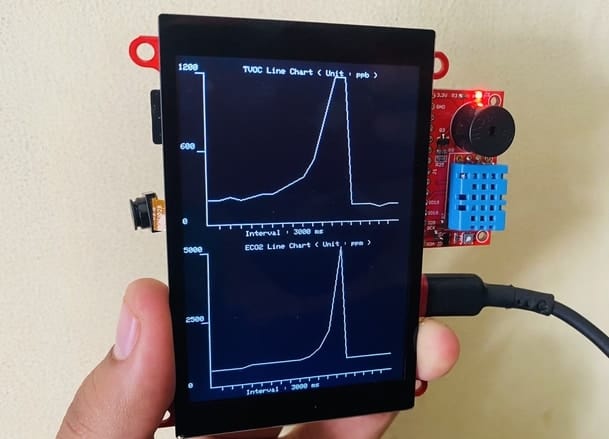
Let us again use the ESP32 & LCD Screen for CO2 & TVOC Monitoring. The LCD Screen will display the value of CO2 and TVOC level in Graphical format. So that you can monitor the historical data.
Copy the following code and upload it to the ESP32 Board.
|
1 2 3 4 5 6 7 8 9 10 11 12 13 14 15 16 17 18 19 20 21 22 23 24 25 26 27 28 29 30 31 32 33 34 35 36 37 38 39 40 41 42 43 44 45 46 47 48 49 50 51 52 53 54 55 56 57 58 59 60 61 62 63 64 65 66 67 68 69 70 71 72 73 74 75 76 77 78 79 80 81 82 83 84 85 86 87 88 89 90 91 92 93 94 95 96 97 98 99 100 101 102 103 104 105 106 107 108 109 110 111 112 113 114 115 116 117 118 119 120 121 122 123 124 125 126 127 128 129 130 131 132 133 134 135 136 137 138 139 140 141 142 143 144 145 146 147 148 149 150 151 152 153 154 155 156 157 158 159 160 161 162 163 164 165 166 167 168 169 170 171 172 173 174 175 176 177 178 179 180 181 182 183 184 185 186 187 188 189 190 191 192 193 194 195 196 197 198 199 200 201 202 203 204 205 206 207 208 209 210 211 212 213 214 215 216 217 218 219 220 221 222 223 224 225 226 227 228 229 230 231 232 233 234 235 236 237 238 239 240 241 242 243 244 245 246 247 248 249 250 251 252 253 254 255 |
#include "SPI.h" #include "TFT_eSPI.h" #include <Wire.h> #include "Adafruit_SGP30.h" #include "DHT.h" #define BUZZER_ON digitalWrite(BUZZPIN, HIGH) #define BUZZER_OFF digitalWrite(BUZZPIN, LOW) #define LDO_1V8_ON digitalWrite(LDO_PWR_EN_PIN, HIGH) #define LDO_1V8_OFF digitalWrite(LDO_PWR_EN_PIN, LOW) #define DHTPIN 18 // Digital pin connected to the DHT sensor #define DHTTYPE DHT11 // DHT11 #define BUZZPIN 5 #define LDO_PWR_EN_PIN 19 //AP2112K enable pin #define I2C_SDA 26 #define I2C_SCL 27 TFT_eSPI tft = TFT_eSPI(); DHT dht(DHTPIN, DHTTYPE); Adafruit_SGP30 sgp; int list_1[50] = {0}; int list_1_length = 20; int list_2[50] = {0}; int list_2_length = 20; int interval = 3000; void setup() { Serial.begin(115200); Serial.println("Enviroment Test!"); dht.begin(); pinMode(BUZZPIN, OUTPUT); pinMode(LDO_PWR_EN_PIN, OUTPUT); BUZZER_ON; LDO_1V8_ON; delay(1000); BUZZER_OFF; Wire.begin(I2C_SDA, I2C_SCL); Serial.println("SGP30 test"); if (!sgp.begin()) { Serial.println("Sensor not found :("); while (1) ; } //Draw frame tft.init(); tft.fillScreen(TFT_BLACK); tft.setTextColor(TFT_WHITE); tft.setTextSize(2); tft.setCursor(10, 40); tft.println("Makerfabs line chart"); delay(1000); tft.fillScreen(TFT_BLACK); draw_line_chart_window("TVOC Line Chart ( Unit : ppb ) ", (String) "Interval : " + interval + " ms", list_1_length, 0, 1200, TFT_WHITE); draw_line_chart_window2("ECO2 Line Chart ( Unit : ppm ) ", (String) "Interval : " + interval + " ms", list_2_length, 0, 5000, TFT_WHITE); } void loop() { draw_line_chart(list_1, list_1_length, 0, 1200, TFT_WHITE); draw_line_chart2(list_2, list_2_length, 0, 5000, TFT_WHITE); delay(interval); int tvoc = 0; int eco2 = 0; weather_read(&tvoc, &eco2); draw_line_chart(list_1, list_1_length, 0, 1200, TFT_BLACK); draw_line_chart2(list_2, list_2_length, 0, 5000, TFT_BLACK); add_list(list_1, list_1_length, tvoc); add_list(list_2, list_2_length, eco2); } // Add a num to the beginning of the list. void add_list(int *list, int length, int num) { for (int i = length - 2; i >= 0; i--) { *(list + i + 1) = *(list + i); } *list = num; } void draw_line_chart_window(String text1, String text2, int length, int low, int high, int color) { //draw rect and unit //tft.drawRect(20, 20, 280, 200, color); tft.drawLine(30, 20, 30, 220, color); tft.drawLine(30, 220, 300, 220, color); tft.drawLine(20, 20, 30, 20, color); tft.drawLine(20, 120, 30, 120, color); tft.setTextColor(color); tft.setTextSize(1); tft.setCursor(0, 10); tft.println(high); tft.setCursor(80, 10); tft.println(text1); tft.setCursor(0, 110); tft.println((high + low) / 2); tft.setCursor(0, 210); tft.println(low); tft.setCursor(80, 230); tft.println(text2); int x_start = 32; int x_unit = 280 / (length - 1); for (int i = 0; i < length; i++) { int x = x_start + x_unit * i; if (i != 0 && i != length - 1) tft.drawLine(x, 220, x, 225, color); } } void draw_line_chart(int *list, int length, int low, int high, int color) { //list to position int pos[50][2] = {0}; int detail = 50; int x_start = 32; int y_start = 218; int x_unit = 280 / (length - 1); int y_unit = -200 / (detail - 1); for (int i = 0; i < length; i++) { pos[i][0] = x_start + i * x_unit; int y = map(*(list + i), low, high, 0, detail); if (y > detail) y = detail; pos[i][1] = y_start + y_unit * y; } //draw line chart for (int i = 0; i < length - 1; i++) { tft.drawLine(pos[i][0], pos[i][1], pos[i + 1][0], pos[i + 1][1], color); } } uint32_t getAbsoluteHumidity(float temperature, float humidity) { // approximation formula from Sensirion SGP30 Driver Integration chapter 3.15 const float absoluteHumidity = 216.7f * ((humidity / 100.0f) * 6.112f * exp((17.62f * temperature) / (243.12f + temperature)) / (273.15f + temperature)); // [g/m^3] const uint32_t absoluteHumidityScaled = static_cast<uint32_t>(1000.0f * absoluteHumidity); // [mg/m^3] return absoluteHumidityScaled; } void weather_read(int *tvoc, int *eco2) { float humidity = dht.readHumidity(); float temperature = dht.readTemperature(); Serial.print("humidity="); Serial.println(humidity); Serial.print("temperature="); Serial.println(temperature); sgp.setHumidity(getAbsoluteHumidity(temperature, humidity)); if (!sgp.IAQmeasure()) { Serial.println("Measurement failed"); return; } Serial.print("TVOC "); Serial.print(*tvoc = sgp.TVOC); Serial.print(" ppb\t"); Serial.print("eCO2 "); Serial.print(*eco2 = sgp.eCO2); Serial.println(" ppm"); } void draw_line_chart_window2(String text1, String text2, int length, int low, int high, int color) { //draw rect and unit //tft.drawRect(20, 20, 280, 200, color); tft.drawLine(30, 260, 30, 460, color); tft.drawLine(30, 460, 300, 460, color); tft.drawLine(20, 260, 30, 260, color); tft.drawLine(20, 360, 30, 360, color); tft.setTextColor(color); tft.setTextSize(1); tft.setCursor(0, 250); tft.println(high); tft.setCursor(80, 250); tft.println(text1); tft.setCursor(0, 350); tft.println((high + low) / 2); tft.setCursor(0, 450); tft.println(low); tft.setCursor(80, 470); tft.println(text2); int x_start = 32; int x_unit = 280 / (length - 1); for (int i = 0; i < length; i++) { int x = x_start + x_unit * i; if (i != 0 && i != length - 1) tft.drawLine(x, 460, x, 465, color); } } void draw_line_chart2(int *list, int length, int low, int high, int color) { //list to position int pos[50][2] = {0}; int detail = 50; int x_start = 32; int y_start = 458; int x_unit = 280 / (length - 1); int y_unit = -200 / (detail - 1); for (int i = 0; i < length; i++) { pos[i][0] = x_start + i * x_unit; int y = map(*(list + i), low, high, 0, detail); if (y > detail) y = detail; pos[i][1] = y_start + y_unit * y; } //draw line chart for (int i = 0; i < length - 1; i++) { tft.drawLine(pos[i][0], pos[i][1], pos[i + 1][0], pos[i + 1][1], color); } } |
Upload the code again. After uploading the code, press the reset button. You will then see graphical display data of CO2 & TVOC.
Video Tutorial & Demo







3 Comments
Is there a way to add soil monitoring sensors to this? NPK, EC, and moisture. If so what are the extra parts one would need?
There will be a video coming on this, couple of month later.
Awesome, I will keep an eye out for it. Thank you.