

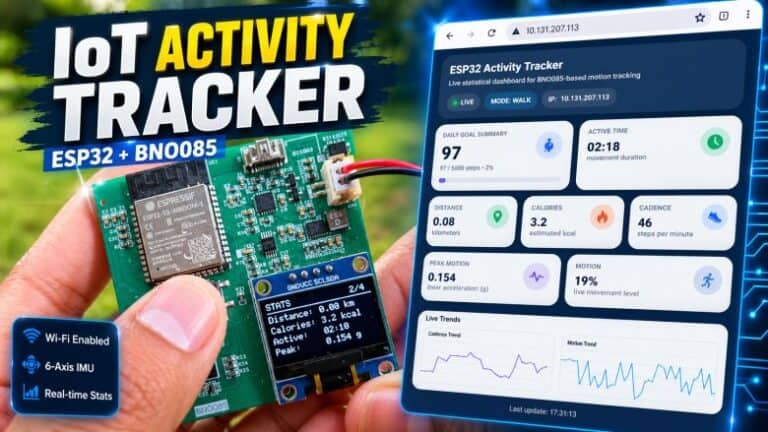
Overview
In this project, we develop an ESP32-based Activity Tracker that monitors human movement in real time using the BNO080 motion sensor. The BNO080 combines an accelerometer, gyroscope, and magnetometer with onboard sensor fusion, allowing the system to measure motion, orientation, and activity more accurately.
The ESP32 processes the sensor data to track important fitness parameters such as step count, cadence, motion level, active time, distance, calories, and roll-pitch-yaw orientation. These values are shown on an OLED display for quick local monitoring. In addition, the system includes a Wi-Fi-enabled web dashboard, allowing users to view live activity statistics from a smartphone or computer.
The ESP32 IoT Activity Tracker can be used for an interactive IoT activity monitoring system. This could be suitable for fitness tracking, motion analysis, and portable health-related applications.
Block Diagram of ESP32 IoT Activity Tracker
The block diagram of the ESP32 IoT Activity Tracker shows how the main components interact to human activity motion.
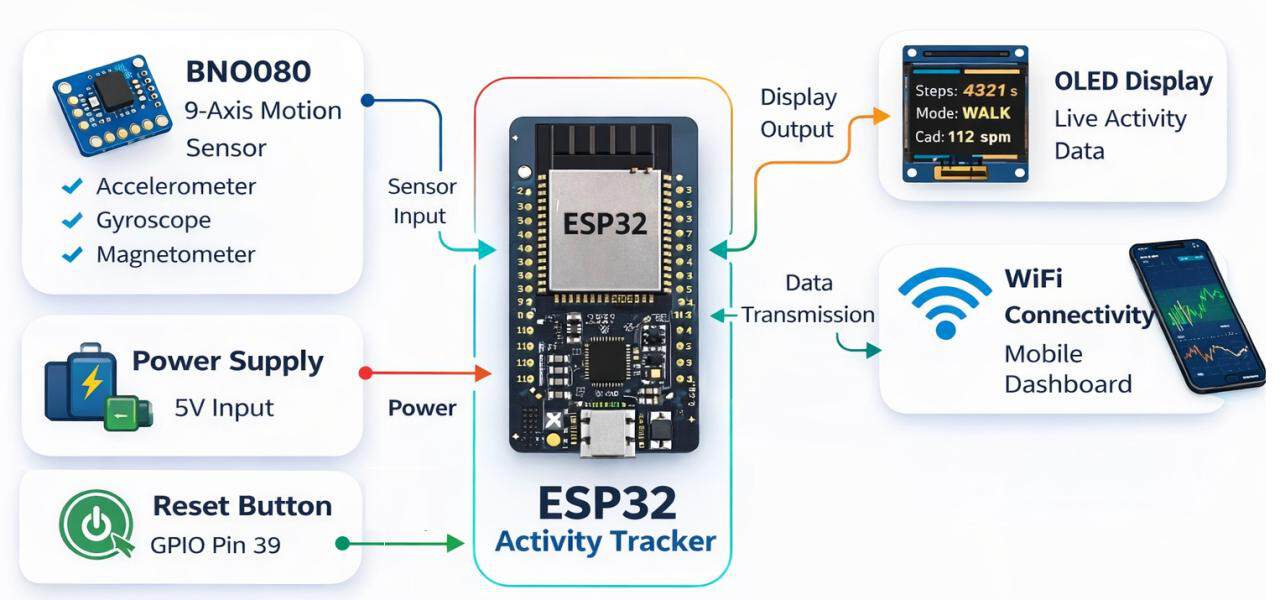
At the center is the ESP32 microcontroller, which acts as the main processing unit. It receives motion and orientation data from the BNO080 motion sensor, which integrates an accelerometer, gyroscope, and magnetometer in a single module. The sensor communicates with the ESP32 through the I²C interface, allowing the controller to collect and process real-time activity information.
The processed data is displayed on an OLED screen for local real-time viewing. A reset button allows the user to control device functions such as page changes and resetting tracker statistics. The ESP32 also uses its built-in Wi-Fi connectivity to transmit the activity data to a mobile web dashboard, enabling live remote monitoring through a smartphone or computer.
A 5V or a Battery power supply powers all components.
Circuit Diagram & Schematic Details
Let’s take a look at the circuit diagram of this project. The circuit consists of multiple sections, including the power supply, switches, battery charger, buck converters, sensors, ESP32 microcontroller, and OLED display, along with many other active and passive components required for proper system operation.
Each section plays an important role in powering the device, processing sensor data, and displaying and transmitting the activity information. Let us learn about them in detail. You can download the complete schematic file from here:
BQ24092 Battery Charger
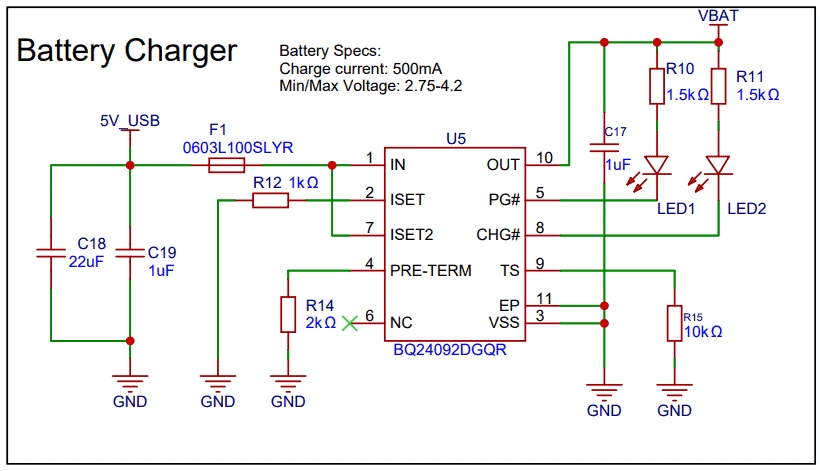
This section of the circuit is used for charging the battery using the BQ24092 battery charger IC. The 5V USB input provides power, which is filtered by capacitors and protected by a fuse. The charging current is set to 500 mA using a resistor connected to the ISET pin.
The IC automatically controls the charging process for the Li-ion battery. LED1 and LED2 indicate the charging status and power status. Other components like resistors and capacitors help ensure stable and proper operation of the charger circuit.
USB-to-UART (CP2104)
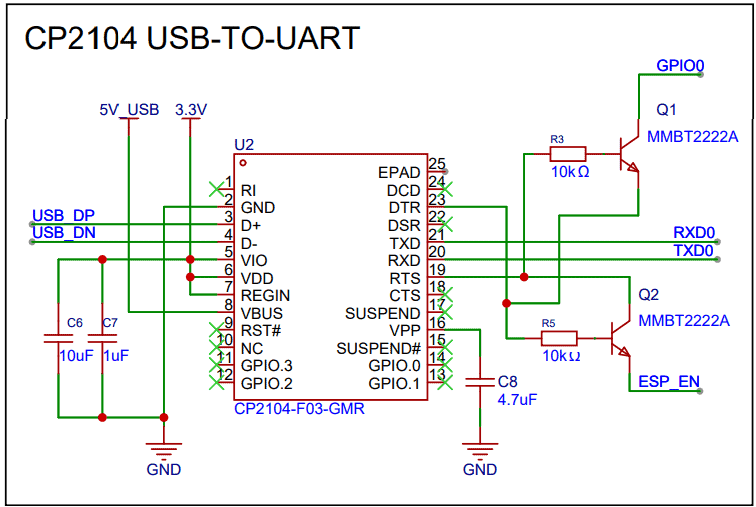
This section uses the CP2104 USB-to-UART converter to communicate between the computer and the ESP32. The USB data lines (D+ and D−) connect to the CP2104, which converts USB signals to UART signals (TXD and RXD) for programming and debugging the ESP32. Transistors Q1 and Q2 automatically control the boot and reset pins, allowing the ESP32 to enter programming mode during firmware upload.
Battery Sensing
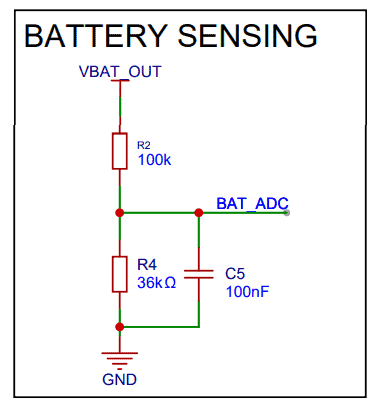
This circuit is used to measure the battery voltage using the ESP32’s ADC. Resistors R2 and R4 form a voltage divider that scales down the battery voltage to a safe level for the ESP32 ADC pin (BAT_ADC). Capacitor C5 filters noise to provide a stable voltage reading.
ESP32 MCU
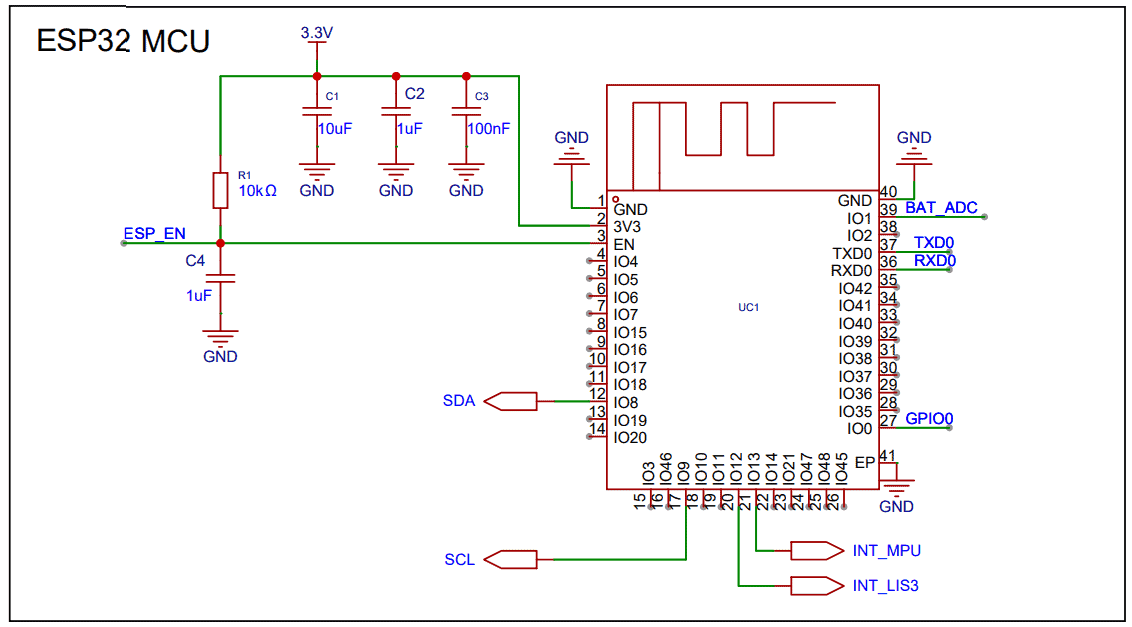
The ESP32-S3 microcontroller is the main controller of the system. It reads data from sensors, processes the vehicle motion information, and communicates with the OLED display and web dashboard. The SDA and SCL pins are used for I²C communication, while other pins handle serial communication, battery sensing, and sensor interrupts.
Buck-Boost Converter (3.3V)
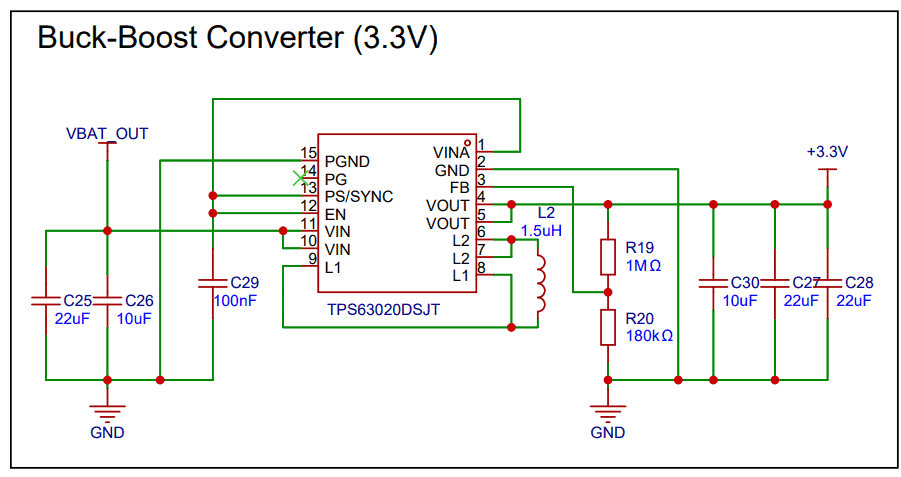
This section generates a stable 3.3V supply for the system using the TPS63020 buck-boost converter. It can step the battery voltage up or down to maintain a constant 3.3V output. Inductor L2, resistors, and capacitors help regulate and filter the power supply.
USB-C Connector
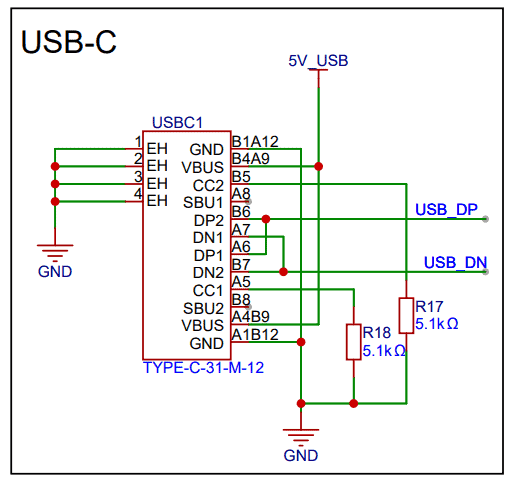
The USB-C port provides 5V power and USB data connectivity. It allows the device to be powered from USB and enables communication with the CP2104 USB-to-UART converter. Resistors are used to properly configure the USB-C interface. Using this the battery can be charged as well
Battery Section
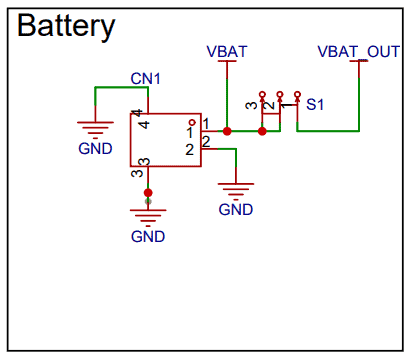
This section connects the Li-ion battery to the circuit. The battery provides the main power source for the system. A switch (S1) is used to turn the device on or off by controlling the battery output (VBAT_OUT).
BNO080 (Accelerometer + Gyroscope + Magnetometer)
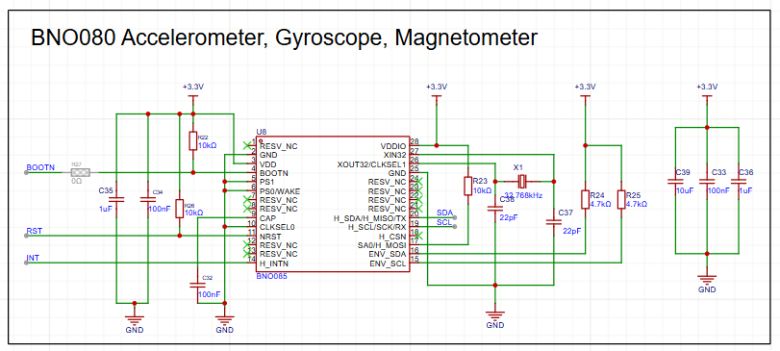
The BNO080 is a compact 9-axis motion sensor that combines an accelerometer, gyroscope, and magnetometer in a single module. It can measure movement, rotation, and direction, making it useful for activity tracking, orientation sensing, and motion analysis. In this project, the BNO080 provides the ESP32 with real-time data for steps, motion level, and roll-pitch-yaw orientation. The BNO080 is connected to the I2C pins of the ESP32.
I²C Pull-Up Resistors
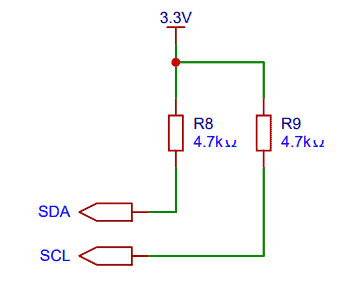
Resistors R8 and R9 (4.7kΩ) are used as pull-up resistors for the SDA and SCL lines of the I²C communication bus. These resistors ensure proper signal levels and reliable communication between the ESP32, BNO080and OLED.
OLED Display (0.96″)
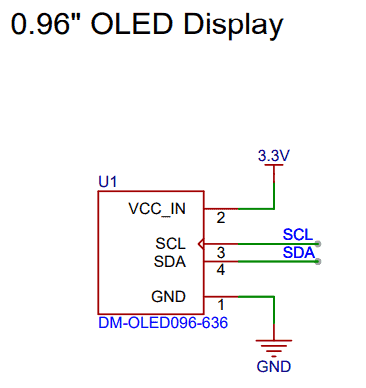
This section shows the 0.96-inch OLED display, which is used to show real-time vehicle motion data such as heading, acceleration, and turning information. The display operates on 3.3V power and communicates with the ESP32 using the I²C interface (SDA and SCL).
PCB Designing & Gerber Files
Based on the schematic shown above, a 4-layer PCB was designed for this project. The top layer contains all the components required for assembly. The first inner layer is used as a ground (GND) plane, while the second inner layer is dedicated to signal routing. Additional routing is also performed on the top and bottom layers.
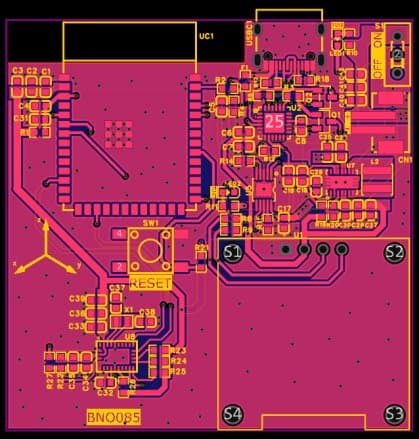
Proper ground connections are maintained between all layers to ensure a solid ground plane, which helps reduce noise and electromagnetic interference. This improves signal integrity and ensures reliable operation of the circuit.
Here is the 3D view of the PCB, showing all the components assembled on the top side of the board. This view provides a clear visualization of the component placement and overall layout of the circuit.
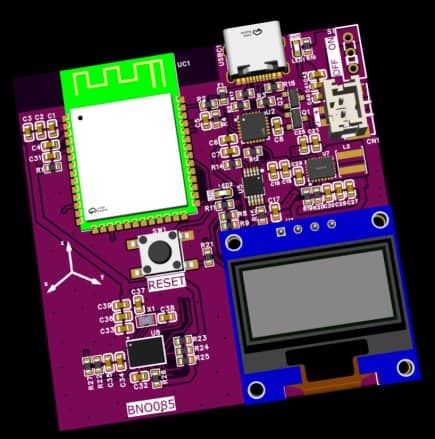
Here are the link of files that you can download for PCB manufacturing and PCB assembly services.
PCB Ordering Online & Assembly
The Gerber file for this IoT Activity Tracker with ESP32 is provided above. You can download the Gerber file and place an order with a PCB manufacturer like AIVON for as low as $1 for a PCB Prototype.

To order the PCB, visit the AIVON Official Website and upload the Gerber file using the Quote Now option. You can then choose your required parameters, such as Material Type, Dimensions, Quantity, Thickness, and Solder Mask Color.


AIVON is making PCB prototyping and assembly more affordable for new users by offering $1 PCB Prototype and $35 PCB Assembly with Shipping fee $30 OFF on your first PCB order. With this promotion, you can enjoy free shipping on your first order and affordable assembly service for your project.
Here is the promotion link: AIVON PCB/PCBA Promotion Offer
Once all the details are filled in, select your country and shipping method. After confirming everything, you can place the order and wait for your boards to arrive.
Assembly & Testing the ESP32 BNO080 Activity Tracker Board
After one week, I received the PCB box from AIVON.
The box contained the PCB as expected. The quality was super fine and I could finally use it make my ESP32 IoT Activity Tracker.
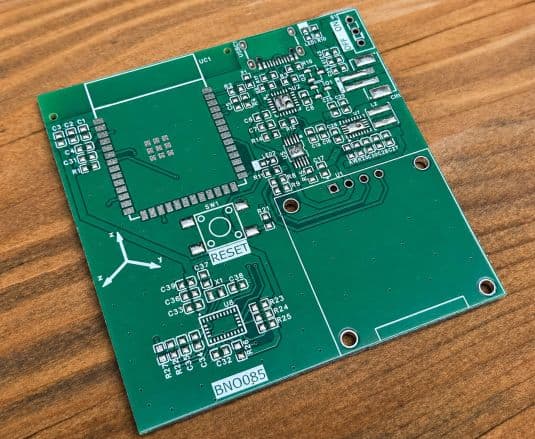
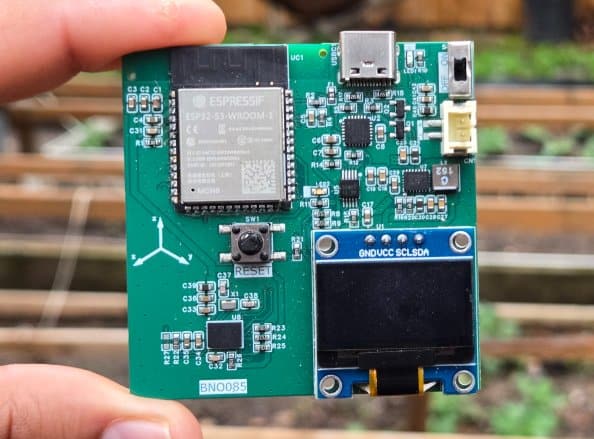
After receiving the PCB from AIVON, you can begin by soldering all the SMD components on the front side of the board.
The layout has been kept compact, and only the front side contains the ESP32 module, BNO080 chip, buck-boost converter, battery charging IC, resistors, and capacitors.
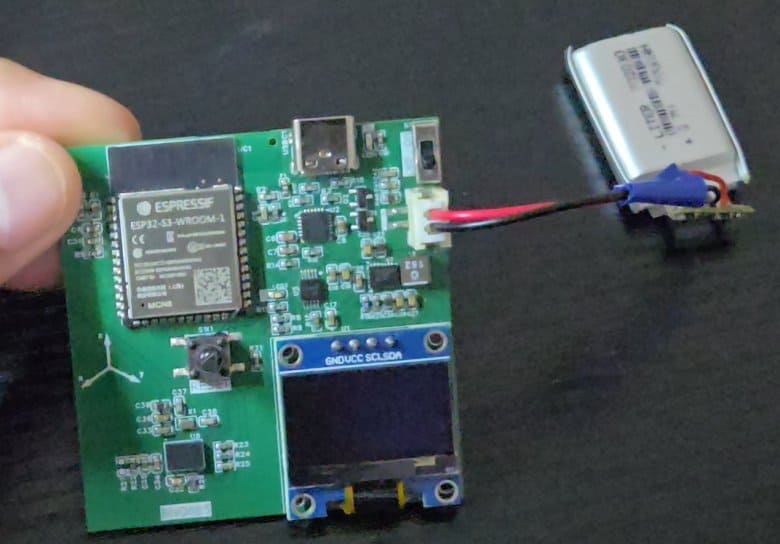
Once assembled, connect a 3.7V Lithium-Ion battery to the battery connector.
To program the ESP32 module, connect an Type-C USB Cable to the USB port. The board has a CP2104 chip for programming and establishing Serial Communication.
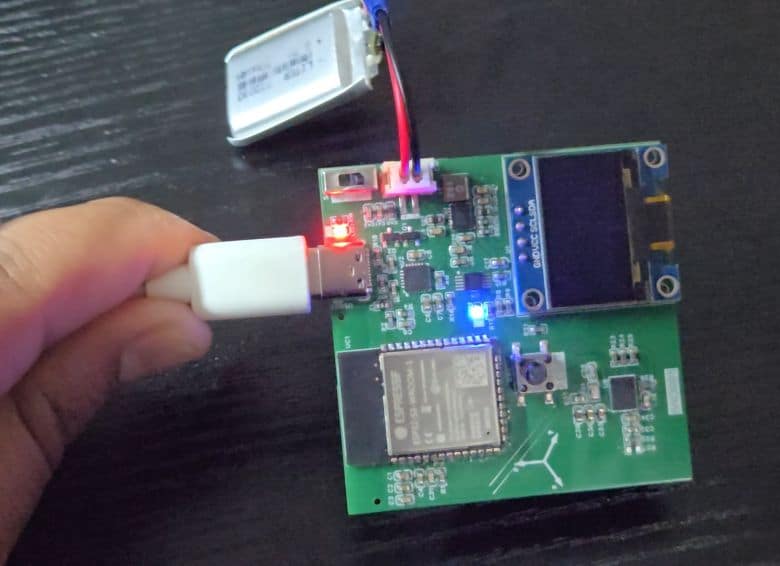
For charging, simply plug in a Type-C USB cable to the onboard USB connector. A red LED will light up to indicate USB power. You can use a multimeter and check if the battery is being charged or not, as there will be an increase in battery voltage during charging.
Source Code/Program for ESP32 Vehicle Motion Analyzer Board
Let’s develop the firmware for the IoT Activity Tracker using the BNO080 library for ESP32.
The firmware initializes the BNO080, OLED, Wi-Fi, and ESP32 web server. It reads the BNO080’s fused motion outputs, including step count, linear acceleration, gyroscope data, and roll-pitch-yaw orientation.
The ESP32 calculates key activity metrics such as cadence, motion level, active time, distance, calories, and activity mode. Based on cadence and motion intensity, the system classifies the user as still, moving, walking, or running.
The OLED shows these values on multiple pages, controlled by the push button. A short press changes pages, while a long press resets the activity statistics. The Wi-Fi web dashboard displays the same live data with charts and statistical visuals for remote monitoring.
The code requires following libraries. You can download and upload it to the Arduino Library Folder:
The code consists of two sections: one for the main.ino file and another for the webpage.h file. Both of these files need to be added to the same Arduino project folder so that the program can compile and run properly.
main.ino File
Here is the main.ino code for the ESP32 IoT Activity Tracker project. From the following lines, change the WiFi SSID and password.
|
1 2 |
const char* WIFI_SSID = "Fold 6"; const char* WIFI_PASSWORD = "12345678"; |
Copy the following code and paste it on your Arduino IDE editor Window.
|
1 2 3 4 5 6 7 8 9 10 11 12 13 14 15 16 17 18 19 20 21 22 23 24 25 26 27 28 29 30 31 32 33 34 35 36 37 38 39 40 41 42 43 44 45 46 47 48 49 50 51 52 53 54 55 56 57 58 59 60 61 62 63 64 65 66 67 68 69 70 71 72 73 74 75 76 77 78 79 80 81 82 83 84 85 86 87 88 89 90 91 92 93 94 95 96 97 98 99 100 101 102 103 104 105 106 107 108 109 110 111 112 113 114 115 116 117 118 119 120 121 122 123 124 125 126 127 128 129 130 131 132 133 134 135 136 137 138 139 140 141 142 143 144 145 146 147 148 149 150 151 152 153 154 155 156 157 158 159 160 161 162 163 164 165 166 167 168 169 170 171 172 173 174 175 176 177 178 179 180 181 182 183 184 185 186 187 188 189 190 191 192 193 194 195 196 197 198 199 200 201 202 203 204 205 206 207 208 209 210 211 212 213 214 215 216 217 218 219 220 221 222 223 224 225 226 227 228 229 230 231 232 233 234 235 236 237 238 239 240 241 242 243 244 245 246 247 248 249 250 251 252 253 254 255 256 257 258 259 260 261 262 263 264 265 266 267 268 269 270 271 272 273 274 275 276 277 278 279 280 281 282 283 284 285 286 287 288 289 290 291 292 293 294 295 296 297 298 299 300 301 302 303 304 305 306 307 308 309 310 311 312 313 314 315 316 317 318 319 320 321 322 323 324 325 326 327 328 329 330 331 332 333 334 335 336 337 338 339 340 341 342 343 344 345 346 347 348 349 350 351 352 353 354 355 356 357 358 359 360 361 362 363 364 365 366 367 368 369 370 371 372 373 374 375 376 377 378 379 380 381 382 383 384 385 386 387 388 389 390 391 392 393 394 395 396 397 398 399 400 401 402 403 404 405 406 407 408 409 410 411 412 413 414 415 416 417 418 419 420 421 422 423 424 425 426 427 428 429 430 431 432 433 434 435 436 437 438 439 440 441 442 443 444 445 446 447 448 449 450 451 452 453 454 455 456 457 458 459 460 461 462 463 464 465 466 467 468 469 470 471 472 473 474 475 476 477 478 479 480 481 482 483 484 485 486 487 488 489 490 491 492 493 494 495 496 497 498 499 500 501 502 503 504 505 506 507 508 509 510 511 512 513 514 515 516 517 518 519 520 521 522 523 524 525 526 527 528 529 530 531 532 533 534 535 536 537 538 539 540 541 542 543 544 545 546 547 548 549 550 551 552 553 554 555 556 557 558 559 560 561 562 563 564 565 566 567 568 569 570 571 572 573 574 575 576 577 578 579 580 581 582 583 584 585 586 587 588 589 590 591 592 593 594 595 596 597 598 599 600 601 602 603 604 605 606 607 608 609 610 611 612 613 614 615 616 617 618 619 620 621 622 623 624 625 626 627 628 629 630 631 632 633 634 635 636 637 638 639 640 641 642 643 644 645 646 647 648 649 650 651 652 653 654 655 656 657 658 659 660 661 662 663 664 665 666 667 668 669 670 671 672 673 674 675 676 677 678 679 680 681 682 683 684 685 686 687 688 689 690 691 692 693 694 695 696 697 698 699 700 701 702 703 704 705 706 707 708 709 710 711 712 713 714 715 716 717 718 719 720 721 722 723 724 725 726 727 728 729 730 731 732 733 734 735 736 737 738 739 740 741 742 743 744 745 746 747 748 749 750 751 752 753 754 755 756 757 758 759 760 761 762 763 764 765 766 767 768 769 770 771 772 773 774 775 776 777 778 779 780 781 782 783 784 785 786 787 788 789 790 791 792 793 794 795 796 797 798 799 800 801 802 803 804 805 806 807 808 809 810 811 812 813 814 815 816 817 818 819 820 821 822 823 824 825 826 827 828 829 830 831 832 833 834 835 836 837 838 839 840 841 842 843 844 845 846 |
#include <Wire.h> #include <WiFi.h> #include <WebServer.h> #include "SparkFun_BNO080_Arduino_Library.h" #include <Adafruit_GFX.h> #include <Adafruit_SSD1306.h> #include <math.h> #include "webpage.h" // ---------------- Wi-Fi ---------------- const char* WIFI_SSID = "--------------------"; const char* WIFI_PASSWORD = "--------------------"; // ---------------- ESP32-S3 I2C pins ---------------- #define SDA_PIN 8 #define SCL_PIN 9 // ---------------- Button ---------------- // Active LOW, external pull-up on board #define BUTTON_PIN 39 // ---------------- I2C addresses ---------------- #define BNO_ADDR 0x4B #define OLED_ADDR 0x3C // ---------------- OLED ---------------- #define SCREEN_WIDTH 128 #define SCREEN_HEIGHT 64 Adafruit_SSD1306 display(SCREEN_WIDTH, SCREEN_HEIGHT, &Wire, -1); // ---------------- IMU ---------------- BNO080 myIMU; // ---------------- Web Server ---------------- WebServer server(80); // ---------------- Sensor timing ---------------- const uint16_t rotIntervalMs = 100; const uint16_t linAccIntervalMs = 50; const uint16_t gyroIntervalMs = 50; const uint16_t stepIntervalMs = 100; const uint16_t displayIntervalMs = 120; // ---------------- Button timing ---------------- const uint32_t debounceDelayMs = 40; const uint32_t LONG_PRESS_MS = 1200; // ---------------- Goal / estimates ---------------- const uint32_t stepGoal = 5000; const float WALK_STEP_LEN_M = 0.72f; const float RUN_STEP_LEN_M = 0.90f; const float G_TO_MS2 = 9.80665f; // ---------------- Pages ---------------- uint8_t currentPage = 0; const uint8_t totalPages = 4; // ---------------- Button state ---------------- bool lastButtonReading = HIGH; bool buttonStableState = HIGH; uint32_t lastDebounceTime = 0; bool buttonPressActive = false; bool longPressHandled = false; uint32_t buttonPressStartMs = 0; // ---------------- Orientation ---------------- float rollDeg = 0.0f; float pitchDeg = 0.0f; float yawDeg = 0.0f; // ---------------- Linear acceleration ---------------- float linAx = 0.0f; float linAy = 0.0f; float linAz = 0.0f; float linMagMs2 = 0.0f; float linMagG = 0.0f; float peakLinMagG = 0.0f; // ---------------- Gyro ---------------- float gxRad = 0.0f; float gyRad = 0.0f; float gzRad = 0.0f; float gxDps = 0.0f; float gyDps = 0.0f; float gzDps = 0.0f; float gyroMagDps = 0.0f; // ---------------- Accuracy ---------------- uint8_t linAccAccuracy = 0; uint8_t gyroAccuracy = 0; uint8_t quatAccuracy = 0; // ---------------- Built-in step counter handling ---------------- bool stepCounterInitialized = false; uint16_t rawStepCounterPrev = 0; uint32_t totalSteps = 0; // ---------------- Step history ---------------- const uint8_t STEP_HISTORY_SIZE = 80; uint32_t stepTimes[STEP_HISTORY_SIZE]; uint8_t stepTimesWrite = 0; uint8_t stepTimesCount = 0; uint32_t lastVirtualStepMs = 0; uint32_t lastStepBurstMs = 0; // ---------------- Derived metrics ---------------- float cadenceWindowSpm = 0.0f; float cadenceEmaSpm = 0.0f; float cadenceSpm = 0.0f; float distanceM = 0.0f; float caloriesKcal = 0.0f; uint8_t motionLevelPct = 0; uint32_t activeTimeMs = 0; // ---------------- Activity mode ---------------- enum ActivityMode { MODE_STILL = 0, MODE_MOVE, MODE_WALK, MODE_RUN }; ActivityMode currentMode = MODE_STILL; // ---------------- Timing ---------------- uint32_t lastDisplayMs = 0; uint32_t lastSampleMs = 0; // ============================================================ // Helpers // ============================================================ float wrapAngle180(float angleDeg) { while (angleDeg > 180.0f) angleDeg -= 360.0f; while (angleDeg < -180.0f) angleDeg += 360.0f; return angleDeg; } const char* modeToText(ActivityMode mode) { switch (mode) { case MODE_RUN: return "RUN"; case MODE_WALK: return "WALK"; case MODE_MOVE: return "MOVE"; default: return "STILL"; } } void formatTimeMMSS(uint32_t ms, char *buf, size_t len) { uint32_t totalSec = ms / 1000UL; uint32_t hours = totalSec / 3600UL; uint32_t minutes = (totalSec % 3600UL) / 60UL; uint32_t seconds = totalSec % 60UL; if (hours > 0) snprintf(buf, len, "%lu:%02lu:%02lu", (unsigned long)hours, (unsigned long)minutes, (unsigned long)seconds); else snprintf(buf, len, "%02lu:%02lu", (unsigned long)minutes, (unsigned long)seconds); } void clampFloat(float &v, float lo, float hi) { if (v < lo) v = lo; if (v > hi) v = hi; } void addStepTimestamp(uint32_t t) { stepTimes[stepTimesWrite] = t; stepTimesWrite = (stepTimesWrite + 1) % STEP_HISTORY_SIZE; if (stepTimesCount < STEP_HISTORY_SIZE) stepTimesCount++; } uint8_t countRecentSteps(uint32_t windowMs) { uint8_t count = 0; uint32_t now = millis(); for (uint8_t i = 0; i < stepTimesCount; i++) { if ((now - stepTimes[i]) <= windowMs) count++; } return count; } void drawHeader(const char *title) { display.setTextSize(1); display.setTextColor(SSD1306_WHITE); display.setCursor(0, 0); display.print(title); display.setCursor(103, 0); display.print(currentPage + 1); display.print("/"); display.print(totalPages); display.drawLine(0, 10, 127, 10, SSD1306_WHITE); } void drawProgressBar(int x, int y, int w, int h, float pct) { if (pct < 0.0f) pct = 0.0f; if (pct > 100.0f) pct = 100.0f; display.drawRect(x, y, w, h, SSD1306_WHITE); int fillW = (int)((w - 2) * (pct / 100.0f)); if (fillW < 0) fillW = 0; if (fillW > (w - 2)) fillW = w - 2; display.fillRect(x + 1, y + 1, fillW, h - 2, SSD1306_WHITE); } void showMessage(const char *line1, const char *line2 = "") { display.clearDisplay(); display.setTextSize(1); display.setTextColor(SSD1306_WHITE); display.setCursor(0, 14); display.println(line1); if (line2[0] != '\0') { display.setCursor(0, 30); display.println(line2); } display.display(); } // ============================================================ // Reset stats // ============================================================ void resetTrackerStats() { stepCounterInitialized = false; rawStepCounterPrev = 0; totalSteps = 0; stepTimesWrite = 0; stepTimesCount = 0; lastVirtualStepMs = 0; lastStepBurstMs = 0; cadenceWindowSpm = 0.0f; cadenceEmaSpm = 0.0f; cadenceSpm = 0.0f; distanceM = 0.0f; caloriesKcal = 0.0f; motionLevelPct = 0; activeTimeMs = 0; peakLinMagG = 0.0f; currentMode = MODE_STILL; lastSampleMs = millis(); showMessage("Stats reset"); delay(700); } // ============================================================ // Better cadence + step handling // ============================================================ void registerVirtualStep(uint32_t t) { addStepTimestamp(t); totalSteps++; if (lastVirtualStepMs != 0) { uint32_t dt = t - lastVirtualStepMs; if (dt >= 250 && dt <= 2000) { float instCadence = 60000.0f / (float)dt; if (cadenceEmaSpm < 1.0f) cadenceEmaSpm = instCadence; else cadenceEmaSpm = 0.25f * instCadence + 0.75f * cadenceEmaSpm; } } lastVirtualStepMs = t; float stepLen = (cadenceEmaSpm >= 135.0f) ? RUN_STEP_LEN_M : WALK_STEP_LEN_M; distanceM += stepLen; } void updateBuiltInStepCounter(uint32_t now) { uint16_t rawNow = myIMU.getStepCount(); if (!stepCounterInitialized) { rawStepCounterPrev = rawNow; stepCounterInitialized = true; return; } uint16_t delta; if (rawNow >= rawStepCounterPrev) delta = rawNow - rawStepCounterPrev; else delta = (uint16_t)(65536UL + rawNow - rawStepCounterPrev); rawStepCounterPrev = rawNow; if (delta == 0) return; uint32_t spanMs = (lastStepBurstMs == 0) ? 1000UL : (now - lastStepBurstMs); if (spanMs == 0) spanMs = 1; if (spanMs > 4000UL) spanMs = 4000UL; for (uint16_t i = 0; i < delta; i++) { uint32_t t = now; if (delta > 1) t = now - spanMs + ((uint32_t)(i + 1) * spanMs) / delta; registerVirtualStep(t); } lastStepBurstMs = now; } void updateCadence(uint32_t now) { cadenceWindowSpm = countRecentSteps(15000) * 4.0f; if (lastVirtualStepMs != 0 && (now - lastVirtualStepMs) > 2200) { cadenceEmaSpm *= 0.90f; if (cadenceEmaSpm < 1.0f) cadenceEmaSpm = 0.0f; } if (cadenceEmaSpm > 0.0f) cadenceSpm = 0.65f * cadenceEmaSpm + 0.35f * cadenceWindowSpm; else cadenceSpm = cadenceWindowSpm; if (cadenceSpm < 1.0f) cadenceSpm = 0.0f; } ActivityMode evaluateMode() { switch (currentMode) { case MODE_RUN: if (cadenceSpm < 125.0f) return MODE_WALK; return MODE_RUN; case MODE_WALK: if (cadenceSpm >= 140.0f) return MODE_RUN; if (cadenceSpm < 32.0f) { if (linMagG >= 0.05f || gyroMagDps >= 18.0f) return MODE_MOVE; return MODE_STILL; } return MODE_WALK; case MODE_MOVE: case MODE_STILL: default: if (cadenceSpm >= 140.0f) return MODE_RUN; if (cadenceSpm >= 40.0f) return MODE_WALK; if (linMagG >= 0.05f || gyroMagDps >= 18.0f) return MODE_MOVE; return MODE_STILL; } } // ============================================================ // Button logic // ============================================================ void updateButton() { bool reading = digitalRead(BUTTON_PIN); if (reading != lastButtonReading) lastDebounceTime = millis(); if ((millis() - lastDebounceTime) > debounceDelayMs) { if (reading != buttonStableState) { buttonStableState = reading; if (buttonStableState == LOW) { buttonPressActive = true; longPressHandled = false; buttonPressStartMs = millis(); } else { if (buttonPressActive && !longPressHandled) { currentPage++; if (currentPage >= totalPages) currentPage = 0; } buttonPressActive = false; } } } lastButtonReading = reading; if (buttonPressActive && !longPressHandled) { if ((millis() - buttonPressStartMs) >= LONG_PRESS_MS) { longPressHandled = true; resetTrackerStats(); } } } // ============================================================ // OLED pages // ============================================================ void drawPageSummary() { float goalPct = (100.0f * (float)totalSteps) / (float)stepGoal; if (goalPct > 100.0f) goalPct = 100.0f; drawHeader("SUMMARY"); display.setTextSize(1); display.setCursor(0, 14); display.print("Steps"); display.setTextSize(2); display.setCursor(0, 22); display.print(totalSteps); display.setTextSize(1); display.setCursor(78, 14); display.print(modeToText(currentMode)); display.setCursor(78, 26); display.print((int)cadenceSpm); display.print(" spm"); display.setCursor(0, 46); display.print("Goal "); display.print((int)goalPct); display.print("%"); drawProgressBar(0, 56, 128, 8, goalPct); } void drawPageStats() { char timeBuf[16]; formatTimeMMSS(activeTimeMs, timeBuf, sizeof(timeBuf)); drawHeader("STATS"); display.setTextSize(1); display.setCursor(0, 14); display.print("Distance:"); display.setCursor(62, 14); display.print(distanceM / 1000.0f, 2); display.print(" km"); display.setCursor(0, 26); display.print("Calories:"); display.setCursor(62, 26); display.print(caloriesKcal, 1); display.print(" kcal"); display.setCursor(0, 38); display.print("Active:"); display.setCursor(62, 38); display.print(timeBuf); display.setCursor(0, 50); display.print("Peak:"); display.setCursor(62, 50); display.print(peakLinMagG, 3); display.print(" g"); } void drawPageMotion() { drawHeader("LIVE MOTION"); display.setTextSize(1); display.setCursor(0, 14); display.print("Mode:"); display.setCursor(42, 14); display.print(modeToText(currentMode)); display.setCursor(0, 26); display.print("Cad :"); display.setCursor(42, 26); display.print((int)cadenceSpm); display.print(" spm"); display.setCursor(0, 38); display.print("Move:"); display.setCursor(42, 38); display.print(motionLevelPct); display.print("%"); display.setCursor(0, 50); display.print("Gyro:"); display.setCursor(42, 50); display.print(gyroMagDps, 1); display.print(" dps"); } void drawPageOrientation() { drawHeader("ORIENT/QUAL"); display.setTextSize(1); display.setCursor(0, 14); display.print("Roll : "); display.print(rollDeg, 1); display.setCursor(0, 26); display.print("Pitch: "); display.print(pitchDeg, 1); display.setCursor(0, 38); display.print("Yaw : "); display.print(yawDeg, 1); display.setCursor(0, 50); display.print("Q/L/G: "); display.print((int)quatAccuracy); display.print("/"); display.print((int)linAccAccuracy); display.print("/"); display.print((int)gyroAccuracy); } void updateDisplay() { if ((millis() - lastDisplayMs) < displayIntervalMs) return; lastDisplayMs = millis(); display.clearDisplay(); switch (currentPage) { case 0: drawPageSummary(); break; case 1: drawPageStats(); break; case 2: drawPageMotion(); break; case 3: drawPageOrientation(); break; default: drawPageSummary(); break; } display.display(); } // ============================================================ // Sensor processing // ============================================================ void updateMetrics() { uint32_t now = millis(); if (lastSampleMs == 0) lastSampleMs = now; uint32_t dt = now - lastSampleMs; lastSampleMs = now; rollDeg = myIMU.getRoll() * 180.0f / PI; pitchDeg = myIMU.getPitch() * 180.0f / PI; yawDeg = myIMU.getYaw() * 180.0f / PI; yawDeg = wrapAngle180(yawDeg); quatAccuracy = myIMU.getQuatAccuracy(); linAx = myIMU.getLinAccelX(); linAy = myIMU.getLinAccelY(); linAz = myIMU.getLinAccelZ(); linAccAccuracy = myIMU.getLinAccelAccuracy(); linMagMs2 = sqrtf(linAx * linAx + linAy * linAy + linAz * linAz); linMagG = linMagMs2 / G_TO_MS2; if (linMagG > peakLinMagG) peakLinMagG = linMagG; gxRad = myIMU.getGyroX(); gyRad = myIMU.getGyroY(); gzRad = myIMU.getGyroZ(); gyroAccuracy = myIMU.getGyroAccuracy(); gxDps = gxRad * 180.0f / PI; gyDps = gyRad * 180.0f / PI; gzDps = gzRad * 180.0f / PI; gyroMagDps = sqrtf(gxDps * gxDps + gyDps * gyDps + gzDps * gzDps); updateBuiltInStepCounter(now); updateCadence(now); float motionPct = (linMagG / 0.80f) * 100.0f; clampFloat(motionPct, 0.0f, 100.0f); motionLevelPct = (uint8_t)motionPct; currentMode = evaluateMode(); if (currentMode != MODE_STILL) activeTimeMs += dt; caloriesKcal = totalSteps * 0.04f; } // ============================================================ // Wi-Fi + Web // ============================================================ String getIPAddressString() { if (WiFi.status() == WL_CONNECTED) return WiFi.localIP().toString(); return String("Not connected"); } void handleRoot() { server.sendHeader("Cache-Control", "no-store"); server.send_P(200, "text/html; charset=utf-8", INDEX_HTML); } void handleData() { server.sendHeader("Cache-Control", "no-store"); char activeBuf[16]; formatTimeMMSS(activeTimeMs, activeBuf, sizeof(activeBuf)); float goalPct = (100.0f * (float)totalSteps) / (float)stepGoal; if (goalPct > 100.0f) goalPct = 100.0f; String json = "{"; json += "\"steps\":" + String(totalSteps) + ","; json += "\"goal\":" + String(stepGoal) + ","; json += "\"goalPct\":" + String(goalPct, 1) + ","; json += "\"mode\":\"" + String(modeToText(currentMode)) + "\","; json += "\"cadence\":" + String(cadenceSpm, 1) + ","; json += "\"motion\":" + String(motionLevelPct) + ","; json += "\"distanceKm\":" + String(distanceM / 1000.0f, 3) + ","; json += "\"calories\":" + String(caloriesKcal, 1) + ","; json += "\"activeTime\":\"" + String(activeBuf) + "\","; json += "\"activeMs\":" + String(activeTimeMs) + ","; json += "\"sessionMs\":" + String(millis()) + ","; json += "\"peakG\":" + String(peakLinMagG, 3) + ","; json += "\"roll\":" + String(rollDeg, 1) + ","; json += "\"pitch\":" + String(pitchDeg, 1) + ","; json += "\"yaw\":" + String(yawDeg, 1) + ","; json += "\"linG\":" + String(linMagG, 3) + ","; json += "\"gyroDps\":" + String(gyroMagDps, 1) + ","; json += "\"quatAcc\":" + String(quatAccuracy) + ","; json += "\"linAccAcc\":" + String(linAccAccuracy) + ","; json += "\"gyroAcc\":" + String(gyroAccuracy) + ","; json += "\"ip\":\"" + getIPAddressString() + "\""; json += "}"; server.send(200, "application/json; charset=utf-8", json); } void setupWebServer() { server.on("/", HTTP_GET, handleRoot); server.on("/data", HTTP_GET, handleData); server.begin(); Serial.println("Web server started"); Serial.print("Open: http://"); Serial.println(getIPAddressString()); } void connectWiFi() { WiFi.mode(WIFI_STA); WiFi.setSleep(false); WiFi.begin(WIFI_SSID, WIFI_PASSWORD); uint32_t startMs = millis(); // Show startup + connecting message while trying WiFi while (WiFi.status() != WL_CONNECTED && (millis() - startMs) < 20000) { display.clearDisplay(); display.setTextSize(1); display.setTextColor(SSD1306_WHITE); display.setCursor(0, 0); display.println("Activity Tracker"); display.println(""); display.println("Connecting WiFi..."); display.display(); delay(200); } display.clearDisplay(); display.setTextSize(1); display.setTextColor(SSD1306_WHITE); display.setCursor(0, 0); display.println("Activity Tracker"); display.println(""); if (WiFi.status() == WL_CONNECTED) { Serial.println("WiFi connected"); Serial.print("IP: "); Serial.println(WiFi.localIP()); display.println("WiFi Connected"); display.println(""); display.println(WiFi.localIP()); display.display(); // Show IP for 4 seconds delay(4000); } else { Serial.println("WiFi not connected"); display.println("WiFi Not Connected"); display.display(); // No IP shown, then continue delay(1000); } } // ============================================================ // Startup // ============================================================ void showStartup() { uint32_t start = millis(); while (millis() - start < 1800) { display.clearDisplay(); display.setTextSize(1); display.setTextColor(SSD1306_WHITE); display.setCursor(0, 0); display.println("ESP32 Activity Tracker"); display.println(""); display.println("Short press: page"); display.println("Long press : reset"); display.println(""); display.println("Starting..."); display.display(); delay(40); } } // ============================================================ // Setup / Loop // ============================================================ void setup() { Serial.begin(115200); delay(300); Wire.begin(SDA_PIN, SCL_PIN); Wire.setClock(400000); pinMode(BUTTON_PIN, INPUT); if (!display.begin(SSD1306_SWITCHCAPVCC, OLED_ADDR)) { Serial.println("OLED not found"); while (1); } display.clearDisplay(); display.setTextColor(SSD1306_WHITE); if (!myIMU.begin(BNO_ADDR, Wire)) { display.setCursor(0, 0); display.println("BNO085 not found"); display.display(); while (1); } myIMU.enableRotationVector(rotIntervalMs); myIMU.enableLinearAccelerometer(linAccIntervalMs); myIMU.enableGyro(gyroIntervalMs); myIMU.enableStepCounter(stepIntervalMs); connectWiFi(); setupWebServer(); } void loop() { updateButton(); if (myIMU.dataAvailable()) { updateMetrics(); Serial.print("Steps:"); Serial.print(totalSteps); Serial.print(" Mode:"); Serial.print(modeToText(currentMode)); Serial.print(" Cad:"); Serial.print(cadenceSpm, 0); Serial.print("spm Move:"); Serial.print(motionLevelPct); Serial.print("% Dist:"); Serial.print(distanceM / 1000.0f, 3); Serial.print("km Peak:"); Serial.print(peakLinMagG, 3); Serial.print("g IP:"); Serial.println(getIPAddressString()); } server.handleClient(); updateDisplay(); } |
webpage.h File
Here is the webpage file for webserver, which combines html, CSS, JavaScript and other files. Create a webpage.h file in the same Arduino editor window and paste the following code there.
|
1 2 3 4 5 6 7 8 9 10 11 12 13 14 15 16 17 18 19 20 21 22 23 24 25 26 27 28 29 30 31 32 33 34 35 36 37 38 39 40 41 42 43 44 45 46 47 48 49 50 51 52 53 54 55 56 57 58 59 60 61 62 63 64 65 66 67 68 69 70 71 72 73 74 75 76 77 78 79 80 81 82 83 84 85 86 87 88 89 90 91 92 93 94 95 96 97 98 99 100 101 102 103 104 105 106 107 108 109 110 111 112 113 114 115 116 117 118 119 120 121 122 123 124 125 126 127 128 129 130 131 132 133 134 135 136 137 138 139 140 141 142 143 144 145 146 147 148 149 150 151 152 153 154 155 156 157 158 159 160 161 162 163 164 165 166 167 168 169 170 171 172 173 174 175 176 177 178 179 180 181 182 183 184 185 186 187 188 189 190 191 192 193 194 195 196 197 198 199 200 201 202 203 204 205 206 207 208 209 210 211 212 213 214 215 216 217 218 219 220 221 222 223 224 225 226 227 228 229 230 231 232 233 234 235 236 237 238 239 240 241 242 243 244 245 246 247 248 249 250 251 252 253 254 255 256 257 258 259 260 261 262 263 264 265 266 267 268 269 270 271 272 273 274 275 276 277 278 279 280 281 282 283 284 285 286 287 288 289 290 291 292 293 294 295 296 297 298 299 300 301 302 303 304 305 306 307 308 309 310 311 312 313 314 315 316 317 318 319 320 321 322 323 324 325 326 327 328 329 330 331 332 333 334 335 336 337 338 339 340 341 342 343 344 345 346 347 348 349 350 351 352 353 354 355 356 357 358 359 360 361 362 363 364 365 366 367 368 369 370 371 372 373 374 375 376 377 378 379 380 381 382 383 384 385 386 387 388 389 390 391 392 393 394 395 396 397 398 399 400 401 402 403 404 405 406 407 408 409 410 411 412 413 414 415 416 417 418 419 420 421 422 423 424 425 426 427 428 429 430 431 432 433 434 435 436 437 438 439 440 441 442 443 444 445 446 447 448 449 450 451 452 453 454 455 456 457 458 459 460 461 462 463 464 465 466 467 468 469 470 471 472 473 474 475 476 477 478 479 480 481 482 483 484 485 486 487 488 489 490 491 492 493 494 495 496 497 498 499 500 501 502 503 504 505 506 507 508 509 510 511 512 513 514 515 516 517 518 519 520 521 522 523 524 525 526 527 528 529 530 531 532 533 534 535 536 537 538 539 540 541 542 543 544 545 546 547 548 549 550 551 552 553 554 555 556 557 558 559 560 561 562 563 564 565 566 567 568 569 570 571 572 573 574 575 576 577 578 579 580 581 582 583 584 585 586 587 588 589 590 591 592 593 594 595 596 597 598 599 600 601 602 603 604 605 606 607 608 609 610 611 612 613 614 615 616 617 618 619 620 621 622 623 624 625 626 627 628 629 630 631 632 633 634 635 |
#pragma once const char INDEX_HTML[] PROGMEM = R"rawliteral( <!DOCTYPE html> <html lang="en"> <head> <meta charset="utf-8"> <meta name="viewport" content="width=device-width, initial-scale=1"> <title>ESP32 Activity Tracker Dashboard</title> <style> :root{ --bg:#07111f; --bg2:#0d1b2d; --glass:rgba(255,255,255,.08); --glass2:rgba(255,255,255,.12); --line:rgba(255,255,255,.12); --card:#ffffff; --text:#0f172a; --muted:#64748b; --shadow:0 16px 40px rgba(0,0,0,.28); --indigo:#6366f1; --blue:#0ea5e9; --green:#22c55e; --amber:#f59e0b; --red:#ef4444; --slate:#94a3b8; --white:#ffffff; } * { box-sizing:border-box; } body{ margin:0; font-family: Inter, ui-sans-serif, system-ui, -apple-system, Segoe UI, Roboto, Arial, sans-serif; color:#fff; background: radial-gradient(circle at 10% 10%, rgba(99,102,241,.22), transparent 30%), radial-gradient(circle at 90% 0%, rgba(14,165,233,.20), transparent 28%), radial-gradient(circle at 50% 100%, rgba(34,197,94,.12), transparent 24%), linear-gradient(135deg, var(--bg), var(--bg2)); min-height:100vh; } .container{ width:min(1260px, 94vw); margin:24px auto 30px; } .hero{ background:linear-gradient(135deg, rgba(255,255,255,.10), rgba(255,255,255,.06)); border:1px solid var(--line); backdrop-filter: blur(16px); border-radius:30px; padding:22px; box-shadow:var(--shadow); margin-bottom:18px; } .hero-top{ display:flex; flex-wrap:wrap; justify-content:space-between; gap:18px; align-items:flex-start; } .hero-title{ margin:0; font-size:clamp(1.5rem, 2vw, 2.2rem); font-weight:900; letter-spacing:.2px; } .hero-sub{ margin:8px 0 0; color:rgba(255,255,255,.78); font-weight:500; } .chips{ display:flex; flex-wrap:wrap; gap:10px; } .chip{ display:inline-flex; align-items:center; gap:8px; padding:10px 14px; border-radius:999px; background:rgba(255,255,255,.10); border:1px solid rgba(255,255,255,.12); font-size:.92rem; font-weight:700; color:#fff; } .dot{ width:10px; height:10px; border-radius:50%; background:var(--green); box-shadow:0 0 0 0 rgba(34,197,94,.7); animation:pulse 1.6s infinite; } @keyframes pulse{ 0%{ box-shadow:0 0 0 0 rgba(34,197,94,.7); } 70%{ box-shadow:0 0 0 14px rgba(34,197,94,0); } 100%{ box-shadow:0 0 0 0 rgba(34,197,94,0); } } .mode-still{ background:rgba(148,163,184,.18); } .mode-move { background:rgba(245,158,11,.20); } .mode-walk { background:rgba(14,165,233,.20); } .mode-run { background:rgba(239,68,68,.20); } .grid{ display:grid; grid-template-columns:repeat(12, 1fr); gap:16px; } .card{ grid-column:span 3; background:var(--card); color:var(--text); border-radius:26px; padding:18px; box-shadow:var(--shadow); border:1px solid rgba(255,255,255,.5); } .card.wide{ grid-column:span 6; } .card.xwide{ grid-column:span 12; } .label{ color:var(--muted); font-size:.82rem; font-weight:800; text-transform:uppercase; letter-spacing:.06em; margin-bottom:10px; } .value{ font-size:clamp(1.55rem, 2vw, 2rem); font-weight:900; line-height:1.05; margin:0 0 6px 0; } .value.big{ font-size:clamp(2.8rem, 5vw, 4.4rem); } .sub{ color:var(--muted); font-size:.94rem; font-weight:600; } .summary{ background:linear-gradient(135deg, #ffffff, #f8fafc); overflow:hidden; position:relative; } .summary::after{ content:""; position:absolute; inset:auto -50px -50px auto; width:180px; height:180px; border-radius:50%; background:radial-gradient(circle, rgba(99,102,241,.14), transparent 65%); pointer-events:none; } .progress{ width:100%; height:12px; border-radius:999px; background:#e2e8f0; overflow:hidden; margin-top:12px; } .fill{ height:100%; width:0%; border-radius:999px; background:linear-gradient(90deg, var(--indigo), #8b5cf6); transition:width .35s ease; } .mini-grid{ display:grid; grid-template-columns:repeat(3, 1fr); gap:12px; margin-top:10px; } .mini{ background:#f8fafc; border:1px solid #e2e8f0; border-radius:18px; padding:14px; text-align:center; } .mini-label{ color:var(--muted); font-size:.78rem; font-weight:800; text-transform:uppercase; margin-bottom:4px; } .mini-value{ font-size:1.35rem; font-weight:900; } .chart-title{ font-size:1rem; font-weight:900; margin-bottom:12px; } canvas{ width:100%; height:220px; display:block; background:#f8fafc; border:1px solid #e2e8f0; border-radius:20px; } .donut-wrap{ display:grid; grid-template-columns:repeat(2, 1fr); gap:16px; } .donut-box{ text-align:center; } .donut-box canvas{ height:260px; } .footer{ margin-top:18px; text-align:center; color:rgba(255,255,255,.8); font-weight:600; font-size:.95rem; } @media (max-width: 1080px){ .card{ grid-column:span 6; } .card.wide{ grid-column:span 12; } .donut-wrap{ grid-template-columns:1fr; } } @media (max-width: 680px){ .card, .card.wide, .card.xwide{ grid-column:span 12; } .mini-grid{ grid-template-columns:1fr; } } </style> </head> <body> <div class="container"> <section class="hero"> <div class="hero-top"> <div> <h1 class="hero-title">ESP32 Activity Tracker</h1> <p class="hero-sub">Live statistical dashboard for BNO085-based motion tracking</p> </div> <div class="chips"> <div class="chip"><span class="dot"></span> LIVE</div> <div id="modeChip" class="chip mode-still">MODE: --</div> <div class="chip">IP: <span id="ip">--</span></div> </div> </div> </section> <section class="grid"> <div class="card wide summary"> <div class="label">Daily Goal Summary</div> <div class="value big" id="steps">0</div> <div class="sub"><span id="goalText">0 / 5000</span> steps • <span id="goalPct">0%</span></div> <div class="progress"><div class="fill" id="goalFill"></div></div> </div> <div class="card"> <div class="label">Cadence</div> <div class="value" id="cadence">0</div> <div class="sub">steps per minute</div> </div> <div class="card"> <div class="label">Motion</div> <div class="value" id="motion">0%</div> <div class="sub">live movement level</div> </div> <div class="card"> <div class="label">Distance</div> <div class="value" id="distance">0.00</div> <div class="sub">kilometers</div> </div> <div class="card"> <div class="label">Calories</div> <div class="value" id="calories">0.0</div> <div class="sub">estimated kcal</div> </div> <div class="card"> <div class="label">Active Time</div> <div class="value" id="activeTime">00:00</div> <div class="sub">movement duration</div> </div> <div class="card"> <div class="label">Peak Motion</div> <div class="value" id="peakG">0.000</div> <div class="sub">linear acceleration (g)</div> </div> <div class="card wide"> <div class="label">Orientation</div> <div class="mini-grid"> <div class="mini"> <div class="mini-label">Roll</div> <div class="mini-value" id="roll">0.0</div> </div> <div class="mini"> <div class="mini-label">Pitch</div> <div class="mini-value" id="pitch">0.0</div> </div> <div class="mini"> <div class="mini-label">Yaw</div> <div class="mini-value" id="yaw">0.0</div> </div> </div> </div> <div class="card wide"> <div class="label">Sensor Quality</div> <div class="mini-grid"> <div class="mini"> <div class="mini-label">Rotation Vector</div> <div class="mini-value" id="quatAcc">--</div> </div> <div class="mini"> <div class="mini-label">Linear Accel</div> <div class="mini-value" id="linAccAcc">--</div> </div> <div class="mini"> <div class="mini-label">Gyro</div> <div class="mini-value" id="gyroAcc">--</div> </div> </div> </div> <div class="card xwide"> <div class="chart-title">Live Doughnut Statistics</div> <div class="donut-wrap"> <div class="donut-box"> <canvas id="goalDonut"></canvas> </div> <div class="donut-box"> <canvas id="activeDonut"></canvas> </div> </div> </div> <div class="card xwide"> <div class="chart-title">Statistical Snapshot</div> <canvas id="barChart"></canvas> </div> <div class="card wide"> <div class="chart-title">Cadence Trend</div> <canvas id="cadenceChart"></canvas> </div> <div class="card wide"> <div class="chart-title">Motion Trend</div> <canvas id="motionChart"></canvas> </div> </section> <div class="footer"> Last update: <span id="updated">--</span> </div> </div> <script> const cadenceHistory = []; const motionHistory = []; const HISTORY_LEN = 50; let lastData = null; function byId(id){ return document.getElementById(id); } function fmt(v, d=0){ const n = Number(v); if (!Number.isFinite(n)) return '--'; return n.toFixed(d); } function setText(id, value){ byId(id).textContent = value; } function pushTrim(arr, value){ arr.push(Number(value) || 0); while(arr.length > HISTORY_LEN) arr.shift(); } function accuracyText(v){ const n = Number(v); if (!Number.isFinite(n)) return '--'; return String(n); } function setModeChip(mode){ const chip = byId('modeChip'); chip.textContent = 'MODE: ' + mode; chip.className = 'chip'; if (mode === 'RUN') chip.classList.add('mode-run'); else if (mode === 'WALK') chip.classList.add('mode-walk'); else if (mode === 'MOVE') chip.classList.add('mode-move'); else chip.classList.add('mode-still'); } function prepCanvas(canvas){ const ctx = canvas.getContext('2d'); const dpr = window.devicePixelRatio || 1; const rect = canvas.getBoundingClientRect(); const w = Math.max(320, Math.floor(rect.width)); const h = Math.max(220, Math.floor(rect.height)); if (canvas.width !== Math.floor(w * dpr) || canvas.height !== Math.floor(h * dpr)) { canvas.width = Math.floor(w * dpr); canvas.height = Math.floor(h * dpr); } ctx.setTransform(dpr, 0, 0, dpr, 0, 0); ctx.clearRect(0, 0, w, h); return {ctx, w, h}; } function drawLineChart(canvasId, data, color, maxHint){ const canvas = byId(canvasId); const {ctx, w, h} = prepCanvas(canvas); ctx.strokeStyle = '#e2e8f0'; ctx.lineWidth = 1; for(let i = 0; i < 4; i++){ const y = 14 + i * ((h - 28) / 3); ctx.beginPath(); ctx.moveTo(0, y); ctx.lineTo(w, y); ctx.stroke(); } if (data.length < 2) return; let maxVal = maxHint; for (const v of data) if (v > maxVal) maxVal = v; maxVal = Math.max(maxVal, 1); const left = 10, right = w - 10, top = 14, bottom = h - 16; ctx.beginPath(); for (let i = 0; i < data.length; i++) { const x = left + ((right - left) * i / (data.length - 1)); const y = bottom - ((bottom - top) * (data[i] / maxVal)); if (i === 0) ctx.moveTo(x, y); else ctx.lineTo(x, y); } ctx.lineWidth = 3; ctx.strokeStyle = color; ctx.stroke(); } function drawDonut(canvasId, value, total, colorA, colorB, title, sublabel){ const canvas = byId(canvasId); const {ctx, w, h} = prepCanvas(canvas); const cx = w / 2; const cy = h / 2; const r = Math.min(w, h) * 0.28; const lineW = Math.max(14, Math.min(24, r * 0.30)); const safeTotal = Math.max(total, 1); const pct = Math.max(0, Math.min(1, value / safeTotal)); const start = -Math.PI / 2; const end = start + (Math.PI * 2 * pct); ctx.beginPath(); ctx.arc(cx, cy, r, 0, Math.PI * 2); ctx.strokeStyle = '#e2e8f0'; ctx.lineWidth = lineW; ctx.stroke(); ctx.beginPath(); ctx.arc(cx, cy, r, start, end); ctx.strokeStyle = colorA; ctx.lineWidth = lineW; ctx.lineCap = 'round'; ctx.stroke(); ctx.fillStyle = '#0f172a'; ctx.textAlign = 'center'; ctx.font = '800 18px Inter, sans-serif'; ctx.fillText(title, cx, cy - 10); ctx.font = '900 28px Inter, sans-serif'; ctx.fillText(Math.round(pct * 100) + '%', cx, cy + 20); ctx.font = '600 14px Inter, sans-serif'; ctx.fillStyle = '#64748b'; ctx.fillText(sublabel, cx, h - 18); } function drawBarChart(canvasId, items){ const canvas = byId(canvasId); const {ctx, w, h} = prepCanvas(canvas); const left = 80; const right = w - 18; const top = 18; const rowH = 34; const barH = 14; ctx.font = '700 13px Inter, sans-serif'; ctx.textBaseline = 'middle'; items.forEach((item, idx) => { const y = top + idx * rowH; ctx.fillStyle = '#64748b'; ctx.textAlign = 'left'; ctx.fillText(item.label, 10, y + 8); ctx.fillStyle = '#e2e8f0'; ctx.fillRect(left, y, right - left, barH); ctx.fillStyle = item.color; ctx.fillRect(left, y, (right - left) * (item.value / 100), barH); ctx.fillStyle = '#0f172a'; ctx.textAlign = 'right'; ctx.fillText(Math.round(item.value) + '%', right, y + 8); }); } function updateCharts(d){ pushTrim(cadenceHistory, d.cadence); pushTrim(motionHistory, d.motion); drawLineChart('cadenceChart', cadenceHistory, '#6366f1', 180); drawLineChart('motionChart', motionHistory, '#0ea5e9', 100); const activePct = d.sessionMs > 0 ? (d.activeMs / d.sessionMs) * 100 : 0; drawDonut('goalDonut', d.goalPct, 100, '#6366f1', '#e2e8f0', 'Goal', 'completed vs remaining'); drawDonut('activeDonut', activePct, 100, '#22c55e', '#e2e8f0', 'Active', 'active vs idle'); const bars = [ { label: 'Cadence', value: Math.min((d.cadence / 180) * 100, 100), color: '#6366f1' }, { label: 'Motion', value: Math.min(d.motion, 100), color: '#0ea5e9' }, { label: 'Goal', value: Math.min(d.goalPct, 100), color: '#22c55e' }, { label: 'Peak G', value: Math.min((d.peakG / 1.20) * 100, 100), color: '#f59e0b' }, { label: 'Gyro', value: Math.min((d.gyroDps / 250) * 100, 100), color: '#ef4444' } ]; drawBarChart('barChart', bars); } async function loadData(){ try{ const res = await fetch('/data?ts=' + Date.now(), { cache:'no-store' }); const d = await res.json(); lastData = d; setText('steps', d.steps); setText('goalText', `${d.steps} / ${d.goal}`); setText('goalPct', `${Math.round(d.goalPct)}%`); byId('goalFill').style.width = `${Math.min(100, d.goalPct)}%`; setText('cadence', fmt(d.cadence, 0)); setText('motion', `${fmt(d.motion, 0)}%`); setText('distance', fmt(d.distanceKm, 2)); setText('calories', fmt(d.calories, 1)); setText('activeTime', d.activeTime); setText('peakG', fmt(d.peakG, 3)); setText('roll', fmt(d.roll, 1)); setText('pitch', fmt(d.pitch, 1)); setText('yaw', fmt(d.yaw, 1)); setText('quatAcc', accuracyText(d.quatAcc)); setText('linAccAcc', accuracyText(d.linAccAcc)); setText('gyroAcc', accuracyText(d.gyroAcc)); setText('ip', d.ip); setText('updated', new Date().toLocaleTimeString()); setModeChip(d.mode); updateCharts(d); } catch(err){ console.error(err); } } window.addEventListener('resize', () => { if (lastData) updateCharts(lastData); }); loadData(); setInterval(loadData, 800); </script> </body> </html> )rawliteral"; |
Testing & Demo of ESP32 IoT Activity Tracker
Open the Arduino IDE, select the ESP32-S3 Development Board, and choose the correct COM port connected to the device. After selecting the board and port, upload the Activity Tracker firmware to the ESP32.
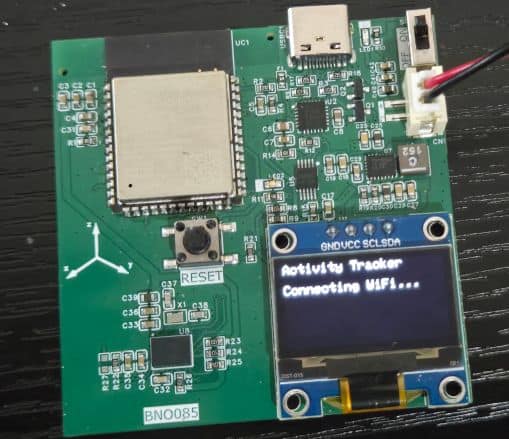
Once uploaded, the ESP32 initializes the BNO080 motion sensor, OLED display,Wi-Fi connection, and web server. During startup, the OLED shows the Activity Tracker and the Wi-Fi status. If Wi-Fi is connected, the ESP32 IP address is displayed for a few seconds; otherwise, the device continues in OLED-only mode.
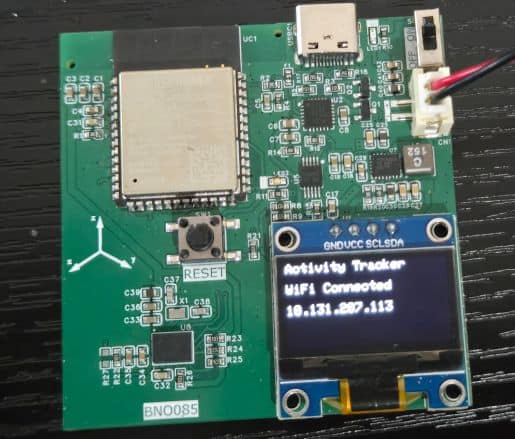
After initialization, the OLED begins showing live activity data across four pages.
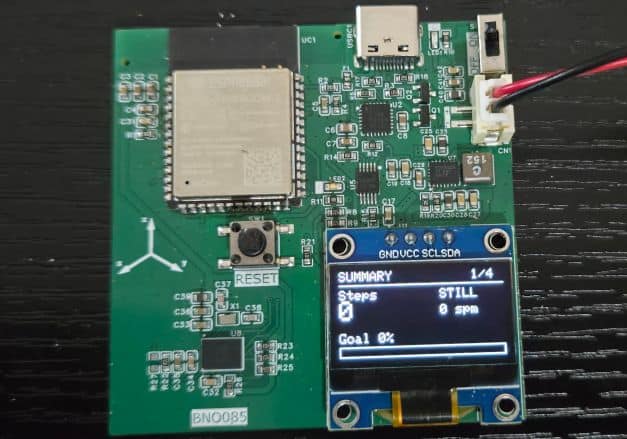
Page 1 is the summary page and displays the step count, activity mode, cadence, and daily goal progress bar. This page gives the user a quick overview of the current activity status.
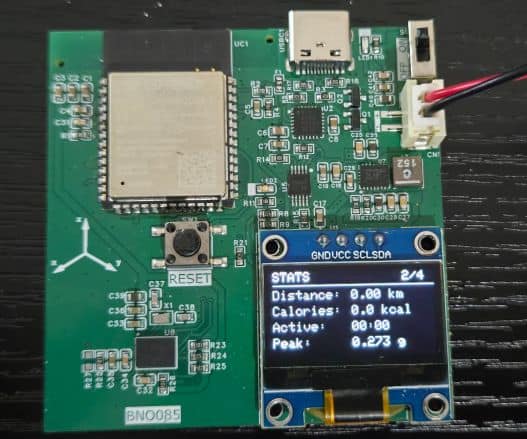
Page 2 displays calculated activity statistics, including distance, calories, active time, and peak motion. These values are estimated from the BNO080 step counter, linear acceleration, and ESP32 processing logic.
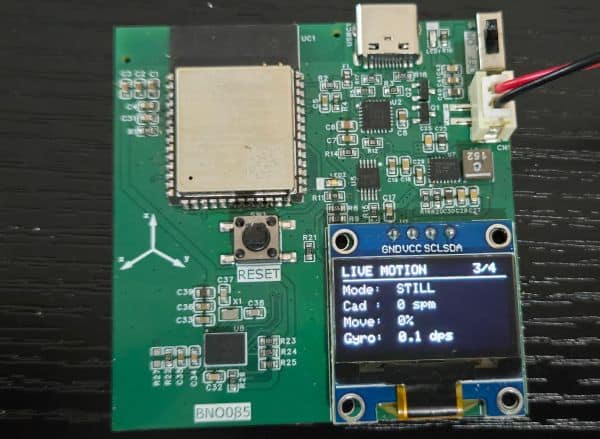
Page 3 shows live motion information such as activity mode, cadence, motion level, and gyroscope magnitude.
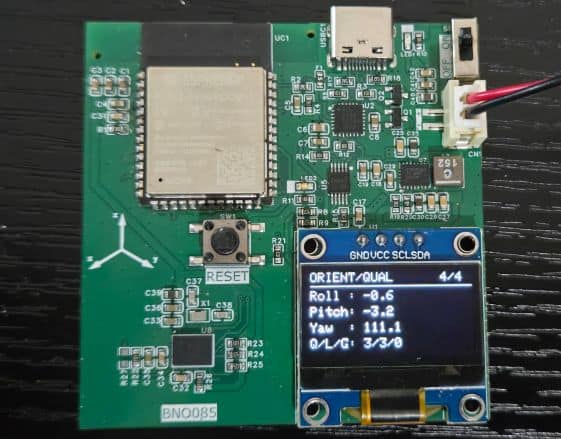
Page 4 displays orientation and sensor quality data, including roll, pitch, yaw, and BNO080 accuracy values.
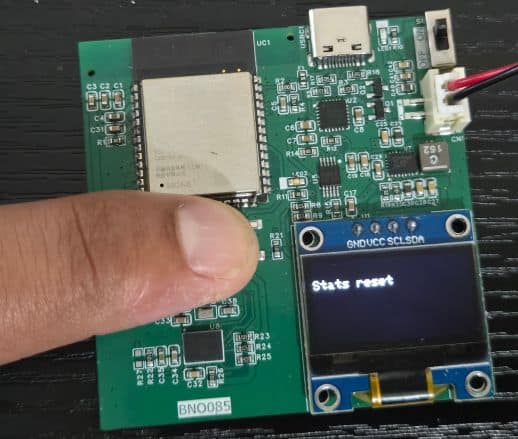
The push button changes pages with a short press, while a long press resets the activity statistics.
The ESP32 Activity Tracker using the Accelerometer and Gyroscope includes a Wi-Fi web dashboard for real-time monitoring. After the device connects to Wi-Fi, the OLED displays the ESP32 IP address for a few seconds. The user can open this IP address in a mobile or computer browser to access the live dashboard.
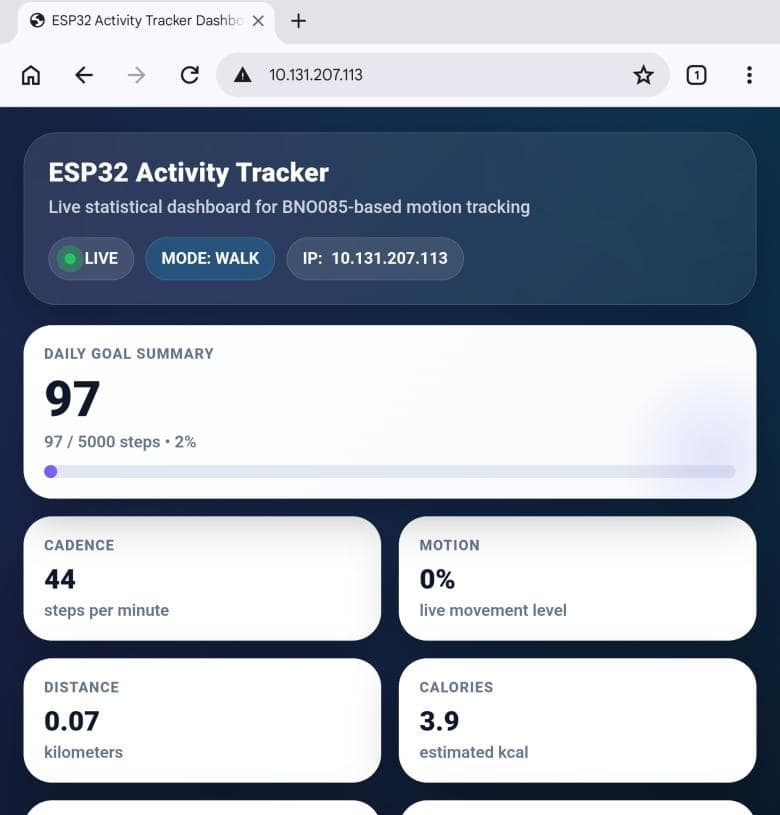
The webpage shows the main activity statistics, including step count, daily goal progress, cadence, motion level, distance, calories, active time, and peak motion. It also displays the current activity mode, such as STILL, MOVE, WALK, or RUN, based on the user’s movement and cadence.
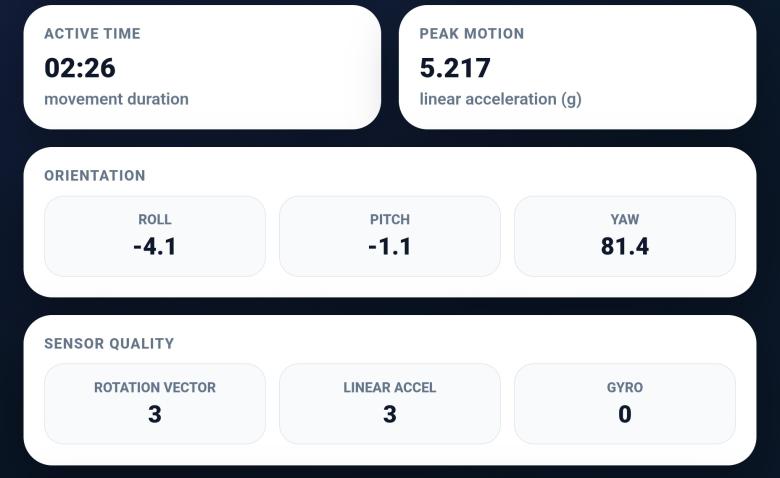
The dashboard also includes orientation and sensor information from the BNO080, such as roll, pitch, yaw, and sensor accuracy values for the rotation vector, linear acceleration, and gyroscope. These values help verify both activity tracking and motion sensing performance.
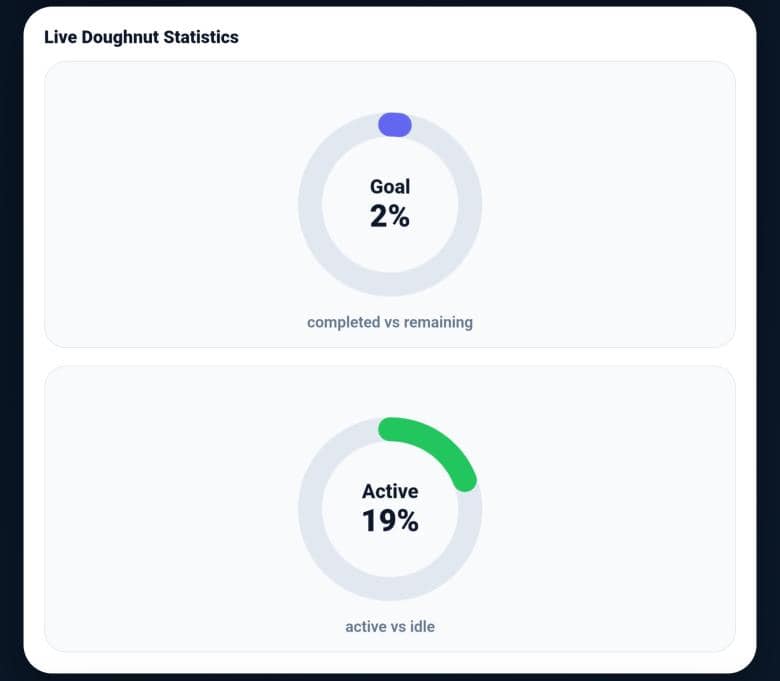
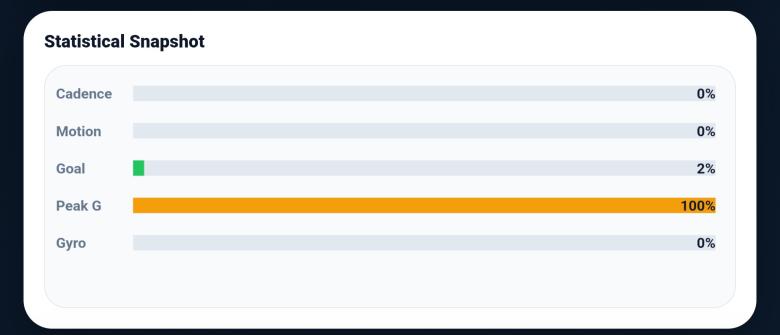
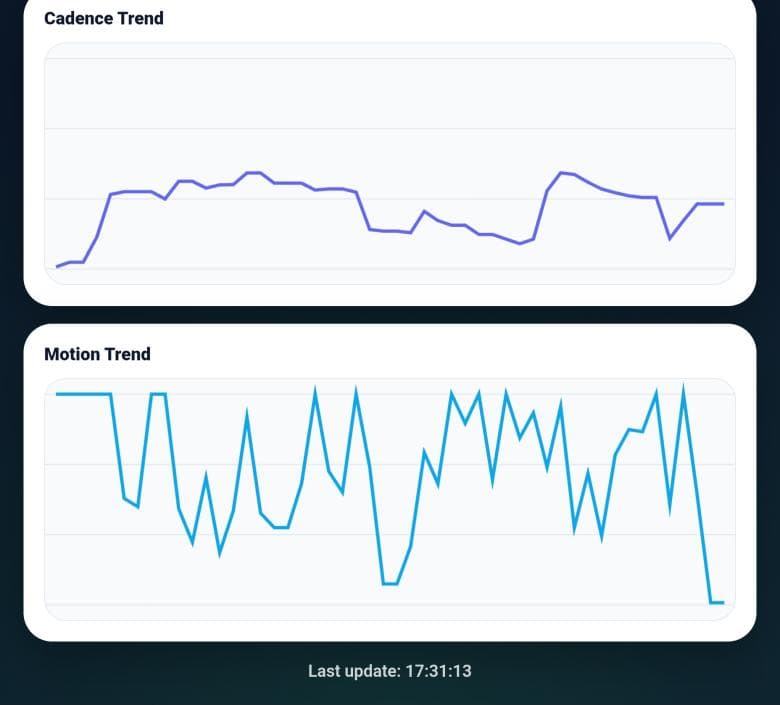
For better visualization, the webpage provides interactive statistical elements such as a goal progress bar, doughnut charts, bar graphs, and live trend graphs for cadence and motion level. This makes the activity tracker easier to monitor from a smartphone without needing to read only the OLED display.
To test this sensor, go outdoor and keep the device in your pocket while walking normally. Connect the ESP32 to your phone hotspot (make changes in the code WiFi credentials). After Wi-Fi connects, note the IP address shown on the OLED and open it in your smartphone browser.
Start walking slowly, then try normal walking and faster walking. Observe the webpage values such as steps, cadence, motion level, distance, calories, active time, and activity mode. The mode should change based on movement, for example, from STILL to WALK or RUN when your pace increases.
Also, check the live graphs on the webpage while moving. The cadence trend should increase when you walk faster, and the motion trend should change as the sensor moves inside your pocket.
Video Tutorial & Guide






