


Overview
In this tutorial, we will explore the Modbus RTU protocol and learn how to implement it with Arduino to read sensor data from a slave device using RS485. To simplify and enhance our learning, we will use a humidity and temperature sensor that operates on the Modbus RTU protocol. We will write Arduino code and use RS-485 to retrieve the Modbus sensor data.
Modbus is a communication protocol developed in 1979 for use with programmable logic controllers (PLCs). It has become a de facto standard communication protocol in the industry and is now commonly used to connect industrial electronic devices.
Modbus RTU (Remote Terminal Unit) is a variant of the Modbus protocol that uses binary coding and serial communication to achieve high-speed data transmission. It is widely used in industrial environments for connecting equipment such as sensors, instruments, and actuators to controllers and computers, mainly over RS-485 serial interfaces.
Components Required
To learn, how to implement Modbus RTU protocol with Arduino, we need the following components.
| S.N. | Components Name | Quantity | Purchase Link |
|---|---|---|---|
| 1 | Arduino Nano Board | 1 | Amazon | AliExpress |
| 2 | MAX485 Modbus Module | 2 | Amazon | AliExpress |
| 3 | RS485 Temperature Humidity Sensor | 1 | AliExpress |
| 4 | Connecting Wires | 10 | Amazon | AliExpress |
| 5 | Breadboard | 2 | Amazon | AliExpress |
What is Modbus?
Modbus is a serial communication protocol developed by Modicon in 1979, initially designed for Modicon programmable logic controllers (PLCs) for industrial applications. Over time, it has become a standard protocol used widely across various automation products to connect industrial electronic devices. Modbus is particularly useful for monitoring and communicating between intelligent devices, sensors, or instruments, and for managing field devices using computers and Human Machine Interfaces (HMIs). It is also well-suited for Remote Terminal Unit (RTU) applications that require wireless communication, making it ideal for gas and oil substation applications due to its openness, simplicity, low-cost development, and minimal hardware requirements.

In a typical Modbus network, there is one master device and up to 247 slave devices, each with a unique address. The master device orchestrates the data management and writes data to the slaves. Data transfer in Modbus is in the form of binary bits—zeroes and ones—which represent positive and negative voltages respectively. These bits are transmitted rapidly between devices due to their small size.
There are three main variations of the Modbus protocol:
- Modbus ASCII
- Modbus RTU
- Modbus TCP/IP
These variations accommodate different types of networks and data transmission requirements.
What is Modbus RTU?
Modbus RTU (Remote Terminal Unit) is a widely utilized serial communication protocol in building management and industrial automation systems.
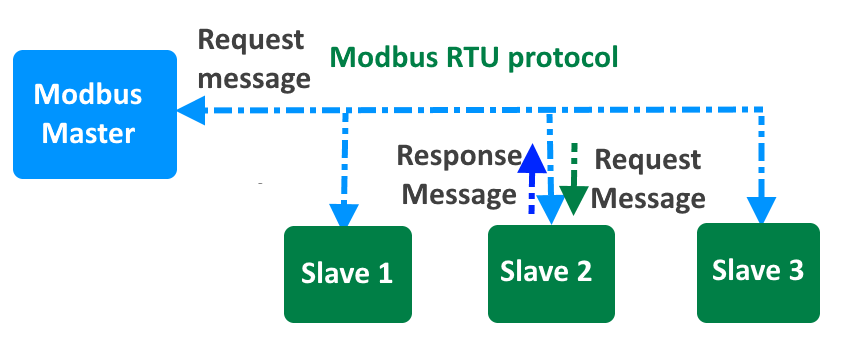
It facilitates the connection and communication between various devices, such as controllers, sensors, and actuators, often in environments where the devices may be spread over distances up to 15 meters. This protocol operates on a point-to-point basis, featuring a single master device that communicates with one or more slave devices in a network.
Technically, Modbus RTU employs binary data encoding for efficient data transmission and includes CRC (Cyclic Redundancy Check) error checking to ensure the integrity of data during transmission. This robust error-checking mechanism helps prevent data corruption across the physical network.
Modbus RTU is strictly confined to its specific communication standards, meaning devices configured for different modes (e.g., ASCII versus RTU) cannot interact. For instance, a device set up for ASCII communication will not be able to interpret data from a device sending data in RTU binary format.

The physical layer of Modbus RTU typically uses one of three types of electrical interfaces:
- RS-232: Suitable for short-distance communications and often used for connections between a device and a PC.
- RS-485: The most common interface for Modbus RTU, allowing for longer distances and the connection of multiple devices on a single bus network.
- RS-422: Similar to RS-485 but with greater resistance to electrical noise, suitable for industrial environments.
Additionally, the technical implementation of Modbus RTU includes defining slave IDs, function codes, and the structure of data packets, which consist of addresses, data values, and checksums to validate the communication. This meticulous organization enables precise control and monitoring of networked devices in complex systems.
MAX485 Module for RS-485 communication

The MAX485 IC is a low-power transceiver designed for RS-485 communication. It is widely used in industrial and commercial applications for robust, long-distance data transmission.
There are a few types of MAX485 modules available in the market. One of them is a basic MAX485 circuit board with input and output pins for direct interfacing. In addition to the TX and RX signals, you also need to control the RE and DE pins.

Another type is one that comes along with a CD4069 hex-inverter IC. The CD4069 on the module automatically drives the DE and RE pins of the MAX485 IC when you transmit or receive messages. This simplifies the operation and programming.
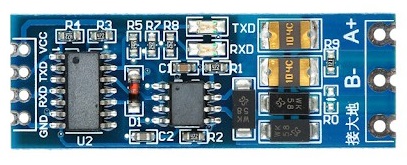
This IC supports half-duplex communication, allowing data to be transmitted and received over a single pair of wires, though not simultaneously. It includes driver enable and receiver enable pins, which can be controlled to switch between transmitting and receiving modes. It is a half-duplex driver with a Unit Load (UL) rating of 1 and therefore you can have up to 32 MAX485s on a single RS-485 bus.
You can learn more about RS-485 communication using the following tutorials:
RS485 Temperature and Humidity Sensor
This is one of the temperature humidity sensors that work on the Standard Modbus RTU protocol.
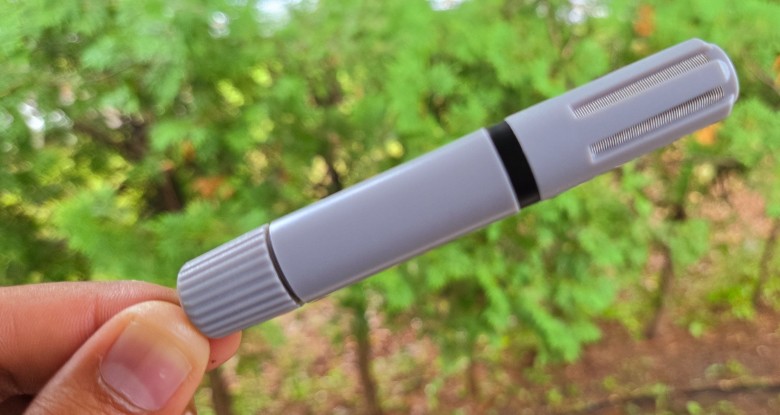
We will be using this sensor in this guide. We will interface the temperature humidity sensor with Arduino & using the RS-485 we can use standard Modbus RTU to read the sensor data.
Product Specifications

- Power Supply: 5-30V DC
- Maximum Power Consumption: ≤ 5W
- Humidity Range: 0-100% RH
- Temperature Range: -40° to 80° C
- Accuracy: Temperature ± 0.3 °C; Humidity ± 0.3% RH
- Communication Protocol: Standard Modbus RTU
- Communication Mode: 485 communication
- Baud Rate: 9600 (default), 1200, 2400, 4800, 9600, 19200 (can be set by software)
- Default Address of Equipment: Default 1 (1~254 can be modified by software)
- Register: Humidity address 0, temperature address 1 (software modifiable)
- Wiring Mode: Red+, black GND, Yellow A+, Green B-
Communication Protocol Details
- Basic Communication Parameters
| Parameter | Specification |
|---|---|
| Coding | 8 bit binary |
| Data Bits | 8bit |
| Parity Bit | None |
| Stop Bit | 1bit |
| Error Checking | CRC (redundant cyclic code) |
| Baud Rate | 1200bit/s, 2400bit/s, 4800bit/s, 9600 bit/s, 14400 bit/s, 19200 bit/s (Factory default is 9600bit/s) |
- Data Frame Format Definition
| Component | Specification |
|---|---|
| Initial Structure | ≥ 4 bytes of time |
| Address Code | 1 byte |
| Function Code | 1 byte |
| Data Area | N bytes |
| Error Check | 16-bit CRC code |
| Time to End Structure | ≥ 4 bytes |
Address code: the address of the transmitter, which is unique in the communication network (factory default 0x01).
Function code: the function instruction of the command sent by the host, this transmitter only uses the function code 0x03 (read register data).
Data area: The data area is the specific communication data, pay attention to the high byte of the 16 bits data first!
CRC code: two-byte check code.
Host Query Frame Structure:
| Component | Address Code | Function Code | Register Start Address | Register Length | Check Code Low | Check Code High |
|---|---|---|---|---|---|---|
| Size | 1 byte | 1 byte | 2 bytes | 2 bytes | 1 byte | 1 byte |
Slave Acknowledgment Frame Structure:
| Component | Address Code | Function Code | Number of Valid Bytes | Data Area | Second Data Area | Check Code |
|---|---|---|---|---|---|---|
| Size | 1 byte | 1 byte | 1 byte | 2 bytes | 2 bytes | 2 bytes |
- Register Address
| Register Address (Hex) | PLC or Configuration Address | Content | Operate | Support Function Code |
|---|---|---|---|---|
| 0000 H | 40001 | Humidity (10 times the actual value) | Read only | 03 |
| 0001 H | 40002 | Temperature (10 times the actual value) | Read only | 03 |
| 0100H | 40257 | Baud rate address | Read and write | 03, 06 |
| 0102 H | 40259 | Humidity address | Read and write | 03, 06 |
| 0104H | 40260 | Temperature correction value | Read and write | 03, 06 |
| 0105H | 40261 | Humidity correction value | Read and write | 03, 06 |
Read the Temperature and Humidity Value of Device Address 0x01
Query Frame (hexadecimal):
| Address Code | Function Code | Initial Address | Data Length | Check Code Low | Check Code High |
|---|---|---|---|---|---|
| 0x01 | 0x03 | 0x00 0x02 | 0x00 0x02 | 0xC4 | 0x08 |
Response Frame (hexadecimal): (For example, the temperature is -9.7°C and the humidity is 48.6%RH)
| Address Code | Function Code | Number of Valid Bytes | Humidity Value | Temperature Value | Check Code Low | Check Code High |
|---|---|---|---|---|---|---|
| 0x01 | 0x03 | 0x04 | 0x01 E6 | 0xFF 0x9F | 0x1B | 0xA0 |
Temperature Calculation: When the temperature is lower than 0 °C, the temperature data is uploaded in the form of complement code. Temperature: FF9F H (hex) = -97 => Temperature = -9.7°C
Humidity Calculation: Humidity: 1E6 H (Hex) = 486 => Humidity = 48.6%RH
How to use Modbus RTU with Arduino to read Sensor Data
Let us move into the practical part now. In this section, we will learn how to interface the Humidity and Temperature Sensor with Arduino using RS485 and write an Arduino code for communication using Modbus RTU protocol.
First we will setup the hardware connection using specified pins. Then we will develop an Arduino code so that Modbus RTU Communication can be established. We will first use the Modbus Master library to read sensor data. Then we will develop a similar code to read sensor data again but without the use of any library.
Hardware Setup & Connection
Here is the connection diagram between Arduino RS485 and Modbus RTU based Sensor.

- Arduino to RS485 Module Connections:
- VCC: Connect the VCC pin on the RS485 module to the 5V pin on the Arduino.
- GND: Connect the Ground (GND) pin on the RS485 module to one of the Arduino’s Ground (GND) pins.
- TXD: Connect the Arduino’s D10 pin to the RS485 module’s TXD pin. This allows the Arduino to send data to the RS485 bus.
- RXD (Purple Wire): Connect the D9 pin on the Arduino to the RXD pin on the RS485 module. This enables the Arduino to receive data from the RS485 bus.
- RS485 Module Terminal Connections:
- A+ (Yellow Wire): Connect the A+ terminal of the RS485 module to the corresponding A+ line of your RS485 network.
- B- (Green Wire): Connect the B- terminal of the RS485 module to the corresponding B- line of your RS485 network.
- Power Supply Connections:
- Red Wire: This should be connected to a 5V-30V DC power supply, appropriate for the RS485 module’s requirements.
- Black Wire: Connect the negative side of your power supply to the Ground (GND) terminal of the RS485 module.
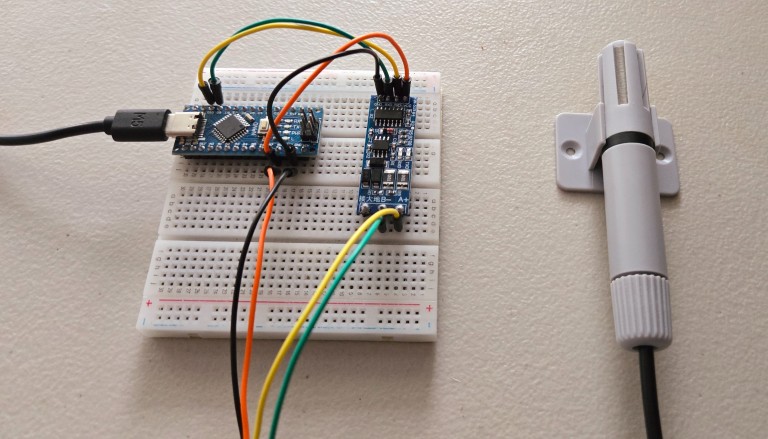
You may simply use a connecting wire and breadboard for this setup. The above image is the example how I set the connection. Finally connect the Arduino to your computer using the USB Cable to power it on.
Modbus RTU Communication using ModbusMaster Library
There is a Modbus Master library created almost 8-9 years ago for implementing Modbus RTU Communication. You can use this library over RS485 or RS232. This library has some examples to use the Modbus RTU protocol.
First download the library zip file and add it to your Arduino IDE using the library manager.
Here is the final code for reading the humidity and temperature data by establishing Modbus RTU Communication with Arduino using RS485 network.
|
1 2 3 4 5 6 7 8 9 10 11 12 13 14 15 16 17 18 19 20 21 22 23 24 25 26 27 28 29 30 31 32 33 34 35 36 37 38 39 40 41 42 43 44 45 46 47 48 49 50 51 52 53 54 55 56 57 |
#include <ModbusMaster.h> //https://github.com/4-20ma/ModbusMaster #include <SoftwareSerial.h> // Create a SoftwareSerial object to communicate with the MAX485 module SoftwareSerial mySerial(10, 11); // RX, TX // Create a ModbusMaster object ModbusMaster node; void setup() { // Initialize serial communication for debugging Serial.begin(9600); // Initialize SoftwareSerial for Modbus communication mySerial.begin(9600); // Initialize Modbus communication with the Modbus slave ID 1 node.begin(1, mySerial); // Allow some time for initialization delay(1000); } void loop() { uint8_t result; // Variable to store the result of Modbus operations uint16_t data[2]; // Array to store the data read from the Modbus slave // Read 2 holding registers starting at address 0x0000 // This function sends a Modbus request to the slave to read the registers result = node.readHoldingRegisters(0x0000, 2); // If the read is successful, process the data if (result == node.ku8MBSuccess) { // Get the response data from the response buffer data[0] = node.getResponseBuffer(0x00); // Humidity data[1] = node.getResponseBuffer(0x01); // Temperature // Calculate actual humidity and temperature values float humidity = data[0] / 10.0; // Humidity is scaled by 10 float temperature = data[1] / 10.0; // Temperature is scaled by 10 // Print the values to the Serial Monitor Serial.print("Humidity: "); Serial.print(humidity); Serial.println(" %RH"); Serial.print("Temperature: "); Serial.print(temperature); Serial.println(" °C"); } else { // Print an error message if the read fails Serial.print("Modbus read failed: "); Serial.println(result, HEX); // Print the error code in hexadecimal format } // Wait for 2 seconds before the next read delay(2000); } |
The above code is very well written and the comments added in the code can be useful to understand the code part and how the communication is done.
You can now upload the code and here is what you can see on the Serial terminal.
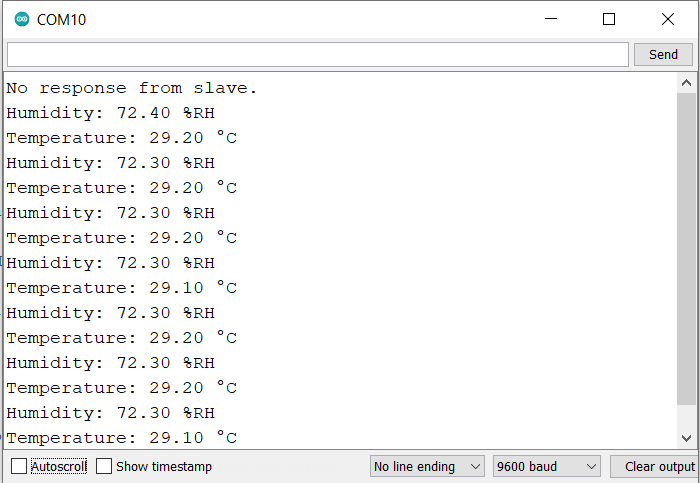
The Serial Screen shows the recorded data for both temperature and humidity. In case you want to observe the change in the reading you can simply heat the sensor or introduce some vapors of liquid near the sensor. This is how you can simply read the register data using the standard Modbus master library. This is a simple way and easiest one.
Modbus RTU Communication without using any library
In case you don’t wanna use the library and go with the standard communication method, I have developed an Arduino code for that too.
The code specifies parameters such as slave device address, function codes, and register addresses for querying data. The main tasks include constructing a Modbus request frame, sending it, and processing the received response to extract and display temperature and humidity values. Error checking is performed using CRC (Cyclic Redundancy Check) to ensure the integrity of data transmission and reception.
Additionally, the code handles error scenarios such as CRC mismatches and non-responses from the slave device.
|
1 2 3 4 5 6 7 8 9 10 11 12 13 14 15 16 17 18 19 20 21 22 23 24 25 26 27 28 29 30 31 32 33 34 35 36 37 38 39 40 41 42 43 44 45 46 47 48 49 50 51 52 53 54 55 56 57 58 59 60 61 62 63 64 65 66 67 68 69 70 71 72 73 74 75 76 77 78 79 80 81 82 83 84 85 86 87 88 89 90 91 92 93 94 95 96 97 98 99 100 101 102 103 104 105 106 107 108 109 110 111 112 113 114 115 116 117 118 119 120 121 122 123 124 125 126 127 |
#include <SoftwareSerial.h> // Create a SoftwareSerial object to communicate with the MAX485 module SoftwareSerial mySerial(10, 11); // RX, TX // Define Modbus parameters const byte slaveAddress = 0x01; // Address of the Modbus slave device const byte functionCode = 0x03; // Function code to read holding registers const byte startAddressHigh = 0x00; // High byte of the starting address const byte startAddressLow = 0x00; // Low byte of the starting address const byte registerCountHigh = 0x00; // High byte of the number of registers to read const byte registerCountLow = 0x02; // Low byte of the number of registers to read void setup() { // Initialize serial communication for debugging Serial.begin(9600); // Initialize SoftwareSerial for Modbus communication mySerial.begin(9600); // Allow some time for initialization delay(1000); } void loop() { // Create a request frame for Modbus communication byte requestFrame[8]; constructModbusRequest(requestFrame, slaveAddress, functionCode, startAddressHigh, startAddressLow, registerCountHigh, registerCountLow); // Send the Modbus request frame sendModbusRequest(requestFrame, 8); // Read and process the Modbus response frame if (mySerial.available()) { // Create a buffer to store the response frame byte responseFrame[9]; // Read the response frame from the slave device readModbusResponse(responseFrame, 9); // Verify the CRC of the received response frame if (verifyCRC(responseFrame, 9)) { // Process the response frame to extract data processModbusResponse(responseFrame); } else { // Print an error message if CRC verification fails Serial.println("CRC error."); } } else { // Print an error message if no response is received Serial.println("No response from slave."); } // Wait for 2 seconds before the next request delay(2000); } // Function to construct a Modbus request frame void constructModbusRequest(byte *frame, byte address, byte function, byte startHigh, byte startLow, byte countHigh, byte countLow) { frame[0] = address; // Address of the slave device frame[1] = function; // Function code frame[2] = startHigh; // High byte of the starting address frame[3] = startLow; // Low byte of the starting address frame[4] = countHigh; // High byte of the number of registers to read frame[5] = countLow; // Low byte of the number of registers to read // Calculate and append the CRC to the request frame uint16_t crc = calculateCRC(frame, 6); frame[6] = crc & 0xFF; // CRC low byte frame[7] = (crc >> 8) & 0xFF; // CRC high byte } // Function to send a Modbus request frame void sendModbusRequest(byte *frame, byte length) { for (byte i = 0; i < length; i++) { mySerial.write(frame[i]); // Send each byte of the frame } } // Function to read a Modbus response frame void readModbusResponse(byte *frame, byte length) { for (byte i = 0; i < length; i++) { if (mySerial.available()) { frame[i] = mySerial.read(); // Read each byte of the frame } } } // Function to verify the CRC of a Modbus frame bool verifyCRC(byte *frame, byte length) { uint16_t receivedCRC = (frame[length - 1] << 8) | frame[length - 2]; // Extract the received CRC // Calculate the CRC of the received frame (excluding the received CRC bytes) return calculateCRC(frame, length - 2) == receivedCRC; } // Function to process the Modbus response frame and extract data void processModbusResponse(byte *frame) { // Extract the humidity and temperature data from the response frame uint16_t humidity = (frame[3] << 8) | frame[4]; uint16_t temperature = (frame[5] << 8) | frame[6]; // Convert the raw data to actual values float humidityValue = humidity / 10.0; float temperatureValue = temperature / 10.0; // Print the humidity and temperature values to the Serial Monitor Serial.print("Humidity: "); Serial.print(humidityValue); Serial.println(" %RH"); Serial.print("Temperature: "); Serial.print(temperatureValue); Serial.println(" °C"); } // Function to calculate the CRC of a Modbus frame uint16_t calculateCRC(byte *frame, byte length) { uint16_t crc = 0xFFFF; // Initialize CRC to 0xFFFF for (byte i = 0; i < length; i++) { crc ^= frame[i]; // XOR the frame byte with the CRC for (byte j = 0; j < 8; j++) { if (crc & 0x0001) { // Check if the LSB of the CRC is 1 crc >>= 1; // Right shift the CRC crc ^= 0xA001; // XOR the CRC with the polynomial 0xA001 } else { crc >>= 1; // Right shift the CRC } } } return crc; // Return the calculated CRC } |
Upload the code to the Arduino board and open the Serial Monitor.
As you can see here now, the data for temperature and humidity is read successfully.
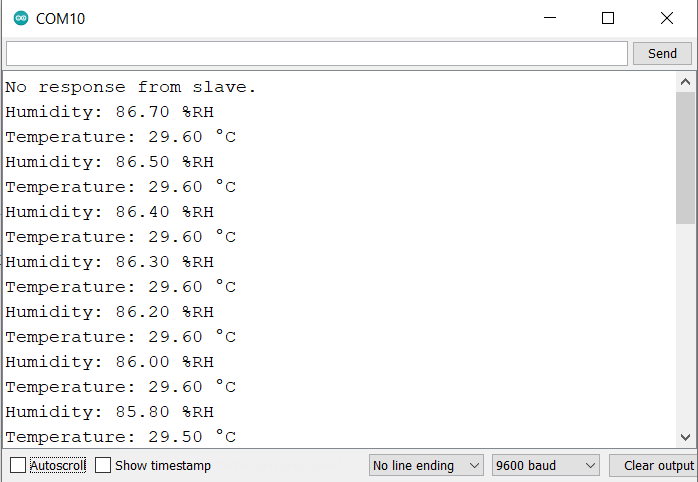
This is how you can implement the Modbus protocol with Arduino to read the sensor register data.
Video Tutorial & Guide

Conclusion
In this tutorial, we’ve gone through the steps to set up Modbus RTU communication using an Arduino, showing you both ways to do it—with a handy library and by coding everything from scratch. This setup lets you successfully read data from sensors, making it a practical guide for anyone looking to integrate Arduino with industrial systems for monitoring and controlling devices.
You may follow the same tutorial with ESP32 & Raspberry Pi Pico:


