


Overview
In this guide, we will interface the ADXL335 3-axis Accelerometer with Raspberry Pi Pico using the MicroPython Code. The Raspberry Pi Pico is an affordable, versatile, and powerful microcontroller, while the ADXL335 is a compact and low-power accelerometer. When combined, these two components can be used to create a wide variety of exciting projects, such as gesture control systems, tilt sensors, or even simple game controllers.
Throughout this guide, we will provide you with step-by-step instructions on connecting the Raspberry Pi Pico and the ADXL335 accelerometer. We will also walk you through writing the necessary code to read and interpret the accelerometer data. By the end of this tutorial, you will have a solid understanding of the Raspberry Pi Pico and the ADXL335 accelerometer, as well as the knowledge required to create your own projects using these components.
Earlier, we built some projects using ADXL335, you may check them before proceeding:
- Earthquake Detector Project
- Gesture Controlled Robot
- Measurement of Accelerometer
- Tilt Angle & Distance Meter
Components Required
We need the following components for this guide.
| S.N. | Components | Quantity | Purchase Link |
|---|---|---|---|
| 1 | Raspberry Pi Pico | 1 | Amazon | AliExpress |
| 2 | ADXL335 3-Axis Accelerometer | 1 | Amazon | AliExpress |
| 3 | Breadboard | 1 | Amazon | AliExpress |
| 4 | Connecting Wires | 1 | Amazon | AliExpress |
ADXL335 3-Axis Accelerometer
The ADXL335 is a small, thin, low-power triple-axis accelerometer produced by Analog Devices. It is designed to measure acceleration with a full-scale range of ±3 g, where g is the acceleration due to gravity (approximately 9.81 m/s²). The ADXL335 measures acceleration in three orthogonal axes: X, Y, and Z, allowing it to detect movement and orientation in three-dimensional space.

The ADXL335 outputs analog voltage signals proportional to the acceleration experienced by the sensor. These analog signals can be read by a microcontroller or other device with an analog-to-digital converter (ADC), such as an Arduino or Raspberry Pi Pico, to process and interpret the data.
Specifications of ADXL335
The ADXL335 is a triple-axis accelerometer with the following key specifications:
- Measurement Range: ±3 g (where g is the acceleration due to gravity, approximately 9.81 m/s²)
- Sensitivity: Typically around 300 mV/g (millivolts per g) at room temperature, with slight variations depending on the axis.
- Output: Analog voltage proportional to acceleration, one output for each axis (X, Y, and Z).
- Power Supply Voltage: 1.8 V to 3.6 V, with a typical operating voltage of 3.3 V.
- Power Consumption: Low power, typically around 350 µA in measurement mode.
- Bandwidth: User-selectable, up to 1.6 kHz for the X and Y axes and up to 550 Hz for the Z axis.
- Noise Density: Approximately 350 µg/√Hz (micro-g per square root hertz).
- Zero-g Offset: 1.5 V (typical) at the output when there is no acceleration.
- Zero-g Offset Drift: Up to 25 µV/°C (microvolts per degree Celsius) over the operating temperature range.
- Operating Temperature Range: -40°C to +85°C (-40°F to +185°F).
Pinout of ADXL335
The ADXL335 3-axis Accelerometer 5 pins.

- VCC: Power supply pin (2.8V to 3.6V)
- X_OUT: X-axis analog output.
- Y_OUT: Y-axis analog output.
- Z_OUT: Z-axis analog output.
- GND: Ground pin
Interfacing ADXL335 Accelerometer with Raspberry Pi Pico
To interface the ADXL335 accelerometer with a Raspberry Pi Pico using MicroPython, you’ll need to connect the ADXL335 to the Pico’s analog pins and read the acceleration values from the sensor. Here is the connection between Raspberry Pi Pico & ADXL335 Accelerometer.

- Connect the ADXL335 VCC to the Pico’s 3.3V pin.
- Connect the ADXL335 GND to the Pico’s GND pin.
- Connect the ADXL335 X-OUT to the Pico’s GP26 pin (ADC0).
- Connect the ADXL335 Y-OUT to the Pico’s GP27 pin (ADC1).
- Connect the ADXL335 Z-OUT to the Pico’s GP28 pin (ADC2).

You can use a breadboard and jumper wires for connection.
MicroPython Code to Read Acceleration Values
Here’s a sample MicroPython code to read the Acceleration Values in the x, y, and z-axis by interfacing the ADXL335 & Raspberry by Pico.
|
1 2 3 4 5 6 7 8 9 10 11 12 13 14 15 16 17 18 19 20 21 22 23 24 25 26 27 28 29 30 31 |
import machine import utime # ADXL335 analog pins connected to Pico's ADC channels X_PIN = 26 Y_PIN = 27 Z_PIN = 28 # Create ADC objects for each axis adc_x = machine.ADC(machine.Pin(X_PIN)) adc_y = machine.ADC(machine.Pin(Y_PIN)) adc_z = machine.ADC(machine.Pin(Z_PIN)) def read_acceleration(adc): # Read the ADC value and convert it to voltage voltage = adc.read_u16() * 3.3 / 65535 # Convert the voltage to acceleration (assuming 3.3V supply) acceleration = (voltage - 1.65) / 0.330 return acceleration while True: # Read the acceleration values from the ADXL335 x = read_acceleration(adc_x) y = read_acceleration(adc_y) z = read_acceleration(adc_z) # Print the acceleration values print("X: {:.2f}g, Y: {:.2f}g, Z: {:.2f}g".format(x, y, z)) # Wait for a while before reading again utime.sleep(0.1) |
Upload this code to your Raspberry Pi Pico, and the acceleration values will be printed on the screen.

Note that the actual sensitivity of the ADXL335 might be different from the theoretical value used in the code (0.330 V/g), so you may need to calibrate the sensor to get accurate results.
MicroPython Code to Read Rotational Angle Values
To calculate the tilt angles (pitch and roll) from the acceleration values, you can use the following equations:
- pitch = atan(y / sqrt(x^2 + z^2))
- roll = atan(x / sqrt(y^2 + z^2))
Here’s the updated MicroPython code for ADXL335 and Raspberry Pi Pico to read the X, Y, Z acceleration values and calculate the pitch and roll angles:
|
1 2 3 4 5 6 7 8 9 10 11 12 13 14 15 16 17 18 19 20 21 22 23 24 25 26 27 28 29 30 31 32 33 34 35 36 37 38 39 40 41 42 43 44 45 |
import machine import utime import math # ADXL335 analog pins connected to Pico's ADC channels X_PIN = 26 Y_PIN = 27 Z_PIN = 28 # Create ADC objects for each axis adc_x = machine.ADC(machine.Pin(X_PIN)) adc_y = machine.ADC(machine.Pin(Y_PIN)) adc_z = machine.ADC(machine.Pin(Z_PIN)) def read_acceleration(adc): # Read the ADC value and convert it to voltage voltage = adc.read_u16() * 3.3 / 65535 # Convert the voltage to acceleration (assuming 3.3V supply) acceleration = (voltage - 1.65) / 0.330 return acceleration def calculate_tilt_angles(x, y, z): pitch = math.atan2(y, math.sqrt(x**2 + z**2)) roll = math.atan2(x, math.sqrt(y**2 + z**2)) # Convert the angles to degrees pitch = math.degrees(pitch) roll = math.degrees(roll) return pitch, roll while True: # Read the acceleration values from the ADXL335 x = read_acceleration(adc_x) y = read_acceleration(adc_y) z = read_acceleration(adc_z) # Calculate the tilt angles pitch, roll = calculate_tilt_angles(x, y, z) # Print the acceleration values and tilt angles print("X: {:.2f}g, Y: {:.2f}g, Z: {:.2f}g, Pitch: {:.2f}°, Roll: {:.2f}°".format(x, y, z, pitch, roll)) # Wait for a while before reading again utime.sleep(0.1) |
Upload this code to your Raspberry Pi Pico, and the acceleration values along with the pitch and roll angles will be printed on the screen.
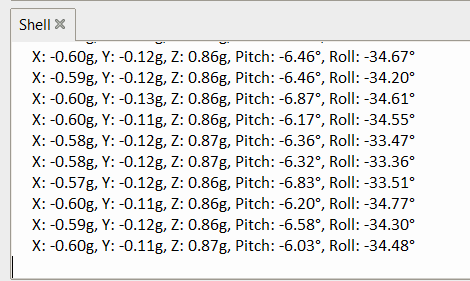
Note that the ADXL335 is a 3-axis accelerometer, which means it can measure acceleration along the X, Y, and Z axes. While it can provide valuable data for many applications, it is not designed to directly measure yaw values.
Yaw is a rotational motion around the Z-axis, which is usually associated with changes in heading or orientation. To measure yaw values, you would typically use a gyroscope or a combination of sensors known as an Inertial Measurement Unit (IMU).


1 Comment
Thanks buddy 🙂