Close Menu
  • Articles
    • Learn Electronics
    • Product Review
    • Tech Articles
  • Electronics Circuits
    • 555 Timer Projects
    • Op-Amp Circuits
    • Power Electronics
  • Microcontrollers
    • Arduino Projects
    • STM32 Projects
    • AMB82-Mini IoT AI Camera
    • BLE Projects
  • IoT Projects
    • ESP8266 Projects
    • ESP32 Projects
    • ESP32 MicroPython
    • ESP32-CAM Projects
    • LoRa/LoRaWAN Projects
  • Raspberry Pi
    • Raspberry Pi Projects
    • Raspberry Pi Pico Projects
    • Raspberry Pi Pico W Projects
  • Electronics Calculator
Facebook X (Twitter) Instagram
  • About Us
  • Disclaimer
  • Privacy Policy
  • Contact Us
  • Advertise With Us
Facebook X (Twitter) Instagram Pinterest YouTube LinkedIn
How To Electronics
  • Articles
    • Learn Electronics
    • Product Review
    • Tech Articles
  • Electronics Circuits
    • 555 Timer Projects
    • Op-Amp Circuits
    • Power Electronics
  • Microcontrollers
    • Arduino Projects
    • STM32 Projects
    • AMB82-Mini IoT AI Camera
    • BLE Projects
  • IoT Projects
    • ESP8266 Projects
    • ESP32 Projects
    • ESP32 MicroPython
    • ESP32-CAM Projects
    • LoRa/LoRaWAN Projects
  • Raspberry Pi
    • Raspberry Pi Projects
    • Raspberry Pi Pico Projects
    • Raspberry Pi Pico W Projects
  • Electronics Calculator
How To Electronics
Home » Smart Phone Controlled Home Automation with Raspberry Pi
BLE Projects Raspberry Pi Raspberry Pi Projects

Smart Phone Controlled Home Automation with Raspberry Pi

Mamtaz AlamBy Mamtaz AlamUpdated:October 21, 20222 Mins Read
Share Facebook Twitter LinkedIn Telegram Reddit WhatsApp
Home Automation Raspberry Pi
Share
Facebook Twitter LinkedIn Pinterest Email Reddit Telegram WhatsApp

Overview

This tutorial is all about Home Automation using Raspberry Pi & Bluetooth Low Energy. Home automation involves automating household environment equipment. To achieve that, we have created a smart bulb that can be controlled remotely using the smartphone app.

The aim of this project is to control different home appliances using smartphones at your home. This example is showing how to control a GPIO pin on a RaspberryPi remotely from a smartphone (or another BleuIO Dongle).


Requirements

For this example we will need:

  • A RaspberryPi
  • A BleuIO Dongle (https://www.bleuio.com/)
  • Our example python script (https://github.com/smart-sensor-devices-ab/bleuio_rpi_switch_example)
  • A way to connect to the GPIO Pin (Like a 5V Relay and a Lightbulb)


Hardware Setup & Connection

Here is the hardware setup circuit for Smart Phone Controlled Home Automation with Raspberry Pi. You can connect the relay to Raspberry Pi using the following circuit.

Raspberry Pi Relay

Beware: Always be very careful when experimenting with AC, electrical shock can result in serious injuries!


Instructions for bleuio_rpi_switch_example.py

  • Connect the BleuIO Dongle to your RaspberryPi.
  • Edit the variable ‘switch’ in the script to the GPIO pin you want to use. (You can use the command pinout to get a graphical view showing you the GPIO pins for the board)

  • Finally just run python script and and use your phone to connect to the BleuIO Dongle and send on/off messages to controll the GPIO!

Instructions for connecting to the BleuIO from mobile

  • Download a BLE scanning App that can connect and read/write to a device. (Like nRFConnect or BLEScanner)
    Android, IOS
  • Look for the dongle, it will be advertising as ‘BleuIO’.

  • Connect to the BleuIO Dongle.
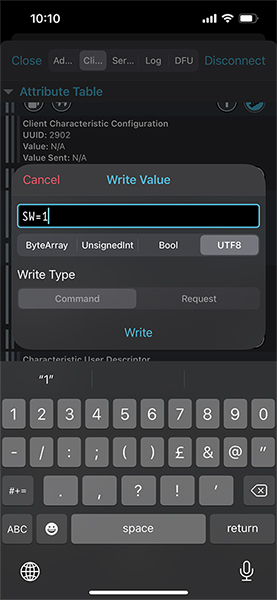
  • To enable BleuIO to recieve commands you must first write 0x01 to the Flow Control characteristic (UUID: 0783b03e-8535-b5a0-7140-a304d2495cb9)

  • Now you can write to the Server RX Data characteristic (UUID: 0783b03e-8535-b5a0-7140-a304d2495cba) to control the GPIO.

    “SW=1”  for  ON
    “SW=0” for OFF


Source Code/Python Script

Here is the python script for Smart Phone Controlled Home Automation with Raspberry Pi that receives the messages from smart phone app and helps control the light.

1
2
3
4
5
6
7
8
9
10
11
12
13
14
15
16
17
18
19
20
21
22
23
24
25
26
27
28
29
30
31
32
33
34
35
36
37
38
39
40
41
42
43
44
45
46
47
48
49
50
51
52
53
54
55
56
57
58
59
60
61
62
63
64
65
66
67
68
69
70
71
72
73
74
75
76
77
78
79
80
81
82
83
84
85
86
87
88
89
90
91
92
93
94
95
#!/usr/bin/python3
# Copyright 2022 Smart Sensor Devices in Sweden AB
#
# Permission is hereby granted, free of charge, to any person obtaining a copy of this software and associated documentation files (the "Software"),
# to deal in the Software without restriction, including without limitation the rights to use, copy, modify, merge, publish, distribute, sublicense,
# and/or sell copies of the Software, and to permit persons to whom the Software is furnished to do so, subject to the following conditions:
# The above copyright notice and this permission notice shall be included in all copies or substantial portions of the Software.
#
# THE SOFTWARE IS PROVIDED "AS IS", WITHOUT WARRANTY OF ANY KIND, EXPRESS OR IMPLIED, INCLUDING BUT NOT LIMITED TO THE WARRANTIES OF MERCHANTABILITY,
# FITNESS FOR A PARTICULAR PURPOSE AND NONINFRINGEMENT. IN NO EVENT SHALL THE AUTHORS OR COPYRIGHT HOLDERS BE LIABLE FOR ANY CLAIM, DAMAGES OR OTHER LIABILITY,
# WHETHER IN AN ACTION OF CONTRACT, TORT OR OTHERWISE, ARISING FROM, OUT OF OR IN CONNECTION WITH THE SOFTWARE OR THE USE OR OTHER DEALINGS IN THE SOFTWARE.
 
import time
import serial.tools.list_ports
import serial
import RPi.GPIO as io
 
 
switch = 7  # Edit this to suit your setup! (7 = GPIO 04), use command pinout to graphically show you the GPIO pins for the board
io.setmode(io.BOARD)
io.setup(switch, io.OUT)
 
master_array = []
index = 1
dongle_port = ""
 
print("\nWelcome to BleuIO RaspberryPi Switch Example!\n")
 
print("\nPlease insert dongle...")
try:
    while len(master_array) == 0:
        m_ports = serial.tools.list_ports.comports(include_links=False)
        for port in m_ports:
            if str(port.hwid).__contains__("VID:PID=2DCF"):
                master = port.device + " " + port.hwid
                if master.__contains__("VID:PID=2DCF:6002"):
                    print("Found dongle in port: %s" % port.device)
                    master_array.append(master)
                    dongle_port = port
                    break
 
    for dongle in master_array:
        print("\nConnecting to BleuIO @ %s\n" % dongle)
 
    time.sleep(0.5)
    dongle_conn = serial.Serial(
        dongle_port.device,
        115200,
        timeout=1,
    )
 
    if not dongle_conn.is_open:
        dongle_conn.open()
 
    print("Starting Advertising...")
    dongle_conn.write("AT+GAPDISCONNECTALL\rAT+DUAL\rAT+ADVSTART\rATI\r".encode())
    read_tries = 0
    dongle_resp = ""
    while read_tries < 20:
        dongle_resp = dongle_conn.readline().decode()
        if "Not Advertising" in dongle_resp:
            dongle_conn.write("AT+ADVSTART\r")
        if b"Advertising\r\n" in dongle_resp.encode():
            break
        read_tries += 1
        time.sleep(0.01)
 
    if dongle_resp:
        print("BleuIO is %s" % dongle_resp)
    else:
        print("ERROR! No response...")
        exit()
 
    print(
        "Going into loop, waiting for signal to turn switch on/off...\n(Press Ctrl+C to abort)"
    )
    while True:
        try:
            dongle_resp = dongle_conn.readline().decode()
            if "SW=0" in dongle_resp:
                print("Turn Switch off!")
                io.output(switch, io.LOW)
            if "SW=1" in dongle_resp:
                print("Turn Switch on!")
                io.output(switch, io.HIGH)
        except KeyboardInterrupt:
            if dongle_conn.is_open:
                dongle_conn.write("AT+GAPDISCONNECTALL\rAT+ADVSTOP\r".encode())
                dongle_conn.close()
                io.cleanup()
            print("\nBye!")
            exit()
 
except Exception as e:
    print("(ERROR: %s)" % (e))


Testing Home Automation Project with Raspberry Pi

We have tested the script using the nRFConnect app from both IOS and Android phones to turn on/off the light bulb. Here is the output of this project.

Share. Facebook Twitter Pinterest LinkedIn Tumblr Email Reddit Telegram WhatsApp
Previous ArticleOTAA-based LoRaWAN Node with Arduino & LoRa SX1276
Next Article DIY Homemade PCB – Etching PCBs with 3D Printers

Related Posts

Building a Smart Sensor Node with a BLE Microcontroller

Building a Smart Sensor Node with a BLE Microcontroller

ADXL375 Accelerometer with Raspberry Pi Pico & MicroPython

ADXL375 Accelerometer with Raspberry Pi Pico & MicroPython

Updated:July 24, 2025
Interface BMI160 with Raspberry Pi Pico & MicroPython

Interface BMI160 with Raspberry Pi Pico & MicroPython

Updated:February 2, 20253K
Shift Register 74HC595 with Raspberry Pi Pico & MicroPython

Shift Register 74HC595 with Raspberry Pi Pico & MicroPython

Updated:February 2, 202513K
Interfacing XBee Module with Raspberry Pi Pico & MicroPython

Interfacing XBee Module with Raspberry Pi Pico & MicroPython

Updated:February 2, 20253K
Modbus RTU with Raspberry Pi Pico & Micropython

Modbus RTU with Raspberry Pi Pico & MicroPython

Updated:February 2, 20258K
Add A Comment

CommentsCancel reply

Latest Posts
IoT Based PM & Air Quality Monitoring System using ESP32

IoT Based PM & Air Quality Monitoring System using ESP32

May 31, 2026
DIY ESP32 MLX90640 IR Thermal Camera with Live Web Display

DIY ESP32 MLX90640 IR Thermal Camera with Live Web Display

May 10, 2026
IoT Activity Tracker with ESP32 & Accelerometer Gyroscope

IoT Activity Tracker with ESP32 & Accelerometer/Gyroscope

May 2, 2026
A Guide to Sourcing Obsolete ICs for Vintage Projects

Beyond AliExpress: A Guide to Sourcing Obsolete ICs for Vintage Projects

April 21, 2026

ESP32 IoT Vehicle Motion Analyzer with MPU6050 & LIS3MDL

April 27, 2026
Building a Smart Sensor Node with a BLE Microcontroller

Building a Smart Sensor Node with a BLE Microcontroller

February 26, 2026
High-Accuracy Pitch, Roll, Yaw with ESP32 & BNO08x IMU

High-Accuracy Pitch, Roll, Yaw with ESP32 & BNO08x IMU

April 27, 2026
DIY Colorimeter using AS7265x Spectroscopy Sensor & ESP32

DIY Colorimeter using AS7265x Spectroscopy Sensor & ESP32

February 1, 2026
Top Posts & Pages
  • 12V DC to 220V AC Inverter Circuit & PCB
    12V DC to 220V AC Inverter Circuit & PCB
  • IoT AC Energy Meter with PZEM-004T & ESP32 WebServer
    IoT AC Energy Meter with PZEM-004T & ESP32 WebServer
  • IoT Based Drinking Water Quality Monitoring with ESP32
    IoT Based Drinking Water Quality Monitoring with ESP32
  • LD2410 Sensor with ESP32 - Human Presence Detection
    LD2410 Sensor with ESP32 - Human Presence Detection
  • ESP32 CAN Bus Tutorial | Interfacing MCP2515 CAN Module with ESP32
    ESP32 CAN Bus Tutorial | Interfacing MCP2515 CAN Module with ESP32
  • DIY IoT Water pH Meter using pH Sensor & ESP32
    DIY IoT Water pH Meter using pH Sensor & ESP32
  • Buck Converter: Basics, Working, Design & Application
    Buck Converter: Basics, Working, Design & Application
  • How to use Modbus RTU with ESP32 to read Sensor Data
    How to use Modbus RTU with ESP32 to read Sensor Data
Categories
  • Arduino Projects (197)
  • Articles (60)
    • Learn Electronics (19)
    • Product Review (15)
    • Tech Articles (28)
  • Electronics Circuits (46)
    • 555 Timer Projects (21)
    • Op-Amp Circuits (7)
    • Power Electronics (13)
  • IoT Projects (204)
    • ESP32 MicroPython (7)
    • ESP32 Projects (81)
    • ESP32-CAM Projects (15)
    • ESP8266 Projects (76)
    • LoRa/LoRaWAN Projects (22)
  • Microcontrollers (38)
    • AMB82-Mini IoT AI Camera (4)
    • BLE Projects (18)
    • STM32 Projects (19)
  • Raspberry Pi (93)
    • Raspberry Pi Pico Projects (57)
    • Raspberry Pi Pico W Projects (12)
    • Raspberry Pi Projects (24)
Follow Us
  • Facebook
  • Twitter
  • Pinterest
  • Instagram
  • YouTube
About Us

“‘How to Electronics’ is a vibrant community for electronics enthusiasts and professionals. We deliver latest insights in areas such as Embedded Systems, Power Electronics, AI, IoT, and Robotics. Our goal is to stimulate innovation and provide practical solutions for students, organizations, and industries. Join us to transform learning into a joyful journey of discovery and innovation.

Copyright © How To Electronics. All rights reserved.
  • About Us
  • Disclaimer
  • Privacy Policy
  • Contact Us
  • Advertise With Us

Type above and press Enter to search. Press Esc to cancel.

Ad Blocker Enabled!
Ad Blocker Enabled!
Looks like you're using an ad blocker. Please allow ads on our site. We rely on advertising to help fund our site.