


Overview
This tutorial is all about Interfacing of TFMini-S Micro LiDAR Distance Sensor with Arduino. This tutorial also covers a brief idea about LiDAR Technology & the Working & Applications of LiDAR. LiDAR, or light detection and ranging, is a popular remote sensing method used for measuring the exact distance of an object on the earth’s surface. You might have seen the latest iPhones or Samsung Phone using the LiDAR sensor at the back for best Camera Performance.
As LiDAR has plenty of applications, so will take a look at a LiDAR Sensor from Benewake called a TFMini-S Micro LiDAR Distance Sensor. This LiDAR Sensor can measure the distance up to 12 meters. This sensor costs around 40$ but at that cost, there is plenty of things to learn.
First, we will go through the interfacing of the TFMini-S LiDAR Sensor with Arduino. Using the TFMini library and basic example the distance and Signal Strength can be calculated. We can use a display unit like a 16X2 LCD Display to display the measured distance in LCD Screen.
Bill of Materials
This tutorial requires the use of following components. You can purchase all the components from Amazon from the given purchase link.
| S.N. | Components | Quantity | Purchase Links |
|---|---|---|---|
| 1 | Arduino Nano Board | 1 | Amazon | AliExpress |
| 2 | TFMini-S Micro LiDAR Distance Sensor | 1 | Amazon | AliExpress |
| 3 | 16x2 LCD Display | 1 | Amazon | AliExpress |
| 4 | Potentiometer 10K | 1 | Amazon | AliExpress |
| 5 | Jumper Wires | 20 | Amazon | AliExpress |
| 6 | Breadboard | 1 | Amazon | AliExpress |
What is LiDAR & How it works?
LiDAR, or light detection and ranging, is a popular remote sensing method used for measuring the exact distance of an object on the earth’s surface. LiDAR uses a pulsed laser to calculate an object’s variable distances from the earth surface.
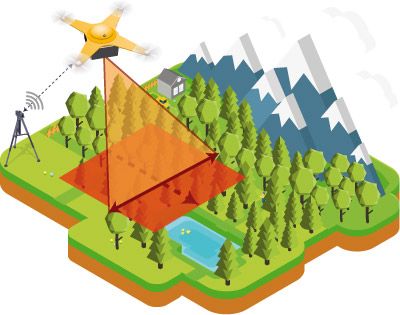
It can be used to map structure including vegetation height, density, and other characteristics across a region. LiDAR directly measures the height and density of vegetation on the ground making it an ideal tool for scientists studying vegetation over large areas.
How LiDAR works?

LiDAR follows a simple principle — throw laser light at an object on the earth’s surface and calculate the time it takes to return to the LiDAR source. Given the speed at which the light travels (approximately 186,000 miles per second), the process of measuring the exact distance through LiDAR appears to be incredibly fast. However, it’s very technical. The formula that analysts use to arrive at the precise distance of the object is as follows:
TFMini-S Micro LiDAR Distance Sensor

The TFMini-S Micro LiDAR Distance Sensor from Benewake comes with a very nice packaging. Benewake is a company from China that is the leading provider of solid-state LIDAR sensors and solutions. The TFMini-S Micro LiDAR Sensor is also called a Micro Single-point Ranging Module.

TFMini-S is an upgraded version of TFmini. The TFMini-S has a has unique optical, structural, and electronic designs. TFmini-S has the advantages of low cost, small volume and low power consumption. It also has multiple interfaces to meet different requirements.

The board has UART and I2C Interface. the board has a microcontroller like STM32 Series controller or something equivalent to it. By connecting the sensor to any external microcontroller, you can retrieve the LiDAR data. It has 4 pins as Power Pins and the UART Pins. The RED color wire is the VCC & Black is the Ground. While the White color wire is RX and Green is the TX.

The blind zone is shortened from 30cm to 10cm, the outdoor performance and accuracy of different reflectivity are improved. The distance range is not disturbed by ambient light, which can be consistent with the indoor range and the accuracy is further optimized. The error performance at 10% reflectivity approaches the background of 90% reflectivity. It can achieve stable, accurate, sensitive, and high-frequency range detection.
Specifications
- Operating Range is 0.1 ~ 12m
- Supply Voltage – 5V
- Frame Rate is 10 – 1000Hz
- Operating Temperature is 0℃~60℃
- Communication Interface – UART
- Accuracy – ±6cm@(0.1-6m), ±1%@(6m-12m)
- FOV – 2°
Applications
- Unidirectional ranging LiDAR.
- Obstacle avoidance.
- Assisted landing.
- Terrain following.
- Robots outdoor obstacle avoidance.
- Intelligent parking. Crane operations.
- Vehicle position sensing.
- Vehicle detection for barrier gate control.
- High-precision & High-speed measurement.
- Eye-safe infrared LED light.
- Compact size, lightweight.
- Good performance for height fixing and terrain-following drones.
Interfacing TFMini-S Micro LiDAR Distance Sensor with Arduino
Let us interface TFMini-S Micro LiDAR Distance Sensor with Arduino. You can interface the sensor with in UART interface or in I2C interface. But I prefer UART interface. The connection is fairly simple.

Connect the VCC & GND Pin of the TFMini Sensor to 5V & GND of Arduino. Similarly, Connect the Tx and RX to D2 & D3 of Arduino. You can use any other Pins for Tx and Rx which supports Software Serial.

Source Code/Program with Library
There is a dedicated library for Benewake TFMini LiDAR Sensor. Check the Github repository for Arduino TFMini Library.
I used the example code from the TFMini Library initially and uploaded the code. The code got uploaded but I got an error message as the Sensor was not able to check the distance.

Then I added some lines to the Code from some Github links which explained why the sensor doesn’t work with the predefined library. This time the sensor got working. Here is the modified code.
|
1 2 3 4 5 6 7 8 9 10 11 12 13 14 15 16 17 18 19 20 21 22 23 24 25 26 27 28 29 30 31 32 33 34 35 36 37 38 39 40 41 42 43 44 45 46 47 48 49 50 51 52 53 54 55 56 57 58 59 60 61 62 63 64 65 66 67 68 69 70 71 72 |
include <SoftwareSerial.h> #include "TFMini.h" TFMini tfmini; SoftwareSerial SerialTFMini(2, 3); //The only value that matters here is the first one, 2, Rx void getTFminiData(int* distance, int* strength) { static char i = 0; char j = 0; int checksum = 0; static int rx[9]; if (SerialTFMini.available()) { rx[i] = SerialTFMini.read(); if (rx[0] != 0x59) { i = 0; } else if (i == 1 && rx[1] != 0x59) { i = 0; } else if (i == 8) { for (j = 0; j < 8; j++) { checksum += rx[j]; } if (rx[8] == (checksum % 256)) { *distance = rx[2] + rx[3] * 256; *strength = rx[4] + rx[5] * 256; } i = 0; } else { i++; } } } void setup() { Serial.begin(115200); //Initialize hardware serial port (serial debug port) while (!Serial); // wait for serial port to connect. Needed for native USB port only Serial.println ("Initializing..."); SerialTFMini.begin(TFMINI_BAUDRATE); //Initialize the data rate for the SoftwareSerial port tfmini.begin(&SerialTFMini); //Initialize the TF Mini sensor } void loop() { int distance = 0; int strength = 0; getTFminiData(&distance, &strength); while (!distance) { getTFminiData(&distance, &strength); if (distance) { Serial.print(distance); Serial.print("cm\t"); Serial.print("strength: "); Serial.println(strength); } } delay(100); } |

The Serial monitor printed the distance of my ceiling as well as Signal Strength. I moved my hand near and far from the sensor and observed the variation in the distance. The blind zone is shortened from 30cm to 10cm. Hence it will only detect something after this distance.

Source Code/Program without Library
If you want to use TFMini-S LiDAR Distance Sensor with Arduino & without a library then check this code. You don’t need to add any library to the Library folder. All the parameters are explained and defined in the code for retrieving the Data through the UART interface.
|
1 2 3 4 5 6 7 8 9 10 11 12 13 14 15 16 17 18 19 20 21 22 23 24 25 26 27 28 29 30 31 32 33 34 35 36 37 38 39 40 41 42 43 44 45 46 47 |
#include <SoftwareSerial.h> //header file of software serial port SoftwareSerial Serial1(2, 3); //define software serial port name as Serial1 and define pin2 as RX & pin3 as TX int dist; //actual distance measurements of LiDAR int strength; //signal strength of LiDAR int check; //save check value int i; int uart[9]; //save data measured by LiDAR const int HEADER = 0x59; //frame header of data package void setup() { Serial.begin(9600); //set bit rate of serial port connecting Arduino with computer Serial1.begin(115200); //set bit rate of serial port connecting LiDAR with Arduino } void loop() { if (Serial1.available()) //check if serial port has data input { if (Serial1.read() == HEADER) //assess data package frame header 0x59 { uart[0] = HEADER; if (Serial1.read() == HEADER) //assess data package frame header 0x59 { uart[1] = HEADER; for (i = 2; i < 9; i++) //save data in array { uart[i] = Serial1.read(); } check = uart[0] + uart[1] + uart[2] + uart[3] + uart[4] + uart[5] + uart[6] + uart[7]; if (uart[8] == (check & 0xff)) //verify the received data as per protocol { dist = uart[2] + uart[3] * 256; //calculate distance value strength = uart[4] + uart[5] * 256; //calculate signal strength value Serial.print("dist = "); Serial.print(dist); //output measure distance value of LiDAR Serial.print('\t'); Serial.print("strength = "); Serial.print(strength); //output signal strength value Serial.print('\n'); } } } } } |
I tested the Sensor performance with this code again. The code worked fine for me.

Using TFMini-S LiDAR Distance Sensor with Arduino & LCD Display
Now I need to test the TFMini sensor outside. To do that I need to connect any display. I will prefer using a 16×2 LCD Display.

So using the circuit diagram I connected a 16×2 LCD Display to the previous Circuit on a Breadboard. I used a 10K Potentiometer to adjust the LCD Contrast.

Now, this device is portable and we can take it outside for testing applications.
Source Code/Program
I added some LCD Codes to the previous code like adding LCD Library and defining the LCD Pins. Then I printed the measured distance on LCD. I then uploaded the code and it worked like a charm.
|
1 2 3 4 5 6 7 8 9 10 11 12 13 14 15 16 17 18 19 20 21 22 23 24 25 26 27 28 29 30 31 32 33 34 35 36 37 38 39 40 41 42 43 44 45 46 47 48 49 50 51 52 53 54 55 56 57 58 59 60 61 62 63 64 65 66 67 68 69 70 71 72 73 74 75 76 77 78 79 80 81 82 83 84 85 |
#include <LiquidCrystal.h> LiquidCrystal lcd(12, 11, 10, 9, 8, 7); #include <SoftwareSerial.h> #include "TFMini.h" TFMini tfmini; SoftwareSerial SerialTFMini(2, 3); //The only value that matters here is the first one, 2, Rx void getTFminiData(int* distance, int* strength) { static char i = 0; char j = 0; int checksum = 0; static int rx[9]; if (SerialTFMini.available()) { rx[i] = SerialTFMini.read(); if (rx[0] != 0x59) { i = 0; } else if (i == 1 && rx[1] != 0x59) { i = 0; } else if (i == 8) { for (j = 0; j < 8; j++) { checksum += rx[j]; } if (rx[8] == (checksum % 256)) { *distance = rx[2] + rx[3] * 256; *strength = rx[4] + rx[5] * 256; } i = 0; } else { i++; } } } void setup() { lcd.begin(16, 2); Serial.begin(115200); //Initialize hardware serial port (serial debug port) while (!Serial); // wait for serial port to connect. Needed for native USB port only Serial.println ("Initializing..."); SerialTFMini.begin(TFMINI_BAUDRATE); //Initialize the data rate for the SoftwareSerial port tfmini.begin(&SerialTFMini); //Initialize the TF Mini sensor } void loop() { int distance = 0; int strength = 0; getTFminiData(&distance, &strength); while (!distance) { getTFminiData(&distance, &strength); if (distance) { Serial.print(distance); Serial.print("cm\t"); Serial.print("strength: "); Serial.println(strength); lcd.setCursor(0, 0); lcd.print("Dis: "); lcd.print(distance); lcd.print(" cm"); lcd.setCursor(0, 1); lcd.print("Str: "); lcd.print(strength); } } delay(500); lcd.clear(); } |
I selected my home balcony to test the sensor. There were so many obstacles at different distances to checking the distance variation. I moved the sensor in different directions to encounter different obstacles. And got to know that the sensor detected the far object and measured the distance by reflecting.

The sensor can measure the maximum distance up to 1200 centimeters. According to the datasheet, the accuracy is around 90%. So we can use this sensor as a demo or for basic applications.
Video Tutorial & Guide


2 Comments
My code stucks at initializing, and from what i read it is becuase the arduino does not receive data from the lidar tf mini-s. May i know how to rectify this issue? Thank you
When I try to compile your library-independent code I get:
conflicting declaration ‘SoftwareSerial Serial1’
Any ideas?