


Overview
This project covers the Face & Eyes Detection System with OpenCV installation on Raspberry Pi 4.
Digital Image Processing and Computer Vision are intertwined areas in the world of tech. At its core, Image Processing is all about refining and adjusting images. The result is usually another enhanced image. In contrast, Computer Vision goes a step further—it doesn’t just process an image; it interprets it. Computer Vision algorithms extract crucial details or features from images, offering a more comprehensive analysis of the visual input.

In the vast world of image-related tools, OpenCV has cemented its position as a frontrunner. It is not just versatile, but its extensive documentation and the support of a thriving community make it an invaluable resource. In this guide, we highlight a hands-on application of OpenCV. We will walk you through the steps of detecting faces and eyes from images taken with the Raspberry Pi camera. With the help of Haar Cascades, an object detection method based on machine learning, we’ll be pinpointing these features with impressive accuracy.
By the end of this exploration, you will have a deeper understanding of the synergy between Image Processing and Computer Vision, and the myriad of possibilities they open up in today’s tech landscape.
Components Required
We need the following components for this project. You can purchase all items from given links:
| S.N. | Components | Quantity | Purchase Link |
|---|---|---|---|
| 1 | Raspberry Pi 4 | 1 | Amazon | SunFounder |
| 2 | Raspberry Pi Camera | 1 | Amazon | SunFounder |
| 2 | SD Card 16/32 GB | 1 | Amazon | SunFounder |
| 3 | 5V, 3A DC Adapter for RPi | 1 | Amazon | SunFounder |
| 4 | LCD Display (Optional) | 1 | Amazon | SunFounder |
| 5 | Mouse & Keyboard (Optional) | 1 | Amazon | SunFounder |
Raspberry Pi Camera Connection
The Raspberry Pi Camera is a peripheral device developed by the Raspberry Pi Foundation to be used with their series of Raspberry Pi single-board computers. The camera module provides a way to add video/photo capabilities to Raspberry Pi projects.
For this project, we can use a 5 mega-pixel Raspberry Pi Camera.

Simply connect the Camera Module to the Raspberry Pi 4 Board using the Camera Connector.

To use the Camera you need to enable the Camera Module first. Open the Raspberry Pi Configuration Tool by typing sudo raspi-config in the terminal. Navigate to Interfacing Options > Camera and enable it.
Concept & Algorithm Behind Face & Eyes Detection
The primary aim of the project is to identify and highlight faces and eyes within a continuous video stream.
For this, we have used the OpenCV library. OpenCv is a widely used computer vision library for various image processing tasks, including object detection. For face and eye detection we are using Haar Cascades Model. The Haar Cascades is a machine learning-based approach where a cascade function is trained to detect objects in images.

It is a particularly efficient method for object detection and has been widely used for tasks like face detection in real-time scenarios. OpenCV provides pre-trained Haar Cascades for face detection, making it easily accessible for many developers.

The Algorithm for Face & Eyes Detection using Raspberry Pi and OpenCV can be explained as follows.
- Initialization:
- Load the Haar cascades meant for face and eye detection.
- Configure the Raspberry Pi camera for the desired video resolution and frame rate.
- Capture Frames Continuously: The video stream is captured frame by frame for real-time processing.
- Pre-processing:
- Each captured frame is converted to grayscale. The grayscale representation simplifies the image, eliminating color nuances, which often makes object detection faster and more accurate.
- Face Detection:
- Faces within the grayscale frame are identified.
- Highlight each detected face by drawing a rectangle around it.
- Eye Detection:
- For every identified face, define a region of interest (typically, this is the area of the face) where eyes are most likely to be located.
- Within this region, detect the eyes.
- Highlight each detected eye by drawing a rectangle around it.
- Display:
- The processed frame, now with rectangles around detected faces and eyes, is displayed in real time to the user.
- User Interaction:
- Provide the user with an option to exit the detection and end the program.
Raspberry Pi Setup, Libraries & Dependencies Installation
OpenCV is required for face and eye detection, and other image processing tasks present in the code. Hence you need to install the OpenCV first. Follow the following guide to install OpenCV in your system:
|
1 |
pip3 install picamera |
Create a folder in the Home directory of your Raspberry Pi with any name such as “Face Recognition“.
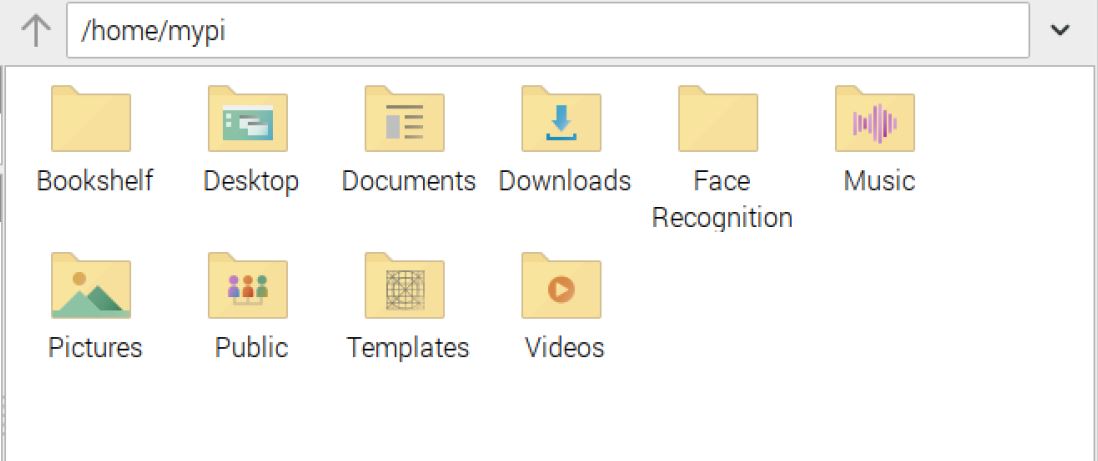
The code references two XML files (haarcascade_frontalface_default.xml and haarcascade_eye.xml) which are Haar cascades used for face and eye detection respectively.
Download these files from the following links:
- Download: haarcascade_frontalface_default.xml
- Download: haarcascade_eye.xml
Add these files to the folder you created above.

The setup part is complete now. We can move to the Face & Eyes Detection Project using Raspberry Pi & OpenCV.
Raspberry Pi Python Code for Face & Eyes Detection
Now let’s develop a Python Code that helps in the detection of eye and face using the OpenCV library and Raspberry Pi Camera.
Python Code
Open Thonny IDE and paste the following code to the Thonny Editor. Save this file with the name “face_detection.py” to the folder that we created earlier. Ensure that these XML files are present in the directory mentioned in the code (/home/mypi/Face Recognition/).
|
1 2 3 4 5 6 7 8 9 10 11 12 13 14 15 16 17 18 19 20 21 22 23 24 25 26 27 28 29 30 31 32 33 34 35 36 37 38 39 40 41 42 43 44 45 46 47 48 49 50 51 52 53 54 |
import cv2 import numpy as np import picamera import picamera.array def main(): # Load the face and eye detection cascades face_cascade = cv2.CascadeClassifier('/home/mypi/Face Recognition/haarcascade_frontalface_default.xml') eye_cascade = cv2.CascadeClassifier('/home/mypi/Face Recognition/haarcascade_eye.xml') # You'll need the XML file for eye detection with picamera.PiCamera() as camera: camera.resolution = (320, 240) camera.framerate = 15 with picamera.array.PiRGBArray(camera, size=(320, 240)) as stream: for frame in camera.capture_continuous(stream, format='bgr', use_video_port=True): image = frame.array # Convert the image to grayscale for face and eye detection gray = cv2.cvtColor(image, cv2.COLOR_BGR2GRAY) # Detect faces faces = face_cascade.detectMultiScale(gray, 1.1, 5) for (x, y, w, h) in faces: cv2.rectangle(image, (x, y), (x+w, y+h), (255, 255, 0), 2) # Region of interest in the grayscale image for eyes detection roi_gray = gray[y:y+h, x:x+w] # Region of interest in the color image for drawing rectangles around eyes roi_color = image[y:y+h, x:x+w] # Detect eyes within the region of interest (i.e., the detected face) eyes = eye_cascade.detectMultiScale(roi_gray, 1.03, 5, minSize=(30,30)) for (ex, ey, ew, eh) in eyes: cv2.rectangle(roi_color, (ex, ey), (ex+ew, ey+eh), (0, 255, 0), 2) # Resize the frame for displaying in a larger window display_frame = cv2.resize(image, (640, 480)) # Display the frame cv2.imshow('Face and Eye Detection', display_frame) # Clear the stream for the next frame stream.truncate(0) # Close the window when 'q' is pressed if cv2.waitKey(1) & 0xFF == ord('q'): break cv2.destroyAllWindows() if __name__ == '__main__': main() |
Code Explanation
Let’s break down the code and explain each section:
|
1 2 3 4 |
import cv2 import numpy as np import picamera import picamera.array |
cv2: This is the OpenCV library, a powerful library for computer vision tasks.numpy: This is a library for numerical operations. OpenCV uses Numpy arrays for image manipulations.picamera&picamera.array: These are libraries for accessing the Raspberry Pi camera module.
|
1 |
def main(): |
This line defines the main function where the primary logic of the code will reside.
|
1 2 |
face_cascade = cv2.CascadeClassifier('/home/mypi/Face Recognition/haarcascade_frontalface_default.xml') eye_cascade = cv2.CascadeClassifier('/home/mypi/Face Recognition/haarcascade_eye.xml') |
The code loads pre-trained classifiers (called Haar cascades) for face and eye detection. These XML files contain the data to detect faces and eyes in images.
|
1 2 3 |
with picamera.PiCamera() as camera: camera.resolution = (320, 240) camera.framerate = 15 |
Initializes the Raspberry Pi camera with a resolution of 320×240 and a framerate of 15 frames per second.
|
1 2 3 |
with picamera.array.PiRGBArray(camera, size=(320, 240)) as stream: for frame in camera.capture_continuous(stream, format='bgr', use_video_port=True): image = frame.array |
- The
capture_continuousfunction captures frames continuously. PiRGBArrayprovides a 3D RGB array interface to images captured from the camera.- Each captured frame is converted to a NumPy array for further processing.
|
1 |
gray = cv2.cvtColor(image, cv2.COLOR_BGR2GRAY) |
The color image is converted to grayscale. Grayscale images are used for detection as color information is usually not required for the cascade classifiers.
|
1 |
faces = face_cascade.detectMultiScale(gray, 1.1, 5) |
Detects faces in the grayscale image. The parameters help in determining the scale of the image and the minimum neighbors a rectangle should have to be considered a face.
|
1 2 |
for (x, y, w, h) in faces: cv2.rectangle(image, (x, y), (x+w, y+h), (255, 255, 0), 2) |
Draws a rectangle around each detected face in the original color image.
|
1 2 3 4 5 |
roi_gray = gray[y:y+h, x:x+w] roi_color = image[y:y+h, x:x+w] eyes = eye_cascade.detectMultiScale(roi_gray, 1.03, 5, minSize=(30,30)) for (ex, ey, ew, eh) in eyes: cv2.rectangle(roi_color, (ex, ey), (ex+ew, ey+eh), (0, 255, 0), 2) |
- For each detected face, the region of interest (ROI) is extracted (both grayscale and color versions).
- Eyes are then detected within this ROI.
- Rectangles are drawn around each detected eye in the color ROI.
|
1 2 |
display_frame = cv2.resize(image, (640, 480)) cv2.imshow('Face and Eye Detection', display_frame) |
- The processed frame is resized for display purposes.
- The frame is then displayed in a window titled “Face and Eye Detection”.
|
1 2 3 |
stream.truncate(0) if cv2.waitKey(1) & 0xFF == ord('q'): break |
- The stream is truncated to prepare for the next frame.
- If the user presses ‘q’, the loop (and the program) will exit.
|
1 |
cv2.destroyAllWindows() |
Closes any OpenCV windows that were opened.
|
1 2 |
if __name__ == '__main__': main() |
This is a common Python idiom. When the script is run directly (not imported), the main() function is executed.
Testing & Results
Run the above script by clicking on Run Button. A window will appear which shows the live images of the object from the Camera.
Bring the Camera in front of your face. The windows will show a blue rectangle around the face and two green rectangles around the eyes.
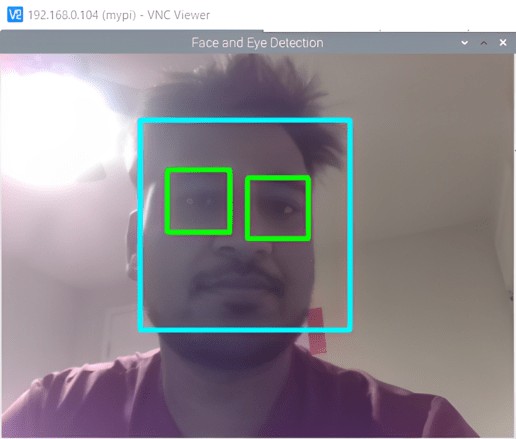
The script can also detect multiple faces in an image.

You can try this multiple times by bringing the camera to multiple people. The face and eyes will be detected every time.
Conclusion
Using OpenCV with the Raspberry Pi Camera, real-time face and eye detection is achievable, showcasing the power of compact systems in computer vision tasks. While the current setup using Haar cascades is efficient, advancements like deep learning could offer improved accuracy. This project highlights the potential of affordable, accessible technology in practical computer vision applications.


