


DHT11 Humidity Temperature Monitor with NodeMCU on ThingSpeak
In this tutorial, we will learn how to monitor humidity and temperature using the DHT11 sensor and NodeMCU ESP8266, and then upload the readings to the ThingSpeak cloud server. The DHT11 will be used to measure temperature and humidity, while ThingSpeak will serve as our IoT cloud platform to store, visualize, and analyze the sensor data from anywhere in the world.
This guide is based on the Arduino IDE and is specifically written for the NodeMCU ESP8266 board. However, the same concept can be applied to any ESP8266-based development board for real-time temperature and humidity monitoring.
Before you begin, check this previous article related to DHT11 and Arduino interfacing to help you get started.
Bill of Materials
You just need NodeMCU ESP-12E WiFi Development board and a humidity sensor DHT11 or DHT22. In addition to this breadboard and connecting wires are required.
| S.N. | Components Name | Quantity | Purchase Links |
|---|---|---|---|
| 1 | NodeMCU ESP8266 Board | 1 | Amazon | AliExpress |
| 2 | DHT11 Sensor | 1 | Amazon | AliExpress |
| 3 | Connecting Wires | 10 | Amazon | AliExpress |
| 4 | Breadboard | 1 | Amazon | AliExpress |

DHT11 Humidity & Temperature Sensor:
The DHT11 is a simple, ultra–low-cost digital sensor used for measuring temperature and humidity. It combines a capacitive humidity sensor and an NTC thermistor to sense the environmental moisture and temperature. The sensor provides a calibrated digital output on its single data pin, which means no analog input is required — making it ideal for microcontrollers like the NodeMCU ESP8266, Arduino, and ESP32.

The DHT11 communicates using a single-wire protocol, and while it is easy to interface, the data communication requires precise timing. Fortunately, there are well-supported Arduino libraries that handle all timing requirements, making it very beginner-friendly.
Although the DHT11 is widely used in DIY and IoT projects, it does come with a few limitations. The most notable is its slow sampling rate — it can only provide a new reading once every 2 seconds. This means that when you request data, the values may be up to 2 seconds old. Additionally, its measurement range and accuracy are modest compared to other sensors like the DHT22.
DHT11 Specifications
| Parameter | Value |
|---|---|
| Humidity Range | 20% to 90% RH |
| Humidity Accuracy | ±5% RH |
| Temperature Range | 0°C to 50°C |
| Temperature Accuracy | ±2°C |
| Sampling Rate | 1 reading every 1–2 seconds |
| Operating Voltage | 3.3V to 5V |
| Interface | Single-Wire Digital |
Key Features
- Single-wire digital output (no analog pin needed)
- Low-cost and easy to interface
- Calibrated output — no complex calculations required
- Compatible with 3.3V and 5V controllers
- Compact and reliable for basic environmental monitoring
Circuit Diagram & Connection:
To interface the DHT11 temperature and humidity sensor with the NodeMCU ESP8266, we only need three active pins: VCC, Data, and GND. The DHT11 communicates using a single-wire digital interface, which makes the wiring very simple.

In the circuit shown above, the DATA OUT pin of the DHT11 is connected to GPIO0 (D3) of the NodeMCU, and the sensor is powered through the NodeMCU’s 3.3V supply. Since the ESP8266 GPIO pins work at 3.3V logic, the DHT11 is fully compatible and does not require any level shifting.
Setting Thingspeak & Getting API Key:
To store and visualize your sensor data on the cloud, we will be using ThingSpeak, a popular IoT analytics platform. Follow the steps below to create your channel and get the required API Key.

- Create a ThingSpeak Account
Visit https://thingspeak.com/ and sign in. If you are a new user, create a free account by completing a simple registration process. Once your account is activated, log in to your dashboard. - Create a New Channel
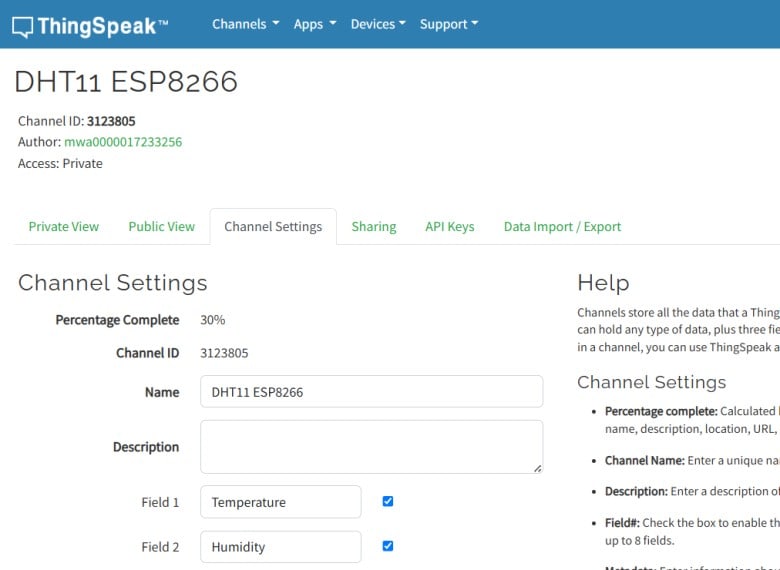
After login, click on “New Channel” from the dashboard.- Enter a Channel Name (e.g., Humidity & Temperature Monitoring)
- Enable at least two fields:
- Field 1 → Temperature
- Field 2 → Humidity
- Add an optional description and metadata if needed
Scroll down and click “Save Channel” to create it successfully.

- Get the API Key
Once your channel is created, navigate to the “API Keys” tab.
Here you will find two keys:- Write API Key – used for uploading data from NodeMCU
- Read API Key – used for reading/displaying data
Copy the Write API Key and save it in a notepad — you will need this key later in the Arduino code to send your DHT11 data to ThingSpeak.
Source Code/Program:
The complete program for monitoring Humidity and Temperature using the DHT11 sensor and NodeMCU on ThingSpeak is provided below. Follow the steps to upload it through the Arduino IDE:
- Copy and paste the code into your Arduino IDE.
- Download and install the DHT11/DHT22 library from GitHub (or through Arduino Library Manager) and ensure it is added to your project.
- Select the correct board by navigating to:
Tools → Board → NodeMCU 1.0 (ESP-12E Module). - Insert your ThingSpeak Write API Key into the code at the specified location. This is the same key you generated while creating your channel.
- Edit the Wi-Fi credentials, replacing the default SSID and Password with your own network details.
- Verify (Compile) the code and then upload it to the NodeMCU board.
|
1 2 3 4 5 6 7 8 9 10 11 12 13 14 15 16 17 18 19 20 21 22 23 24 25 26 27 28 29 30 31 32 33 34 35 36 37 38 39 40 41 42 43 44 45 46 47 48 49 50 51 52 53 54 55 56 57 58 59 60 61 62 63 64 65 66 67 68 69 70 71 72 73 74 75 76 77 78 79 80 81 82 83 84 85 86 87 88 89 90 91 92 93 94 95 96 97 98 99 100 101 102 103 104 105 106 107 108 109 110 111 112 113 114 115 116 117 118 119 120 121 122 123 124 125 126 127 128 129 130 131 132 133 134 135 136 137 138 139 140 141 |
/* NodeMCU (ESP8266) + DHT11 → ThingSpeak -------------------------------------- - Reads temperature & humidity from DHT11 - Posts data to ThingSpeak Channel fields - Uses a safe 20 s upload interval (ThingSpeak min = 15 s; DHT11 ~2 s) Wiring (NodeMCU 1.0 ESP-12E): DHT11 VCC -> 3V3 DHT11 DATA -> D3 (GPIO0) // you can change the pin if you prefer DHT11 GND -> GND (Most DHT11 modules already have a 10k pull-up on DATA) */ #include <ESP8266WiFi.h> #include <DHT.h> // -------------------- USER SETTINGS -------------------- const char* ssid = "how2electronics"; // <-- replace with your WiFi SSID const char* password = "alhabibi"; // <-- replace with your WiFi password // ThingSpeak settings const char* server = "api.thingspeak.com"; const char* writeAPI = "H38TEGNC0XKW43BB"; // <-- replace with your ThingSpeak WRITE API key // Map your fields in the channel: Field1 = Temperature (°C), Field2 = Humidity (%RH) // Sensor settings #define DHTPIN 0 // GPIO0 (NodeMCU pin label: D3) #define DHTTYPE DHT11 // ------------------------------------------------------ DHT dht(DHTPIN, DHTTYPE); WiFiClient client; // Upload every ≥15 s. Use 20 s for safety. const unsigned long UPLOAD_INTERVAL_MS = 20000; unsigned long lastUpload = 0; void connectWiFi() { Serial.print("Connecting to WiFi: "); Serial.println(ssid); WiFi.mode(WIFI_STA); WiFi.begin(ssid, password); // Wait for connection uint8_t tries = 0; while (WiFi.status() != WL_CONNECTED) { delay(500); Serial.print('.'); if (++tries >= 60) { // ~30 seconds timeout Serial.println("\nWiFi connect timeout. Restarting..."); ESP.restart(); } } Serial.println("\nWiFi connected!"); Serial.print("IP address: "); Serial.println(WiFi.localIP()); } void setup() { Serial.begin(115200); delay(50); Serial.println(); Serial.println("DHT11 + NodeMCU → ThingSpeak"); dht.begin(); connectWiFi(); } bool postToThingSpeak(float temperatureC, float humidity) { // Build URL-encoded POST body. API key can go in header (X-THINGSPEAKAPIKEY) // or as field "api_key" in the body. We’ll send it in the header and keep // the body to fields only. String postBody = "field1=" + String(temperatureC, 1) + "&field2=" + String(humidity, 1); if (!client.connect(server, 80)) { Serial.println("Connection to ThingSpeak failed."); return false; } // HTTP request client.print(String("POST /update HTTP/1.1\r\n") + "Host: " + String(server) + "\r\n" + "Connection: close\r\n" + "X-THINGSPEAKAPIKEY: " + String(writeAPI) + "\r\n" + "Content-Type: application/x-www-form-urlencoded\r\n" + "Content-Length: " + String(postBody.length()) + "\r\n\r\n" + postBody + "\r\n"); // Read response (optional but useful for debugging) unsigned long start = millis(); while (client.connected() && millis() - start < 3000) { while (client.available()) { String line = client.readStringUntil('\n'); // Uncomment to see entire response: // Serial.println(line); // ThingSpeak returns an integer line with the entry number if successful if (line.length() == 1 && line[0] == '\r') { // blank line before body String body = client.readString(); Serial.print("ThingSpeak response (entry ID or 0): "); Serial.println(body); break; } } } client.stop(); return true; } void loop() { // Respect ThingSpeak & DHT11 timing if (millis() - lastUpload < UPLOAD_INTERVAL_MS) { delay(50); return; } // Read sensor float h = dht.readHumidity(); float t = dht.readTemperature(); // Celsius if (isnan(h) || isnan(t)) { Serial.println("Failed to read from DHT11. Retrying next cycle..."); lastUpload = millis(); // still wait until next interval return; } Serial.print("Temperature: "); Serial.print(t, 1); Serial.print(" °C, Humidity: "); Serial.print(h, 1); Serial.println(" %RH"); // Upload to ThingSpeak if (postToThingSpeak(t, h)) { Serial.println("Update sent to ThingSpeak."); } else { Serial.println("Update failed."); } lastUpload = millis(); } |
Once the upload is complete and your NodeMCU is powered on, it will automatically connect to Wi-Fi and begin sending DHT11 sensor data to your ThingSpeak channel.
Monitor Humidity Temperature Data on ThingSpeak
Once powered, the DHT11 continuously measures humidity and temperature from the surrounding air. The NodeMCU requests the sensor data through the DATA pin, and then sends the collected values to the ThingSpeak cloud via Wi-Fi.
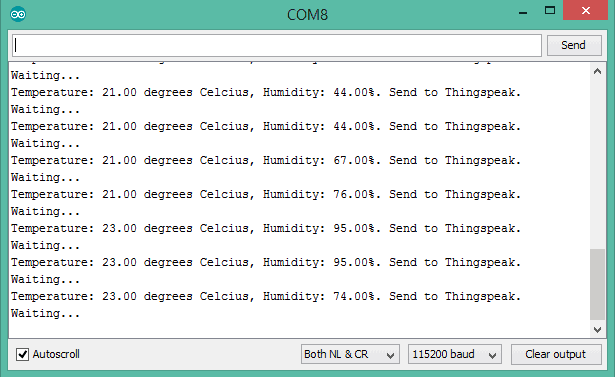
To monitor your sensor readings on ThingSpeak, open your channel and navigate to the “Private View” section. The temperature and humidity data will be displayed as real-time graphs, updating each time your NodeMCU uploads new values.

Video Tutorial:







34 Comments
Sryy bro….. but it is not compiled at Arduino IDE …it shows
“Multiple libraries were found for “DHT.h”
In file included from E:\Arduino UNO\H_AND_T–DHT11\H_AND_T–DHT11.ino:2:0:
Used: C:\Users\priyansh vashistha\Documents\Arduino\libraries\DHT_sensor_library
C:\Users\priyansh vashistha\Documents\Arduino\libraries\DHT_sensor_library/DHT_U.h:25:29: fatal error: Adafruit_Sensor.h: No such file or directory
Not used: C:\Users\priyansh vashistha\Documents\Arduino\libraries\Grove_Temperature_And_Humidity_Sensor
#include
compilation terminated.
exit status 1
Error compiling for board NodeMCU 1.0 (ESP-12E Module).”
that error ….
Please help me if you can understand this problem and tell me the solution of this problem at my gmail account …
My Email – [email protected]
Delete all other libraries from Arduino library folder and the add the only library that i have given in the link.
Hi sir, is the coding is for dht 11 only? what happen if I use the coding for dht22 sensor?
The same code will work for dht22 also
Will this work if we use a mobile hotspot instead of WiFi..?
Will this work if we use a mobile hotspot instead of WiFi?
will this work,if we use other sensor? like Ac curent and other ? if it can. Can you teach me ?
Arduino: 1.8.9 (Windows Store 1.8.21.0) (Windows 10), Board: “NodeMCU 1.0 (ESP-12E Module), 80 MHz, Flash, Disabled (new can abort), All SSL ciphers (most compatible), 4MB (FS:none OTA:~1019KB), 2, v2 Lower Memory, Disabled, None, Only Sketch, 115200”
Build options changed, rebuilding all
In file included from C:\Users\shahid\Documents\Arduino\libraries\DHT_sensor_library\DHT_U.cpp:15:0:
C:\Users\shahid\Documents\Arduino\libraries\DHT_sensor_library\DHT_U.h:36:29: fatal error: Adafruit_Sensor.h: No such file or directory
#include <Adafruit_Sensor.h>
^
compilation terminated.
exit status 1
Error compiling for board NodeMCU 1.0 (ESP-12E Module).
This report would have more information with
“Show verbose output during compilation”
option enabled in File -> Preferences.
We got these errors and we don’t know what to do? Please help us
what is the accuracy ??
Go for SHT31 sensor if you want good accuracy.
Am using dht11 and esp8266 wifi module with your codes unchanged and it will give me how much accuracy level??
Yes
Am using mobile hotspot ..and it is working fine….
Documents\Arduino\libraries\DHT_sensor_library-1.3.8\DHT_U.h:36:29: fatal error: Adafruit_Sensor.h: No such file or directory
#include
compilation terminated.
exit status 1
Error compiling for board NodeMCU 1.0 (ESP-12E Module).
————————–>>>>>>>>>>>>>>>
—————————>>>>>>>>>>>>>>
I TRIED alot by adding and removing the library but cant solve this issue…,,,,
can u help me??
plse
Documents\Arduino\libraries\DHT_sensor_library-1.3.8\DHT_U.h:36:29: fatal error: Adafruit_Sensor.h: No such file or directory
#include <Adafruit_Sensor.h>
^
compilation terminated.
exit status 1
Error compiling for board NodeMCU 1.0 (ESP-12E Module).
————————–>>>>>>>>>>>>>>>
—————————>>>>>>>>>>>>>>
I TRIED alot by adding and removing the library but cant solve this issue…,,,,
can u help me??
plse
what we need to put in server or leave it as it is?
its shows the data is sending to thingspeak but not showing ta thingspeak
Hello How2electronics i m stuck with ”Failed to read from DHT sensor!”
serial monitor allwayws showing and not going further. I m a new one, in programming kindly guide me. regards.
serial.serialutil.SerialException: could not open port ‘COM5’: FileNotFoundError(2, ‘The system cannot find the file specified.’, None, 2)
Hello i have this problem stated above how do i solve this sir?
waiting……………………………………………………………… it can’t be read on thingspeak, please help me… although upload successfully
“Error when configuring the serial port parameters: 250000 N 8 1”
What can this error be? Would you help me? Please!
DTH11 data not getting updated on thinkspeak.com
ONLY QUESTION MARK IS PRINTING PL HELP ME SIR
Hi sir, which DHT library should I used. There are many version of DHT library shared from multiple sources.
Try with anyone, whichever compiles will work for you.
why its not display at website thingspeak??..i use esp32
me too
Which link sir
were u able to do anything about it.?
yes it will work
do it
compilation terminated.
exit status 1
DHT.h: No such file or directory
sir which library should i use for this error
so any luck?
��
���J��H��4�
��
pJ���H�H�&
��
I am resiving this output in serial monitor any idea.
what link?