


Overview
This is a getting started tutorial about Amazon Web Services, i.e AWS IoT Core with ESP32. The AWS IoT Core is a managed cloud service that lets connected devices easily and securely interact with cloud applications and other devices.
In this tutorial, we will learn how you can connect the ESP32 with AWS IoT Core & publish sensor reading to AWS MQTT. For a demo, we will use the DHT11 Sensor and read the humidity temperature data. The ESP32 will connect to the local WiFi network and will post the DHT11 Sensor data to AWS IoT Cloud. Not only posting data, but we can also receive the data from AWS Dashboard. Earlier we posted the sensor Data to AWS Dashboard using AWS IoT Core & ESP8266.
The tutorial comprises multiple sections
- Signing up & setting the Amazon Web Services
- Installing Necessary Libraries to Arduino IDE & Writing an Arduino Sketch for the project
- Creating a Thing is AWS
- Creating Policy and attaching to Thing
- Generating Certificates
- Modifying Arduino Sketch according to Thing Data & Credentials
- Subscribe & Publish Data to and from AWS Dashboard
This tutorial is for beginners who want to learn about the Amazon AWS IoT Core for IoT Applications. Earlier we learned about the IoT platform like Google Firebase and Arduino IoT Cloud. But with AWS IoT Core, you can build and manage devices for commercial applications.
Hardware Setup
The hardware required for this project is an ESP32 Wifi Module. And for the sensor part, we will use DHT11 Humidity and Temperature Sensor.

Connect the DHT11 Sensor to ESP32 Board as per circuit diagram here.

You can use a breadboard for connection or simply use a male-to-female connector wire.
What is Amazon AWS IoT Core?
AWS offers Internet of Things (IoT) services and solutions to connect and manage billions of devices. These cloud services connect your IoT devices to other devices and AWS cloud services. AWS IoT provides device software that can help you integrate your IoT devices into AWS IoT-based solutions. If your devices can connect to AWS IoT, AWS IoT can connect them to the cloud services that AWS provides.

AWS IoT lets you select the most appropriate and up-to-date technologies for your solution. To help you manage and support your IoT devices in the field, AWS IoT Core supports these protocols:
- MQTT (Message Queuing and Telemetry Transport)
- MQTT over WSS (Websockets Secure)
- HTTPS (Hypertext Transfer Protocol – Secure)
- LoRaWAN (Long Range Wide Area Network)
Getting Started with Amazon AWS IoT Core with ESP32
Getting started with AWS IoT core is very simple. You just need to follow the following steps given below to successfully set up the ESP32 board and start with your very first project.
Signing in
Go to your web browser and search visit following link: aws.amazon.com/iot-core/.

Basically we need to set up the AWS Account now. Therefore create an account using the email ID and password. The account also requires your bank Credit card information. There will be no charges but AWS just needs a verification using your bank account. It will also ask for phone number verification. Hence the account will be successfully created.

AWS IoT Core Dashboard
After successfully signing in, the AWS Management Console window will open. In the services search tab at the top write ‘IoT core’ & hit enter.

You can click on IoT Core, so an AWS IoT Dashboard will appear now.

On the left side of the dashboard, there are so many options. But we need to work with two options here. One is the manage option and the other one is the secure option.
Creating a Thing
Now we need to create a thing associated with our project. For this, follow the following steps:
- Specifying thing properties
- Configuring device certificate
- Attaching policies to certificate
Under the manage option click on Thing. Now we need to create a Thing here. So, click on Create Things here.

You can select whether create a single thing or create many things. But for our applications, select create a single thing. Then click on Next.

Specify Thing Properties
Here we need to specify the Thing properties. First, give a thing name. You can name it anything. For example, I will name it ESP32_DHT11.
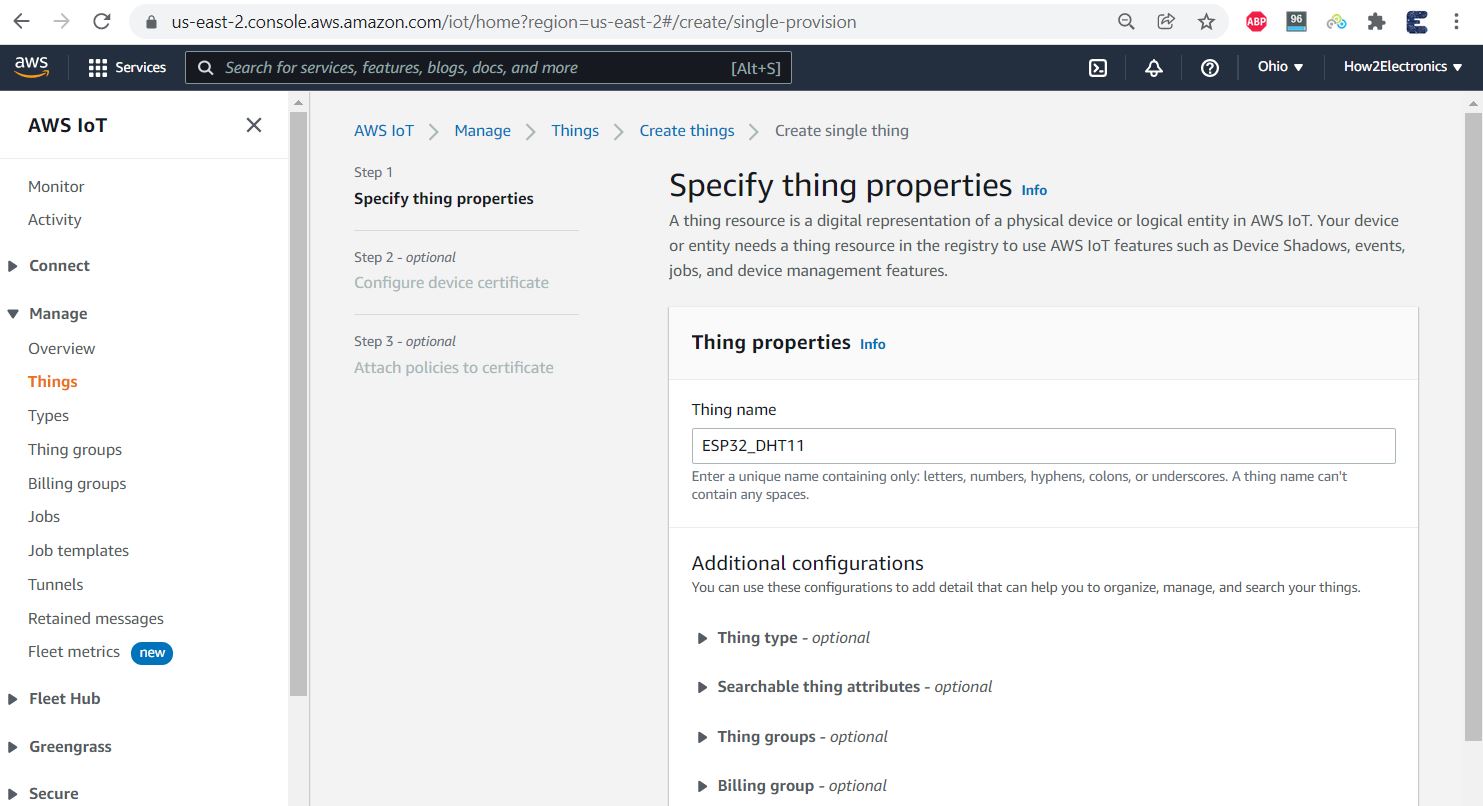
Under additional configurations, there is no need to make any changes.
Under the device shadow option, select the first option as No shadow. Then click on Next.
Generate Device Certificate
Now you need to configure device certificate. So here you can auto-generate a new certificate or use your own certificate or upload CSR or skip this.

But the AWS recommendation is to select the Auto Generate New Certificate. Then click on Next.
Create & Attach Policy
Now we need to attach a policy to the Things we created. But no policies are here right now. So we need to create a policy first.

So click on create policy. Here give any name to the policy. For example, I will give it a name as “ESP32_Policy“.
Now the add statement part is very important. Under the action, type IoT. So multiple options will pop up. From here we will only need to publish, Subscribe, Connect and Receive.

Now click on create to create the policy. So the policy has been created successfully.
Now go back to Create Thing option. So a policy option will appear. We need to attach the policies to the certificate. So select the appeared policy and click on create a thing.

Downloading Certificates and Keys
Now we need to download the required certificates from this list.

First, download the device certificate and then rename it as a device certificate for identification.
Also, download the public key and rename it as a public key. Then download the private key and rename it as a private key.
In the Root CA Certificates, there are two certificates here. But we just need a Root CA1 certificate, so download it as well.

So we have downloaded all the certificates that we need for our project.
Installing Necessary Arduino Libraries
1. ArduinoJSON Library
So first go to the library manager and search for “JSON” & install the library as shown in the figure below.

2. PubSubClient Library
Again go to the library manager and search for “PubSubClient” & install the library from Nick O’Leary.

3. DHT11 Sensor Library
Search for “dht11” & install the library as shown below.

Source Code/Program for connecting AWS IoT Core with ESP32
The code/program that interfaces ESP32 with DHT11 Sensor & connects to the Amazon AWS IoT Core is written in Arduino IDE. The code is divided into two sections. One is the main ino file and other the header file.
Main .ino File
Open a new sketch in Arduino IDE & paste the following code and save it.
|
1 2 3 4 5 6 7 8 9 10 11 12 13 14 15 16 17 18 19 20 21 22 23 24 25 26 27 28 29 30 31 32 33 34 35 36 37 38 39 40 41 42 43 44 45 46 47 48 49 50 51 52 53 54 55 56 57 58 59 60 61 62 63 64 65 66 67 68 69 70 71 72 73 74 75 76 77 78 79 80 81 82 83 84 85 86 87 88 89 90 91 92 93 94 95 96 97 98 99 100 101 102 103 104 105 106 107 108 109 110 111 112 113 114 115 116 |
#include "secrets.h" #include <WiFiClientSecure.h> #include <PubSubClient.h> #include <ArduinoJson.h> #include "WiFi.h" #include "DHT.h" #define DHTPIN 14 // Digital pin connected to the DHT sensor #define DHTTYPE DHT11 // DHT 11 #define AWS_IOT_PUBLISH_TOPIC "esp32/pub" #define AWS_IOT_SUBSCRIBE_TOPIC "esp32/sub" float h ; float t; DHT dht(DHTPIN, DHTTYPE); WiFiClientSecure net = WiFiClientSecure(); PubSubClient client(net); void connectAWS() { WiFi.mode(WIFI_STA); WiFi.begin(WIFI_SSID, WIFI_PASSWORD); Serial.println("Connecting to Wi-Fi"); while (WiFi.status() != WL_CONNECTED) { delay(500); Serial.print("."); } // Configure WiFiClientSecure to use the AWS IoT device credentials net.setCACert(AWS_CERT_CA); net.setCertificate(AWS_CERT_CRT); net.setPrivateKey(AWS_CERT_PRIVATE); // Connect to the MQTT broker on the AWS endpoint we defined earlier client.setServer(AWS_IOT_ENDPOINT, 8883); // Create a message handler client.setCallback(messageHandler); Serial.println("Connecting to AWS IOT"); while (!client.connect(THINGNAME)) { Serial.print("."); delay(100); } if (!client.connected()) { Serial.println("AWS IoT Timeout!"); return; } // Subscribe to a topic client.subscribe(AWS_IOT_SUBSCRIBE_TOPIC); Serial.println("AWS IoT Connected!"); } void publishMessage() { StaticJsonDocument<200> doc; doc["humidity"] = h; doc["temperature"] = t; char jsonBuffer[512]; serializeJson(doc, jsonBuffer); // print to client client.publish(AWS_IOT_PUBLISH_TOPIC, jsonBuffer); } void messageHandler(char* topic, byte* payload, unsigned int length) { Serial.print("incoming: "); Serial.println(topic); StaticJsonDocument<200> doc; deserializeJson(doc, payload); const char* message = doc["message"]; Serial.println(message); } void setup() { Serial.begin(115200); connectAWS(); dht.begin(); } void loop() { h = dht.readHumidity(); t = dht.readTemperature(); if (isnan(h) || isnan(t) ) // Check if any reads failed and exit early (to try again). { Serial.println(F("Failed to read from DHT sensor!")); return; } Serial.print(F("Humidity: ")); Serial.print(h); Serial.print(F("% Temperature: ")); Serial.print(t); Serial.println(F("°C ")); publishMessage(); client.loop(); delay(1000); } |
Secrets.h
Open a New Tab in Arduino IDE and name it as Secrets.h. And paste the following code to this file.
|
1 2 3 4 5 6 7 8 9 10 11 12 13 14 15 16 17 18 19 20 21 22 23 24 25 26 27 28 29 30 31 32 33 |
#include <pgmspace.h> #define SECRET #define THINGNAME "***************" //change this const char WIFI_SSID[] = "***************"; //change this const char WIFI_PASSWORD[] = "***************"; //change this const char AWS_IOT_ENDPOINT[] = "***************"; //change this // Amazon Root CA 1 static const char AWS_CERT_CA[] PROGMEM = R"EOF( -----BEGIN CERTIFICATE----- -----END CERTIFICATE----- )EOF"; // Device Certificate //change this static const char AWS_CERT_CRT[] PROGMEM = R"KEY( -----BEGIN CERTIFICATE----- -----END CERTIFICATE----- )KEY"; // Device Private Key //change this static const char AWS_CERT_PRIVATE[] PROGMEM = R"KEY( -----BEGIN RSA PRIVATE KEY----- -----END RSA PRIVATE KEY----- )KEY"; |
Modifying Arduino Sketch according to the Thing
Now it’s time to modify the Arduino Sketch File. Go to secrets.h tab and begin the modification.
Here we need to include a thing name. You can go to the things section of AWS Console and copy the thing name.

Paste the thing name to the following line of code.
|
1 |
#define THINGNAME "***************" |
Under the WiFi SSID and password, enter the WiFi SSID and Password of your local network.
|
1 2 |
const char WIFI_SSID[] = "***************"; const char WIFI_PASSWORD[] = "***************"; |
Now, we need to insert the AWS IoT Endpoint here. To get the endpoint, go to the settings part of AWS Dashboard. Yow will get the endpoint.

Click on the copy icon to copy the endpoint. Go back to Arduino IDE and paste it on the following line.
|
1 |
const char AWS_IOT_ENDPOINT[] = "***************"; |
You need to insert the Amazon Root CA1 in between the following line.
|
1 2 3 4 5 6 |
// Amazon Root CA 1 static const char AWS_CERT_CA[] PROGMEM = R"EOF( -----BEGIN CERTIFICATE----- -----END CERTIFICATE----- )EOF"; |
So for this, we need to go back to the certificate that we downloaded earlier. Open this file with Notepad++ and copy all the text.

Then go back to Arduino IDE and insert the copied text between begin certificate and the end certificate.
Under the “Device Certificate” lines, we need to paste the device certificate text. So open the device certificate file that we downloaded earlier. And again copy the text and paste it between the begin certificate and end certificate section.
|
1 2 3 4 5 |
// Device Certificate static const char AWS_CERT_CRT[] PROGMEM = R"KEY( -----BEGIN CERTIFICATE----- -----END CERTIFICATE----- |
Under the “Device Private Key“, we need to insert the device’s private key. So go to the downloaded folder again and open the device’s private key file using Notepad++. Again copy the text and paste it between begin & end parts.
|
1 2 3 4 5 |
// Device Private Key static const char AWS_CERT_PRIVATE[] PROGMEM = R"KEY( -----BEGIN RSA PRIVATE KEY----- -----END RSA PRIVATE KEY----- |
So all the modification of the Arduino ESP32 Sketch related to AWS IoT Core is done now.
Testing the Publishing & Subscription of Data
Once all the modification is done, connect the ESP32 to your computer. Then go to the tools & select ESP32 Board that you are using for this project. Also, select the COM port. Then click on the upload option to upload the code to the ESP32 board.

Once the code uploading is done, open the Serial Monitor. The ESP32 will try connecting to the WiFi Network. Once it gets connected to the WiFi Network, it will try connecting to the AWS IoT Server.
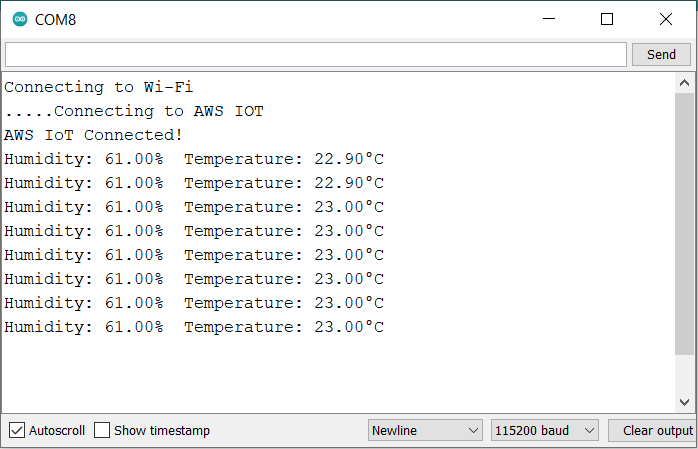
The humidity and temperature value will appear on the Serial Monitor.
Subscribing Sensor Data to AWS Dshboard
The same thing should also be posted to the AWS Server. To check that, go to the test section of AWS Dashboard. Under the test section, we have an option for subscribe and publish.

Now to see the data, you need to subscribe to a topic. For that type “esp32/pub“ under the topic filter section. In the additional configuration, you can make changes if you want.

Then click on subscribe. When you hit the subscribe button, immediately the data from ESP32 will be uploaded to AWS Dashboard. Thus, you have successfully sent the DHT11 Sensor data to Amazon AWS IoT Core using ESP32.

The data is updated here after an interval of every one second. This is really amazing as we are able to receive the data to AWS IoT Core Dashboardsent from ESP32 via MQTT protocol. This is how we read the subscribed data.
Publishing Data to Serial Monitor
Now let’s see if we are able to publish the data from AWS IoT core to ESP32 or not.

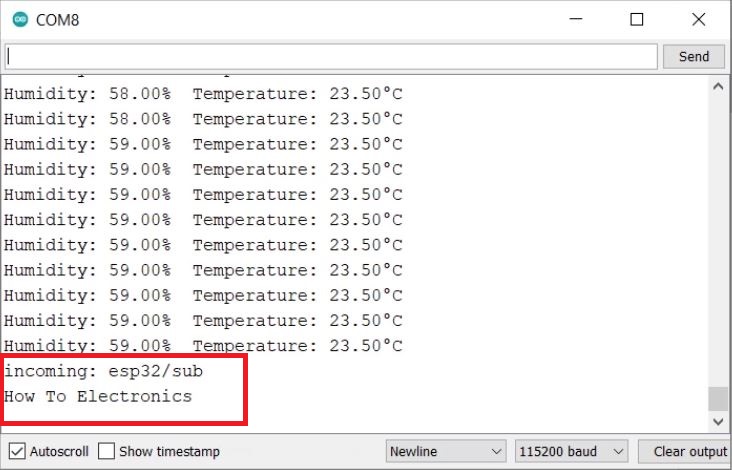
Now to see the data, you need to publish to a topic. For that type “esp32/sub“ under the topic filter section. Under additional configuration do nothing. Then click on publish.
Immediately you can see the message sent to the Serial Monitor. This is amazing again. You can use this method to Control an LED using publish method.
This is how you can send or receive data from Amazon AWS IoT Core using ESP32. Using AWS MQTT, we can subscribe to sensor readings topics published by various IoT nodes. This is a basic beginner’s tutorial for the users who want to get started with Amazon Web Services for their IoT devices.
Video Tutorial & Guide







10 Comments
Hi, thanks very much for the info.
How make App (app inventor) to connect to this AWS? I need to use the same certs, key, in the app?
Thanks
I get an error from Arduino IDE of MD5 mismatch. It compiles fine, it’s just when I try to Upload to bootloader through Arduino IDE.
I was able to fix it with just wiping the flash and uploading a basic app to the esp32 and then trying this one again. Works like a champ now!
Congrats Aaron. Nice to know that you made it work.
I’ve followed this example and when I monitor the messages, the first message comes through but none after that…. If I reset the Microcontroller via reprogramming it or the reset button it resends a single sensor reading. But nothing after that. The Publishing of data to the serial monitor also doesn’t work. Any suggestions as what to try?
I am facing the same issue here
Hi I am getting the following error
The CRT/CRL/CSR format is invalid, e.g. different type expected
Can you specify with an example of the certificate char?
Thanks
How do I get the json information, and send it to my site?
I have established a connection between ESP32 and AWS IoT Core and I can share data fluently but when I increase the time interval from 1 second to 1-15 minutes the connection is lost or not detected. What is the reason behind it?
you have to modify the “KEEP ALIVE” parameter to prevent the connection to time out….