


Overview
In this project, we will interface DHT11 Humidity Temperature Sensor with ESP32 using MicroPython Code. We will first interface the Sensor with ESP32 only and check the temperature and humidity reading in Shell Window. Similarly, we will add extra 0.96″/1.3″ I2C OLED Display to the same circuit and display the Humidity Temperature reading on OLED Screen.
But before beginning, I will highly recommend you to follow the following tutorial to boost up your MicroPython skill. I have explained how you can install MicroPython & use uPyCraft IDE. If you are aware of all this, then you can skip this step.
Bill of Materials
Following are the components required for making the ESP32 MicroPython DHT11 Project. All the components can be eaily purchased from Amazon. The components purchase link is given below.
| S.N. | Components Name | Quantity | Purchase Links |
|---|---|---|---|
| 1 | ESP32 Board | 1 | Amazon | AliExpress |
| 2 | DHT11 Sensor | 1 | Amazon | AliExpress |
| 3 | Connecting Wires | 3 | Amazon | AliExpress |
| 4 | Breadboard | 1 | Amazon | AliExpress |
In my case I am using a MakePython ESP32 Board as this board is cheaper with additional 1.3″ OLED Display and is specially designed for MicroPython support.

To learn more about this board and purchase it online, you can visit this link: MakePython ESP32 Board.
DHT11 Humidity Temperature Sensor
The DHT11 is a basic, ultra low-cost digital temperature and humidity sensor. It uses a capacitive humidity sensor and a thermistor to measure the surrounding air, and spits out a digital signal on the data pin (no analog input pins needed).

The sensor comes with a dedicated NTC to measure temperature and an 8-bit microcontroller to output the values of temperature and humidity as serial data. The sensor is also factory calibrated and hence easy to interface with other microcontrollers. The sensor can measure temperature from 0°C to 50°C and humidity from 20% to 90% with an accuracy of ±1°C and ±1%.
Interfacing DHT11 Sensor with ESP32 using MicroPython Code
Now let us assemble DHT11 Sensor & ESP32 & start with MicroPython Code for measuring Humidity & Temperature. The connection is fairly simple. Connect the DHT11 VCC & GND pin to ESP32 3.3V Pin & GND Pin. Connect the digital output pin to ESP32 GPIO5 Pin.

In my case I am using MakePython ESP32 Board. The connection for this Board is as shown in the image below.

ESP32 DHT11 MicroPython Code
The MiroPython Code for Interfacing DHT11 with ESP32 is given below.
Open uPyCraft IDE and open a New Tab. Paste the below Code and save it with a name “main.py”. Now you can connect the ESP32 Board & Upload the Code by clicking on Download button.
|
1 2 3 4 5 6 7 8 9 10 11 12 13 14 15 16 |
from machine import Pin from time import sleep import dht sensor = dht.DHT11(Pin(5)) while True: try: sleep(2) sensor.measure() t = sensor.temperature() h = sensor.humidity() print('Temperature: %3.1f C' %t) print('Humidity: %3.1f %%' %h) except OSError as e: print('Sensor Reading Failed') |
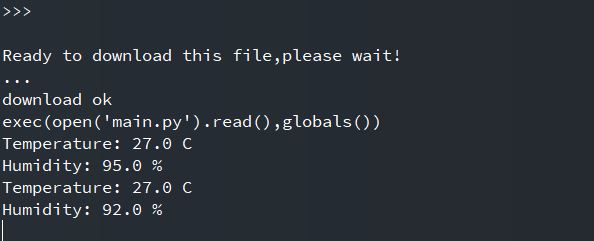
As soon as the code is uploaded, you can see the result in below Console Window or uPyCraft Shell.
Monitor DHT11 Humidity Temperature Data on OLED with MicroPython Code
Now let us add an extra OLED Display to the circuit. We will now display the humidity temperature data on OLED Display instead of uPyCrfat Window Shell.
Here is the connection diagram. The OLED Display is an I2C Module. So connect the SDA & SCL pin of OLED Display to ESP32 D21 & D22 Pin respectively.

In case if you are using MicroPython ESP32 Board, there is no need for connecting an OLED Display as it already has 1.3″ I2C OLED Display connected to it. Its SDA & SCL pin is connected to GPIO5 & GPIO4 respectively.
ESP32 DHT11 OLED Display MicroPython Code
The MicroPython Code for Interfacing OLED Display with ESP32 has two part.
1. SSD1306 Library
2. Main Code
The library to write to the OLED display isn’t part of the standard MicroPython library by default. So, first we need to upload the library to the ESP32 board.

SSD1306.py
First open a New Tab on uPyCraft IDE and paste the below code. Then save the file with the name “SSD1306.py“. Now you can upload the code.
|
1 2 3 4 5 6 7 8 9 10 11 12 13 14 15 16 17 18 19 20 21 22 23 24 25 26 27 28 29 30 31 32 33 34 35 36 37 38 39 40 41 42 43 44 45 46 47 48 49 50 51 52 53 54 55 56 57 58 59 60 61 62 63 64 65 66 67 68 69 70 71 72 73 74 75 76 77 78 79 80 81 82 83 84 85 86 87 88 89 90 91 92 93 94 95 96 97 98 99 100 101 102 103 104 105 106 107 108 109 110 111 112 113 114 115 116 117 118 119 120 121 122 123 124 125 126 127 128 129 130 131 132 133 134 135 136 137 138 139 140 141 142 143 144 145 146 147 148 149 150 151 152 153 154 155 156 157 158 159 160 161 162 163 164 165 166 167 168 169 170 171 172 173 174 175 176 177 178 179 180 181 182 183 184 185 186 187 188 189 190 |
# MicroPython SSD1306 OLED driver, I2C and SPI interfaces from micropython import const import time import framebuf import sys currentBoard="" if(sys.platform=="esp8266"): currentBoard="esp8266" elif(sys.platform=="esp32"): currentBoard="esp32" elif(sys.platform=="pyboard"): currentBoard="pyboard" import pyb # register definitions SET_CONTRAST = const(0x81) SET_ENTIRE_ON = const(0xa4) SET_NORM_INV = const(0xa6) SET_DISP = const(0xae) SET_MEM_ADDR = const(0x20) SET_COL_ADDR = const(0x21) SET_PAGE_ADDR = const(0x22) SET_DISP_START_LINE = const(0x40) SET_SEG_REMAP = const(0xa0) SET_MUX_RATIO = const(0xa8) SET_COM_OUT_DIR = const(0xc0) SET_DISP_OFFSET = const(0xd3) SET_COM_PIN_CFG = const(0xda) SET_DISP_CLK_DIV = const(0xd5) SET_PRECHARGE = const(0xd9) SET_VCOM_DESEL = const(0xdb) SET_CHARGE_PUMP = const(0x8d) class SSD1306: def __init__(self, width, height, external_vcc): self.width = width self.height = height self.external_vcc = external_vcc self.pages = self.height // 8 self.buffer = bytearray(self.pages * self.width) self.framebuf = framebuf.FrameBuffer(self.buffer, self.width, self.height, framebuf.MVLSB) self.poweron() self.init_display() def init_display(self): for cmd in ( SET_DISP | 0x00, # off # address setting SET_MEM_ADDR, 0x00, # horizontal # resolution and layout SET_DISP_START_LINE | 0x00, SET_SEG_REMAP | 0x01, # column addr 127 mapped to SEG0 SET_MUX_RATIO, self.height - 1, SET_COM_OUT_DIR | 0x08, # scan from COM[N] to COM0 SET_DISP_OFFSET, 0x00, SET_COM_PIN_CFG, 0x02 if self.height == 32 else 0x12, # timing and driving scheme SET_DISP_CLK_DIV, 0x80, SET_PRECHARGE, 0x22 if self.external_vcc else 0xf1, SET_VCOM_DESEL, 0x30, # 0.83*Vcc # display SET_CONTRAST, 0xff, # maximum SET_ENTIRE_ON, # output follows RAM contents SET_NORM_INV, # not inverted # charge pump SET_CHARGE_PUMP, 0x10 if self.external_vcc else 0x14, SET_DISP | 0x01): # on self.write_cmd(cmd) self.fill(0) self.show() def poweroff(self): self.write_cmd(SET_DISP | 0x00) def contrast(self, contrast): self.write_cmd(SET_CONTRAST) self.write_cmd(contrast) def invert(self, invert): self.write_cmd(SET_NORM_INV | (invert & 1)) def show(self): x0 = 0 x1 = self.width - 1 if self.width == 64: # displays with width of 64 pixels are shifted by 32 x0 += 32 x1 += 32 self.write_cmd(SET_COL_ADDR) self.write_cmd(x0) self.write_cmd(x1) self.write_cmd(SET_PAGE_ADDR) self.write_cmd(0) self.write_cmd(self.pages - 1) self.write_data(self.buffer) def fill(self, col): self.framebuf.fill(col) def pixel(self, x, y, col): self.framebuf.pixel(x, y, col) def scroll(self, dx, dy): self.framebuf.scroll(dx, dy) def text(self, string, x, y, col=1): self.framebuf.text(string, x, y, col) def hline(self, x, y, w, col): self.framebuf.hline(x, y, w, col) def vline(self, x, y, h, col): self.framebuf.vline(x, y, h, col) def line(self, x1, y1, x2, y2, col): self.framebuf.line(x1, y1, x2, y2, col) def rect(self, x, y, w, h, col): self.framebuf.rect(x, y, w, h, col) def fill_rect(self, x, y, w, h, col): self.framebuf.fill_rect(x, y, w, h, col) def blit(self, fbuf, x, y): self.framebuf.blit(fbuf, x, y) class SSD1306_I2C(SSD1306): def __init__(self, width, height, i2c, addr=0x3c, external_vcc=False): self.i2c = i2c self.addr = addr self.temp = bytearray(2) super().__init__(width, height, external_vcc) def write_cmd(self, cmd): self.temp[0] = 0x80 # Co=1, D/C#=0 self.temp[1] = cmd #IF SYS : global currentBoard if currentBoard=="esp8266" or currentBoard=="esp32": self.i2c.writeto(self.addr, self.temp) elif currentBoard=="pyboard": self.i2c.send(self.temp,self.addr) #ELSE: def write_data(self, buf): self.temp[0] = self.addr << 1 self.temp[1] = 0x40 # Co=0, D/C#=1 global currentBoard if currentBoard=="esp8266" or currentBoard=="esp32": self.i2c.start() self.i2c.write(self.temp) self.i2c.write(buf) self.i2c.stop() elif currentBoard=="pyboard": #self.i2c.send(self.temp,self.addr) #self.i2c.send(buf,self.addr) self.i2c.mem_write(buf,self.addr,0x40) def poweron(self): pass class SSD1306_SPI(SSD1306): def __init__(self, width, height, spi, dc, res, cs, external_vcc=False): self.rate = 10 * 1024 * 1024 dc.init(dc.OUT, value=0) res.init(res.OUT, value=0) cs.init(cs.OUT, value=1) self.spi = spi self.dc = dc self.res = res self.cs = cs super().__init__(width, height, external_vcc) def write_cmd(self, cmd): global currentBoard if currentBoard=="esp8266" or currentBoard=="esp32": self.spi.init(baudrate=self.rate, polarity=0, phase=0) elif currentBoard=="pyboard": self.spi.init(mode = pyb.SPI.MASTER,baudrate=self.rate, polarity=0, phase=0) self.cs.high() self.dc.low() self.cs.low() global currentBoard if currentBoard=="esp8266" or currentBoard=="esp32": self.spi.write(bytearray([cmd])) elif currentBoard=="pyboard": self.spi.send(bytearray([cmd])) self.cs.high() def write_data(self, buf): global currentBoard if currentBoard=="esp8266" or currentBoard=="esp32": self.spi.init(baudrate=self.rate, polarity=0, phase=0) elif currentBoard=="pyboard": self.spi.init(mode = pyb.SPI.MASTER,baudrate=self.rate, polarity=0, phase=0) self.cs.high() self.dc.high() self.cs.low() global currentBoard if currentBoard=="esp8266" or currentBoard=="esp32": self.spi.write(buf) elif currentBoard=="pyboard": self.spi.send(buf) self.cs.high() def poweron(self): self.res.high() time.sleep_ms(1) self.res.low() time.sleep_ms(10) self.res.high() |
main.py
Now after uploading the code for SSD1306, you can open a new tab and paste the following code below. Make sure to define the SCL & SDA Pin in the code according to your ESP32 Board.
You can now upload the code.
|
1 2 3 4 5 6 7 8 9 10 11 12 13 14 15 16 17 18 19 20 21 22 23 24 25 26 27 |
from machine import Pin from machine import Pin,I2C import machine import ssd1306 import dht import time i2c = I2C(scl=Pin(5), sda=Pin(4)) #Init i2c oled=ssd1306.SSD1306_I2C(128,64,i2c,0x3c) p15=Pin(22, Pin.IN) d=dht.DHT11(p15) while True: d.measure() #Measurement of temperature and humidity t=d.temperature() #Read Celsius temperature h=d.humidity() #Read relative humidity print('Temperature=', t, 'C', 'Humidity=', h, '%') time.sleep(1) #Delay of 1 second oled.fill(0) oled.text("Temperature",20,10) oled.text(str(t),40,20) oled.text("*C", 60,20) oled.text("Humidity",30,40) oled.text(str(h),40,55) oled.text("%", 60,55) oled.show() |
Once the code is uploaded, the OLED Display will start displaying the humidity and temperature value on OLED Screen.


1 Comment
Really detailed guide, thank you for the sharing! Keep up the excellent work!