


Overview: FreeRTOS for STM32F103C8
STM32F103C is an ARM Cortex M3 processor that is able to use FreeRTOS. Let’s get started FreeRTOS for STM32F103C8 in Arduino IDE directly. We can use Keil also but in this, we need to download and paste the downloaded files to the Keil path, it is a somewhat lengthy process compares to the Arduino IDE. To know about the FreeRTOS documentation and method definitions you can check FreeRTOS STM32F103C8.
What is FreeRTOS?
FreeRTOS may be a free and open-source real-time OS (RTOS) that runs on many popular microcontrollers, including STM32.
An Operating System may be a piece of software that manages other software and hardware resources during a computing system . A general-purpose OS is generally designed with attention on user experience.
For example, let’s say we’re developing an application on an OS for mobile phone. A user might want to stream a movie, so we can break that streaming experience into two jobs: downloading chunks of video from the web as Job 1 and displaying each chunk to the user as Job 2. These jobs could be a part of an equivalent program, during which case, they could be implemented as concurrently running threads.
If our processor only has 1 core available, our streaming application might be got to jump between job 1 and job 2 rapidly to offer the user the impression that downloading and viewing is occurring at an equivalent time.

It’s important to know how STM32F103C8 in Arduino IDE has bundled FreeRTOS. While FreeRTOS is an underlying software framework that permits for switching tasks, scheduling, etc., we won’t be making calls to FreeRTOS directly. ARM has created the CMSIS-RTOS library, which allows us to form calls to an underlying RTOS, thus improving the portability of code among various ARM processors.
How to download FreeRTOS for STM32F103C8 in Arduino IDE?
So, we will see how to install FreeRtos for the Arduino in steps wise.
Step 1:
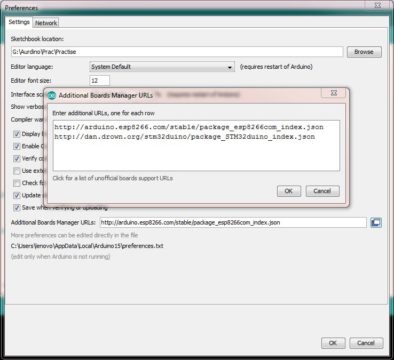
In Arduino IDE Initially go to File -> Preferences. Copy the below link and paste in the additional board manager as per the figure shown below. download link
|
1 |
http://dan.drown.org/stm32duino/package_STM32duino_index.json |
Step 2:
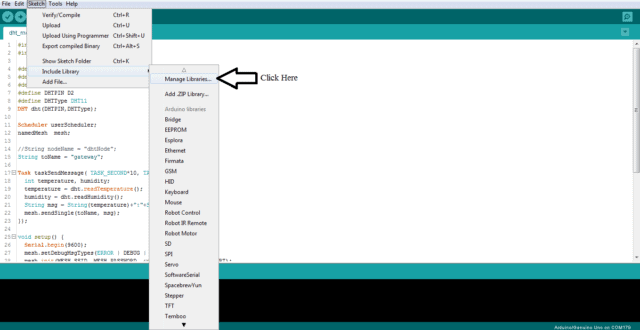
Now we need to download the FreeRTOS library file. For download goto Sketch-> Include Library-> Manage libraries and click on Manage Libraries.
Step 3:
Now, wait for a second, in search bar type FreeRTOS, it will display some library files, scroll down and search for STM32duino FreeRTOS by Richard Barry. Then select that library and click on install. It will take some time to install. After installation shows as installed.

Step 4:
Now our Arduino able to use the freeRTOS library for STM32F103C8. We will write a simple blink program for onboard led and separate led.
Prerequisites
We need following hardware for this tutorial.
- STM32F103C board
- FTDI
- LED
- Jumper Wires
- Breadboard
Here I am using one onboard led which is connected PC13 and the other led is connecting separately which is connected to PB11.

How to run two different tasks on STM32F103C8 using FreeRTOS?
I am using two LEDs, for two LEDs creating two tasks each for one led. In this task, One led blinks for one second of time duration, and the other led blinks for 200ms of time duration. Now, let’s start the coding for two led’s blinking with FreeRTOS.
Create a new sketch in Arduino IDE, Copy and paste the below code in the sketch.
|
1 2 3 4 5 6 7 8 9 10 11 12 13 14 15 16 17 18 19 20 21 22 23 24 25 26 27 28 29 30 31 32 33 34 35 36 |
#include <MapleFreeRTOS821.h> #define BOARD_LED_PIN PC13 #define LED_PIN PB11 static void task1(void *pvParameters) { for (;;) { vTaskDelay(1000); digitalWrite(BOARD_LED_PIN, HIGH); vTaskDelay(1000); digitalWrite(BOARD_LED_PIN, LOW); } } static void task2(void *pvParameters) { for (;;) { vTaskDelay(200); digitalWrite(LED_PIN, HIGH); vTaskDelay(200); digitalWrite(LED_PIN, LOW); } } void setup() { pinMode(BOARD_LED_PIN, OUTPUT); pinMode(LED_PIN, OUTPUT); xTaskCreate(task1,"Task1", configMINIMAL_STACK_SIZE,NULL,tskIDLE_PRIORITY + 2,NULL); xTaskCreate(task2,"Task1", configMINIMAL_STACK_SIZE,NULL,tskIDLE_PRIORITY + 2,NULL); vTaskStartScheduler(); } void loop() { } |
After uploading code, you can see the following result.


