


Overview: ESP32 CAM Face Recognition System
In this project, we will build an ESP32 CAM Based Face & Eyes Recognition System. This tutorial introduces everyone to an efficient video streaming method wirelessly. Here we have used the ESP32-CAM module, which is a small camera module with the ESP32-S chip. Besides the OV2640 camera and several GPIOs to connect peripherals, it also features a microSD card slot that can be useful to store images taken with the camera.
We will go through ESP32 CAM features, pins description, and the method to program this device using FTDI Module. Then we will install the ESP32 CAM Webserver Library & upload the example Code using Arduino IDE. Apart from this, we will also install the required Python Libraries. Later we will go through the python code for Face & Eyes Recognition.
This is an essential tutorial as you will be able to use any sort of Image processing or Machine Learning on the live video without having to write it on Arduino IDE.
Bill of Materials
The following is the list of Bill of Materials for building an ESP32 CAM Based Face & Eyes Recognition System. You can purchase all these components from Amazon.
| S.N. | Components | Quantity | Purchase Links |
|---|---|---|---|
| 1 | ESP32-CAM Board AI-Thinker | 1 | Amazon | AliExpress |
| 2 | FTDI Module | 1 | Amazon | AliExpress |
| 3 | Micro-USB Cable | 1 | Amazon | AliExpress |
| 4 | Jumper Wires | 10 | Amazon | AliExpress |
ESP32 CAM Module
The ESP32 Based Camera Module developed by AI-Thinker. The controller is based on a 32-bit CPU & has a combined Wi-Fi + Bluetooth/BLE Chip. It has a built-in 520 KB SRAM with an external 4M PSRAM. Its GPIO Pins have support like UART, SPI, I2C, PWM, ADC, and DAC.

The module combines with the OV2640 Camera Module which has the highest Camera Resolution up to 1600 × 1200. The camera connects to the ESP32 CAM Board using a 24 pins gold plated connector. The board supports an SD Card of up to 4GB. The SD Card stores capture images.
To learn in detail about the ESP32 Camera Module you can refer to our previous Getting Started Tutorial.
ESP32-CAM FTDI Connection
The board doesn’t have a programmer chip. So In order to program this board, you can use any type of USB-to-TTL Module. There are so many FTDI Module available based on CP2102 or CP2104 Chip or any other chip.
Make a following connection between FTDI Module and ESP32 CAM module.

| ESP32-CAM | FTDI Programmer |
|---|---|
| GND | GND |
| 5V | VCC (5V) |
| U0R | TX |
| U0T | RX |
| GPIO 0 | GND |
Connect the 5V & GND Pin of ESP32 to 5V & GND of FTDI Module. Similarly, connect the Rx to UOT and Tx to UOR Pin. And the most important thing, you need to short the IO0 and GND Pin together. This is to put the device in programming mode. Once programming is done you can remove it.
Project PCB Gerber File & PCB Ordering Online
If you don’t want to assemble the circuit on a breadboard and you want PCB for the project, then here is the PCB for you. The PCB Board for ESP32 CAM Board is designed using EasyEDA online Circuit Schematics & PCB designing tool. The PCB looks something like below.

The Gerber File for the PCB is given below. You can simply download the Gerber File and order the PCB from ALLPCB at 1$ only.
You can use this Gerber file to order high quality PCB for this project. To do that visit the ALLPCB official website by clicking here: https://www.allpcb.com/.

You can now upload the Gerber File by choosing the Quote Now option. From these options, you can choose the Material Type, Dimensions, Quantity, Thickness, Solder Mask Color and other required parameters.

After filling all details, select your country and shipping method. Finally you can place the order.
You can assemble the components on the PCB Board.

Installing ESP32CAM Library
Here we will not use the general ESP webserver example rather another streaming process. Therefore we need to add another ESPCAM library. The esp32cam library provides an object oriented API to use OV2640 camera on ESP32 microcontroller. It is a wrapper of esp32-camera library.

Go to the following Github Link and download the zip library as in the image
Once downloaded add this zip library to Arduino Libray Folder. To do so follow the following steps:
Open Arduino -> Sketch -> Include Library -> Add .ZIP Library… -> Navigate to downloaded zip file -> add
Arduino Source Code/program
The source code/program ESP32 CAM Face Recognition can be found in Library Example. So go to Files -> Examples -> esp32cam -> WifiCam.
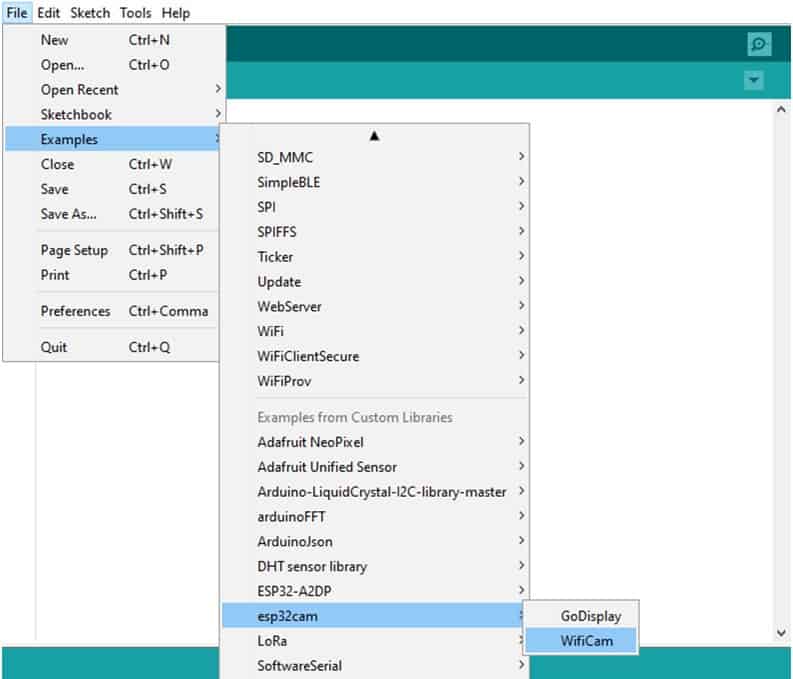
You need to change your WiFi SSID and Password.
|
1 2 |
const char* ssid = "*********"; const char* password = "*********"; |
Now go to tools. Then select the ESP32 Board. And from the list select ESP32Wroover Module.
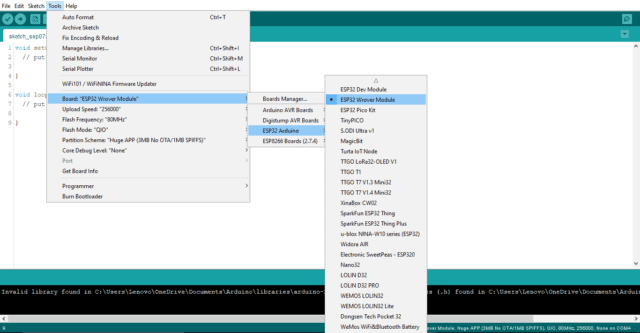
Then connect the FTDI Module to your Computer and select the COM Port.

Now you can upload the code. But while you upload the code the IO0 pin should be shorted with the ground. Once the code is uploaded, remove the shorting Jumper and press the RESET pin.
In the Serial Monitor similar output must be shown.
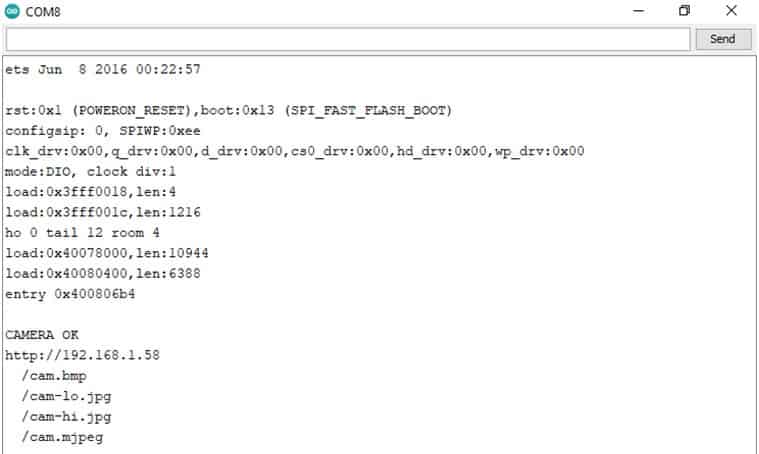
Copy the IP address visible, we will be using it to edit the URL in python code.
Python Installation & Source Code
For the live stream of video to be visible on our computer we need to write a Python script that will enable us to retrieve the frames of the video. The first step is to install Python. Go to python.org and download Python.
Install Python once downloading is completed.
Then Go to the command prompt and install NumPy and OpenCV libraries.
- type: pip install numpy and press enter. After the installation is done.
- type: pip install opencv-python and press enter, close the command prompt.
Now open Idle code editor or any python code editor and paste the following code.
|
1 2 3 4 5 6 7 8 9 10 11 12 13 14 15 16 17 18 19 20 21 22 23 24 25 26 27 28 29 30 31 |
import cv2 import urllib.request import numpy as np f_cas= cv2.CascadeClassifier(cv2.data.haarcascades+'haarcascade_frontalface_default.xml') eye_cascade=cv2.CascadeClassifier(cv2.data.haarcascades +'haarcascade_eye.xml') url='http://192.168.1.58/cam-lo.jpg' ##'''cam.bmp / cam-lo.jpg /cam-hi.jpg / cam.mjpeg ''' cv2.namedWindow("Live Transmission", cv2.WINDOW_AUTOSIZE) while True: img_resp=urllib.request.urlopen(url) imgnp=np.array(bytearray(img_resp.read()),dtype=np.uint8) img=cv2.imdecode(imgnp,-1) gray=cv2.cvtColor(img,cv2.COLOR_BGR2GRAY) face=f_cas.detectMultiScale(gray,scaleFactor=1.1,minNeighbors=5) for x,y,w,h in face: cv2.rectangle(img,(x,y),(x+w,y+h),(0,0,255),3) roi_gray = gray[y:y+h, x:x+w] roi_color = img[y:y+h, x:x+w] eyes = eye_cascade.detectMultiScale(roi_gray) for (ex,ey,ew,eh) in eyes: cv2.rectangle(roi_color,(ex,ey),(ex+ew,ey+eh),(0,255,0),2) cv2.imshow("live transmission",img) key=cv2.waitKey(5) if key==ord('q'): break cv2.destroyAllWindows() |
Change the IP address copied from Arduino serial monitor and update it in the URL variable in the above code. Then save it and RUN.
ESP32 CAM Face Recognition System
After you run the code, a pop-up window with the name “Live Transmission” appears, showing the live video.

red-colored rectangular box covering the whole face and within that if it recognizes eyes. Then green colored boxes appear around the eyes.
For the high resolution of live video transmission, change the URL variable in python code by replacing it with url=’http://192.168.1.58/cam-hi.jpg‘.
Save and run the code again.
Benifits of Face Recognition System
The major benefit of this method is, most of our algorithms that involve any processing on images are very heavy to implement on microcontrollers and require more processing, thus making the whole system slow.
Instead, we can implement the difficult and high processing tasks on our computer such as Image processing or Artificial Neural network, etc.
Video Tutorial & Guide

We also developed a system where we implemented Color Detection System using ESP32 CAM & OpenCV.





7 Comments
Is it possible to enroll faces and save them locally?
I’d like to be able to create a security system and enroll faces accordingly.
Hello Priyanesh,
Nice project, but I had some problems although I followed the instructions exactly.
I also installed the library fron GitHub
-The first problem is the file WifiCam, your WifiCam file is different from the one in my Arduino IDE 1.8.2
-The second problem is I got the following message during compiling.
/home/itsme/Arduino/libraries/esp32cam-main/src/esp32cam.cpp: In member function ‘esp32cam::ResolutionList esp32cam::CameraClass::listResolutions() const’:
/home/itsme/Arduino/libraries/esp32cam-main/src/esp32cam.cpp:30:3: error: ‘camera_sensor_info_t’ was not declared in this scope
camera_sensor_info_t* info = esp_camera_sensor_get_info(&sensor->id);
^
/home/itsme/Arduino/libraries/esp32cam-main/src/esp32cam.cpp:30:25: error: ‘info’ was not declared in this scope
camera_sensor_info_t* info = esp_camera_sensor_get_info(&sensor->id);
^
/home/itsme/Arduino/libraries/esp32cam-main/src/esp32cam.cpp:30:70: error: ‘esp_camera_sensor_get_info’ was not declared in this scope
camera_sensor_info_t* info = esp_camera_sensor_get_info(&sensor->id);
Question;
Do you have a solution for the above error ?
Or some other hints or ideas ?
Thanks in advance, Sparius
Nice project !
While compiling it gives the following error message:
uri/UriBraces.h: No such file or directory
Where can I find this ?
The 5V-Powerconnector of the pcb is faulty. It makes a shortcut
Do you know why when I added my IP to python program it shows the error:
urllib.error.HTTPError: HTTP Error 404: Not Found
I checked the ip in my browser and the camera is working well, but not when I run the Python Module
When I add the IP address to the Python code on the website and run the code, I get the error urllib.error.HTTPError: HTTP Error 404: Not Found. Can anyone help me?
the URL o the image its wrong, enter in the IP of te ESP CAM and select the correct URL as this: http://192.168.0.12/1600×1200.jpg